

A client’s storage bar in the SharePoint admin center hit 91% and new sites created with PowerShell started failing. Another client’s tenant ran out of storage completely: every SharePoint site went read-only, nobody could delete files to free up space, and they had to buy extra storage. Most of the space wasn’t the files people could see. It was version history, recycle bins and sites nobody had opened in two years.
Key takeaways
- Most SharePoint storage goes on version history, recycle bins and inactive sites, not the files people see.
- Sort Active sites by storage used, then measure versions with the version storage report before you trim.
- Versions removed by a trim job are gone for good, and admin center version limits only apply to new libraries.
This is the order I check things in, from the tenant down to one site, and what I change once I know where the space went.
Updated 16 November 2026: the top-sites snippet is now a function, Get-MttSiteStorage. It doesn’t sign in or write the CSV by itself, it returns every site largest first unless you add -Top, and it runs in PowerShell 7 as well as Windows PowerShell 5.1. The version storage report steps now use two functions, Start-MttVersionStorageReport and Get-MttVersionStorageReportStatus, and Measure-MttVersionStorage reads the finished report for you.
On this page
Prerequisites
- SharePoint Administrator role.
- SharePoint Online Management Shell, latest version (the version report and trim cmdlets are recent).
- Site collection admin rights for the Storage Metrics checks.
- SharePoint Advanced Management for the inactive site policy, and a pay-as-you-go billing policy for Microsoft 365 Archive.
Check tenant storage in the SharePoint admin center
Your tenant gets 1 TB plus 10 GB for every licence. That pool is shared by every site. OneDrive has its own per-user quota, so it isn’t in this number. I covered OneDrive quotas in Find OneDrive accounts near their storage quota with PowerShell.
- Open the SharePoint admin center > Sites > Active sites.
- Read the storage bar at the top right. It shows used and total storage for the tenant.
- Sort the list by the Storage used column, largest first.
- Note the top 10 sites and their Last activity date.
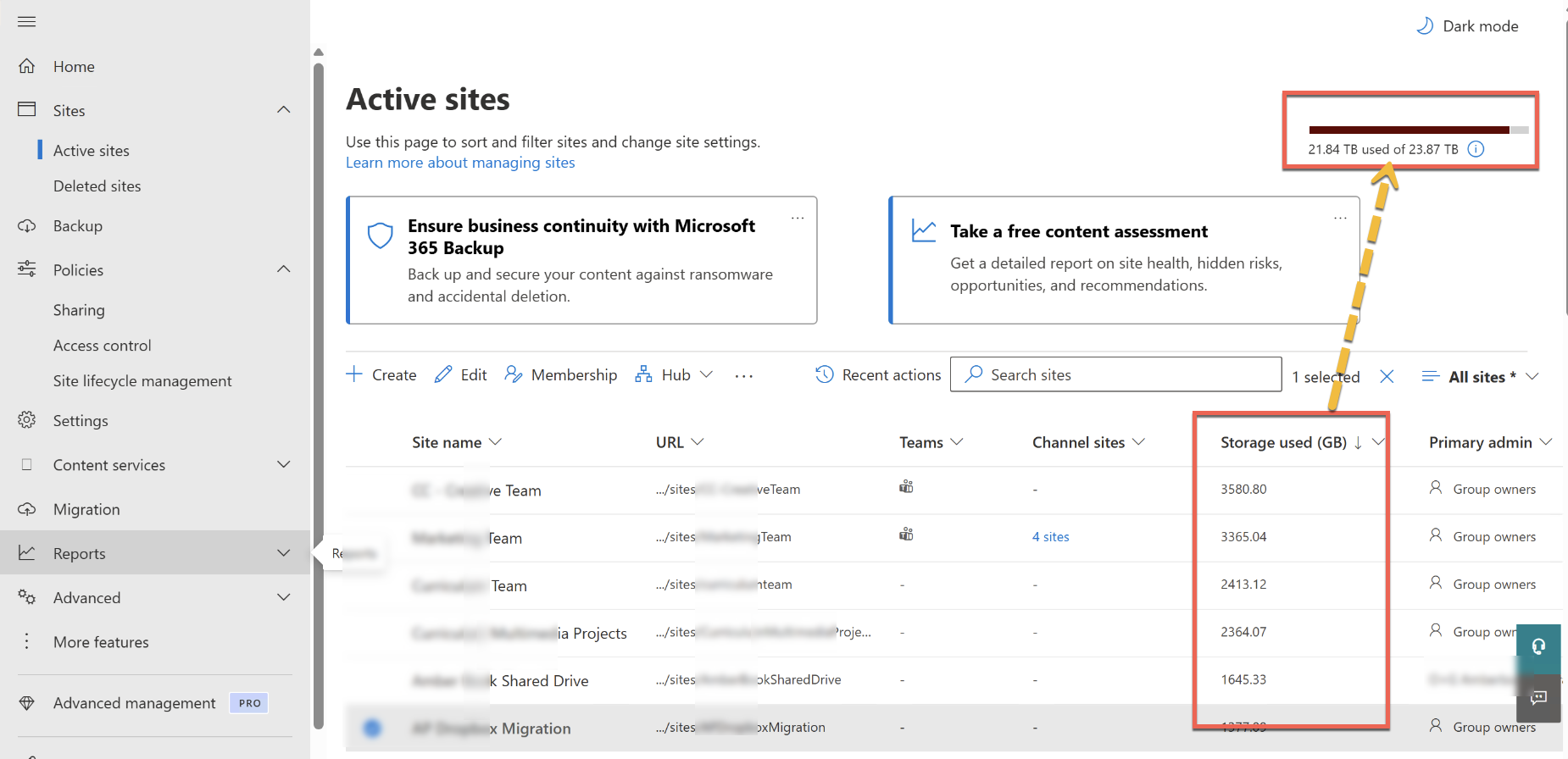
These numbers lag by 24 to 48 hours, so a cleanup won’t show up straight away.
Over quota, classic site creation and site creation through PowerShell are blocked.
To get the same top-sites list in a CSV, my function Get-MttSiteStorage uses the SharePoint Online Management Shell. Download it from my GitHub, sign in, load it and run it:
Import-Module Microsoft.Online.SharePoint.PowerShell -UseWindowsPowerShell   # PowerShell 7 only
Connect-SPOService -Url https://contoso-admin.sharepoint.com
. .\Get-MttSiteStorage.ps1
Get-MttSiteStorage -Top 25 | Export-Csv .\SiteStorage.csv -NoTypeInformation -Encoding UTF8
In Windows PowerShell 5.1, leave the Import-Module line out. Open the CSV and look for big sites with a high DaysSinceLastChange. Those are your archive candidates. To list them straight away:
Get-MttSiteStorage | Where-Object { $_.StorageUsedGB -gt 100 -and $_.DaysSinceLastChange -gt 365 }
Each row also has the quota and the percentage used. Leave out -Top to get every site, or add -SiteUrl to check one site.
Find what is filling one site
Take the biggest site from your list and open it as a site collection admin.
- Go to Settings > Site information > View all site settings.
- Under Site Collection Administration, select Storage Metrics.
- Open the library at the top and keep drilling down. Compare Total Size with the file sizes you see in the library
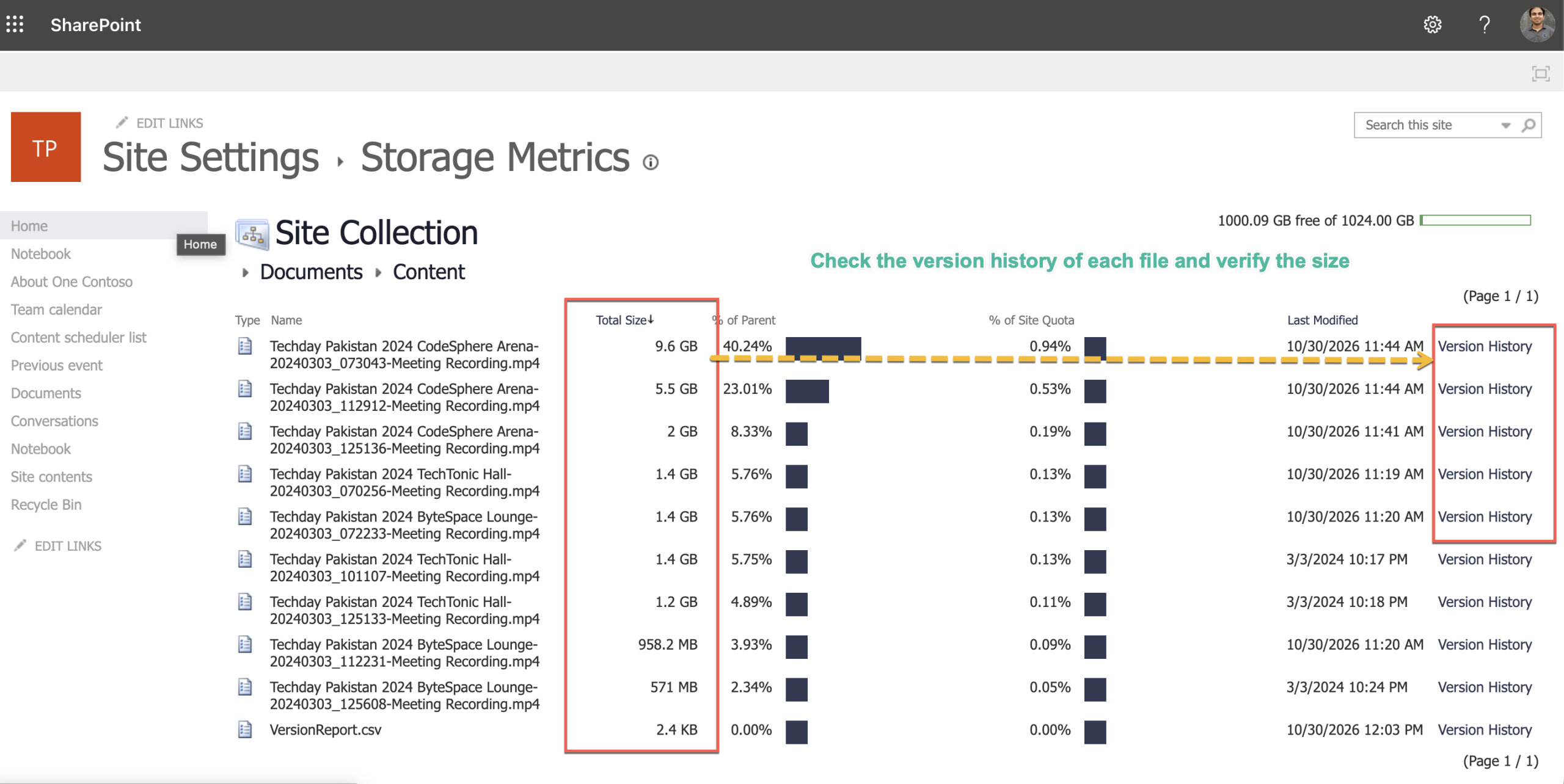
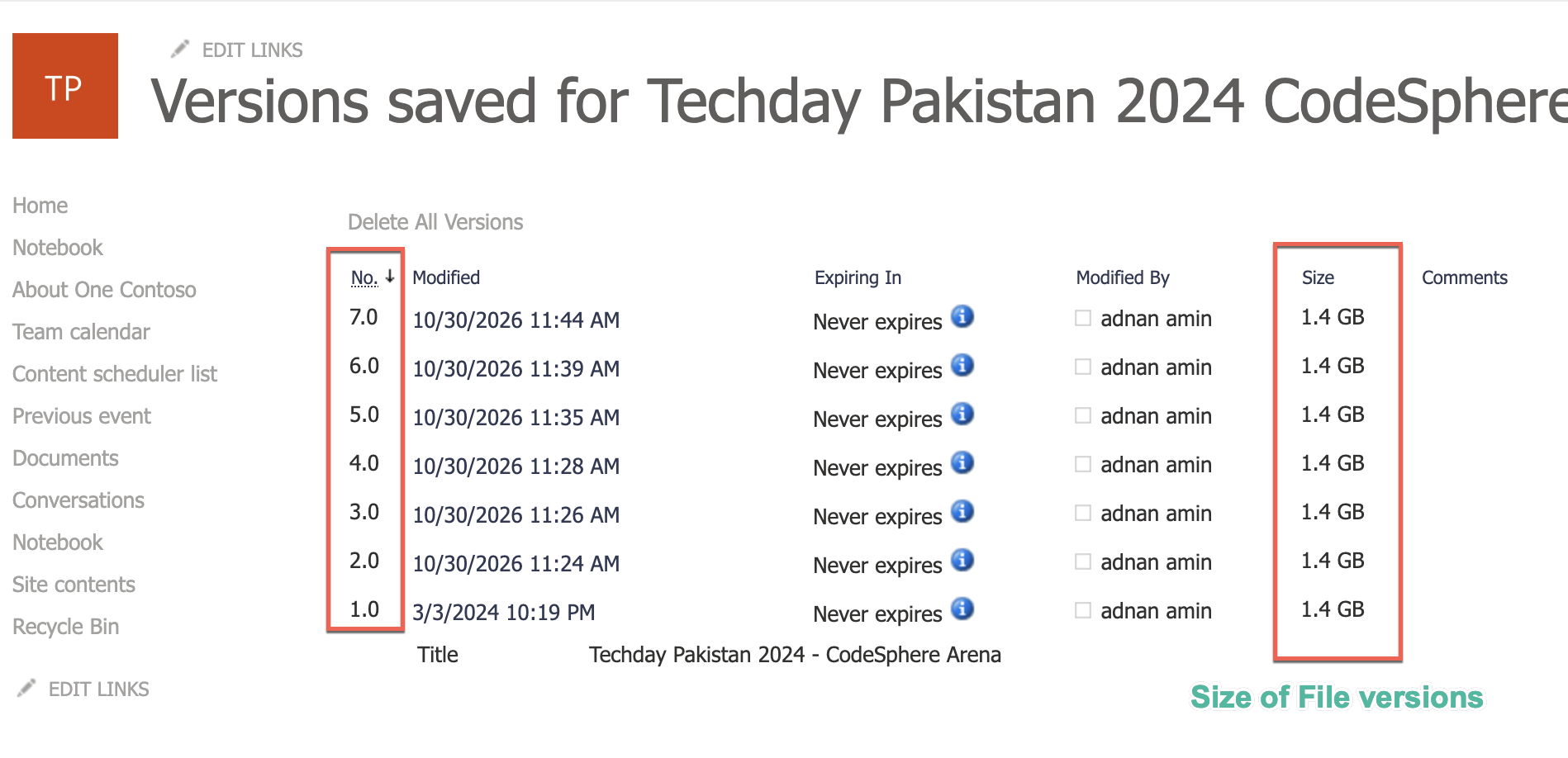
If a library’s total is far bigger than its files, the gap is version history. A 40 MB PowerPoint edited every day by a team can carry a few GB of versions on its own. I have seen a Onenote file sizing over 400 GB. Just check below screenshot showing file size in version history (i generated these versions for this blog):
Then check the places people forget:
- Recycle bin. Both stages count toward your storage. Empty the second stage (Recycle bin > Second-stage recycle bin) once you’re sure nothing needs restoring.
- Preservation Hold Library. If a retention policy covers the site, deleted and edited content is kept here and it counts toward the site. You can’t delete from it yourself. It clears when the retention period ends, so the fix is the retention policy, not the site.
Check and trim version history with PowerShell
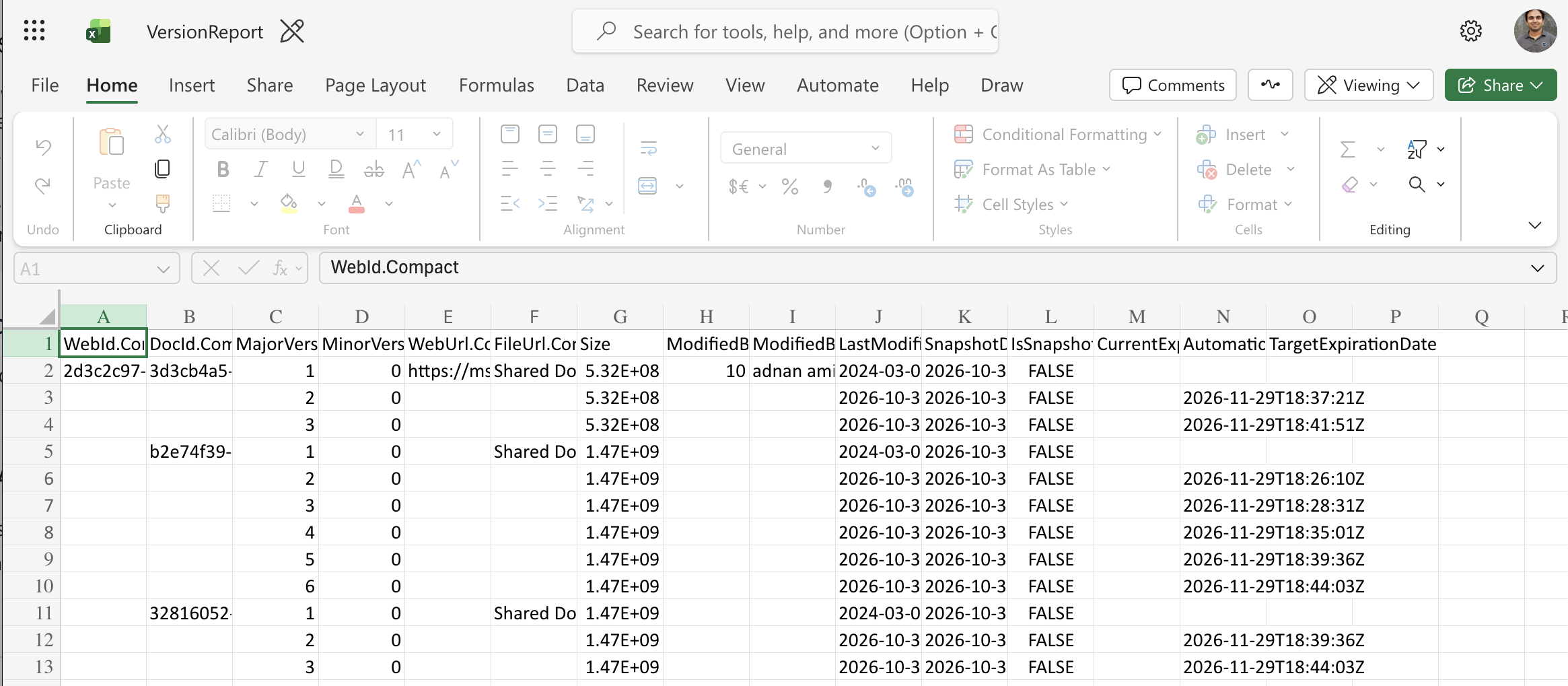
Before you trim anything, measure it. The version storage report writes one CSV row per file version, with its size in bytes. My functions Start-MttVersionStorageReport and Get-MttVersionStorageReportStatus use the SharePoint Online Management Shell. Download them from my GitHub, sign in, load them and run them:
Import-Module Microsoft.Online.SharePoint.PowerShell -UseWindowsPowerShell   # PowerShell 7 only
Connect-SPOService -Url https://contoso-admin.sharepoint.com
. .\Start-MttVersionStorageReport.ps1
. .\Get-MttVersionStorageReportStatus.ps1

$SiteURL   = "https://mstalk.sharepoint.com/sites/Techday2024"
# The report must go in a document library in the same site, and the file must not exist yet
$ReportURL = "https://mstalk.sharepoint.com/sites/Techday2024/Shared Documents/Reports/VersionReport.csv"

$job = Start-MttVersionStorageReport -SiteUrl $SiteURL -ReportUrl $ReportURL

# Run again later, with the same report URL. Wait for status "completed"
$job | Get-MttVersionStorageReportStatus

Microsoft says a small site takes over 24 hours and a large one a few days; my small demo site finished the same evening. Don’t edit the CSV while it fills, or the job fails. Once the status is completed, download the CSV and read it with Measure-MttVersionStorage. It needs no module and no sign-in:
. .\Measure-MttVersionStorage.ps1
Measure-MttVersionStorage -ReportPath C:\Temp\VersionReport.csv -Summary
Measure-MttVersionStorage -ReportPath C:\Temp\VersionReport.csv | Select-Object -First 20

-Summary gives the totals for the site: how much is current files, how much is version history, and how much keeping 100 versions or deleting versions older than a year would free (change those with -KeepVersions and -OlderThanDays). Without it, you get one row per file, biggest version history first, so you can see which files to talk to the owners about.

If you also need each file’s metadata and version count in one sheet, I use my own inventory script for that https://github.com/Adnanamin/mstechtalk-powershell-scripts/tree/main/SharePoint-Site-and-Tenant-Storage/templates.
Once you know the numbers, set the limit and trim. Two things caught me out here. Changing Version history limits in the admin center (Settings > Version history limits) only applies to new libraries. And setting a limit doesn’t remove the versions already there. The trim job does.
My script Invoke-VersionTrim.ps1 does both, in that order. Download it from my GitHub. It changes nothing until you add -Apply. Run it first without that switch, and it writes a plan CSV with the current limits, the new ones and the trim job it would queue. Add the report from above and the plan also estimates what the trim would free:
$SiteURL = "https://mstalk.sharepoint.com/sites/Techday2024"

.\Invoke-VersionTrim.ps1 -AdminUrl https://contoso-admin.sharepoint.com -SiteUrl $SiteURL `
    -Mode MajorVersionLimit -MajorVersionLimit 100 -ReportPath C:\Temp\VersionReport.csv

# Test on one library first, then run it for real. You confirm each step
.\Invoke-VersionTrim.ps1 -AdminUrl https://contoso-admin.sharepoint.com -SiteUrl $SiteURL `
    -Library "Documents" -Mode MajorVersionLimit -Apply -WhatIf
.\Invoke-VersionTrim.ps1 -AdminUrl https://contoso-admin.sharepoint.com -SiteUrl $SiteURL `
    -Library "Documents" -Mode MajorVersionLimit -Apply
-Mode Automatic uses Microsoft’s own logic, MajorVersionLimit keeps a fixed number of versions, and DeleteBeforeDays removes versions older than a set age. Keep the plan CSV, because its Current column is how you set the limits back. -Status shows the trim job’s progress, and -Stop stops it.
Note: versions deleted by a trim job are gone for good. They don’t go to the recycle bin. Run the report first and agree the limit with the site owner. Files under a retention policy keep their versions whatever you set.
Free tenant space with archive and inactive site policies
For the tenant, the bigger win is usually old sites.
- In the SharePoint admin center, go to Policies > Site lifecycle management and create an inactive site policy. Owners of sites with no activity get an email asking them to confirm the site is still needed.
- For sites that are finished but must be kept, select the site in Active sites and choose Archive.
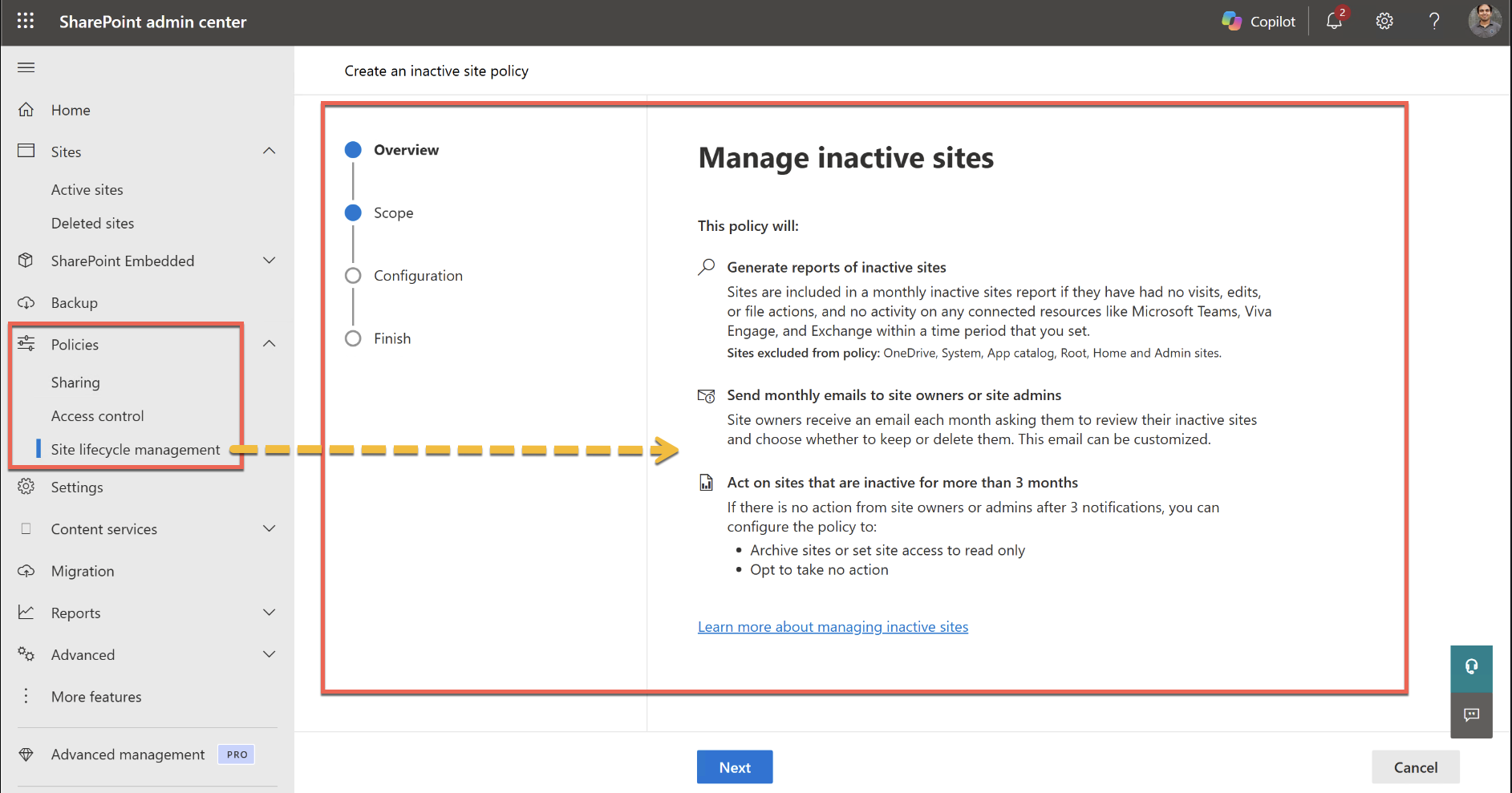
Archived sites stop counting toward your SharePoint quota and move to Microsoft 365 Archive storage. That costs $0.05 per GB per month, and only when archived plus active storage is above your quota. Reactivating a site has been free since 31 March 2025. Content you reactivate can’t be archived again for 120 days, so don’t archive a site the client still opens every quarter.
The other option is to pay for the overage. Microsoft 365 SharePoint Storage pay-as-you-go bills $0.20 per GB per month above the tenant quota, and general availability rolls out from early November 2026 (MC1330893). That’s four times the archive price. I’d only use it after the trim and archive work is done.
Try it yourself
- Install the SharePoint Online Management Shell, and sign in as a SharePoint Administrator.
- Download
Get-MttSiteStorage.ps1from GitHub. - Run
Get-MttSiteStorage -Top 10and compare it with Active sites in the SharePoint admin center, sorted by storage used. - Filter for big sites that haven’t changed in a year, and check each one with its owner before you archive it.


Leave a Reply