

A client asked me which of their OneDrive accounts would start costing money once pay-as-you-go OneDrive storage goes live , they have tenant with about 2,000 users and a handful of engineers storing CAD files. Microsoft announced it in MC1477185 on 22 September 2026, general availability rolls out from early November, and only storage above an account’s licensed quota is billed (at $0.20 per GB per month). So before anyone enables the billing policy, you want a list of who is close to their limit and who is already over it.
Using the Microsoft 365 admin center
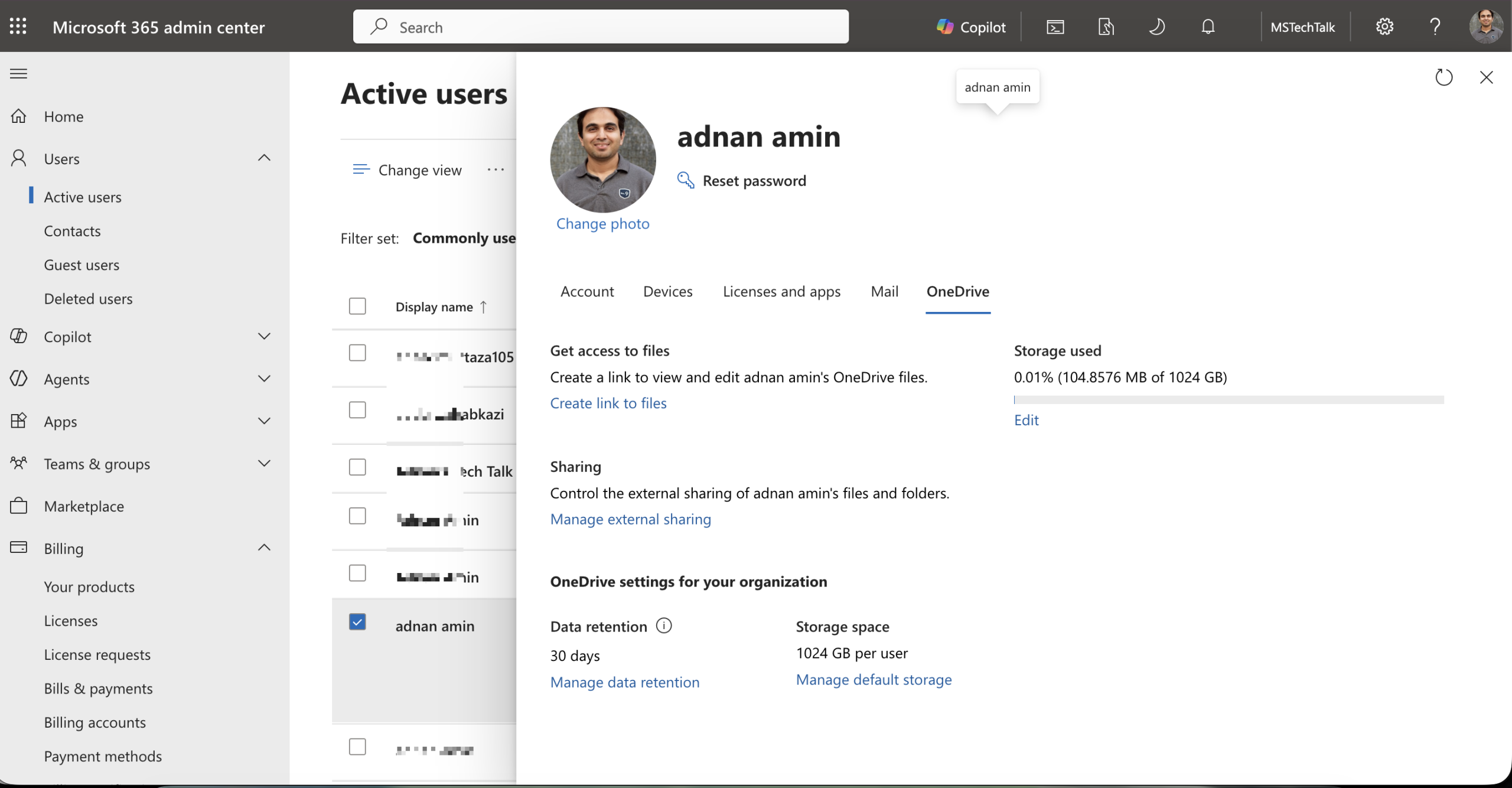
For one user, the admin center is quickest.
- Open the Microsoft 365 admin center > Users > Active users.
- Select the user and open the OneDrive tab.
- Check Storage used. The panel shows usage against the current limit.
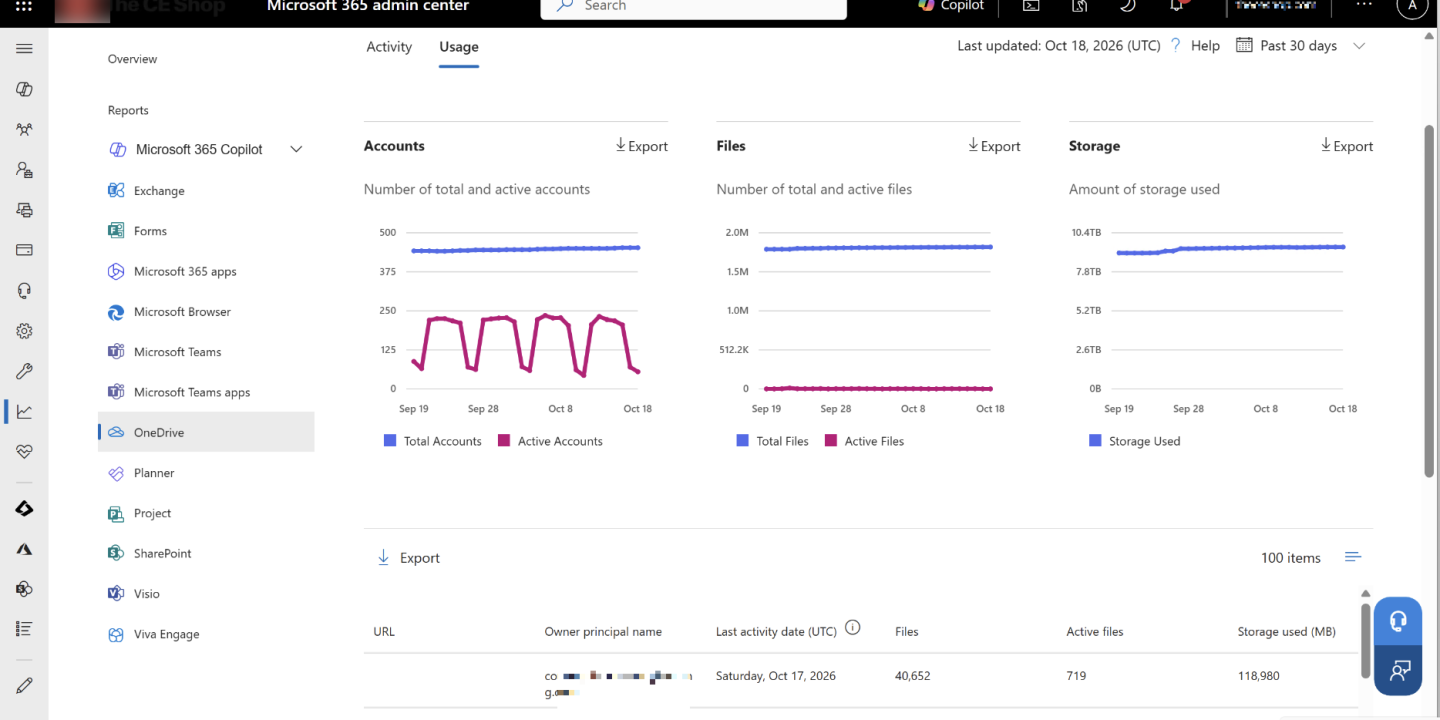
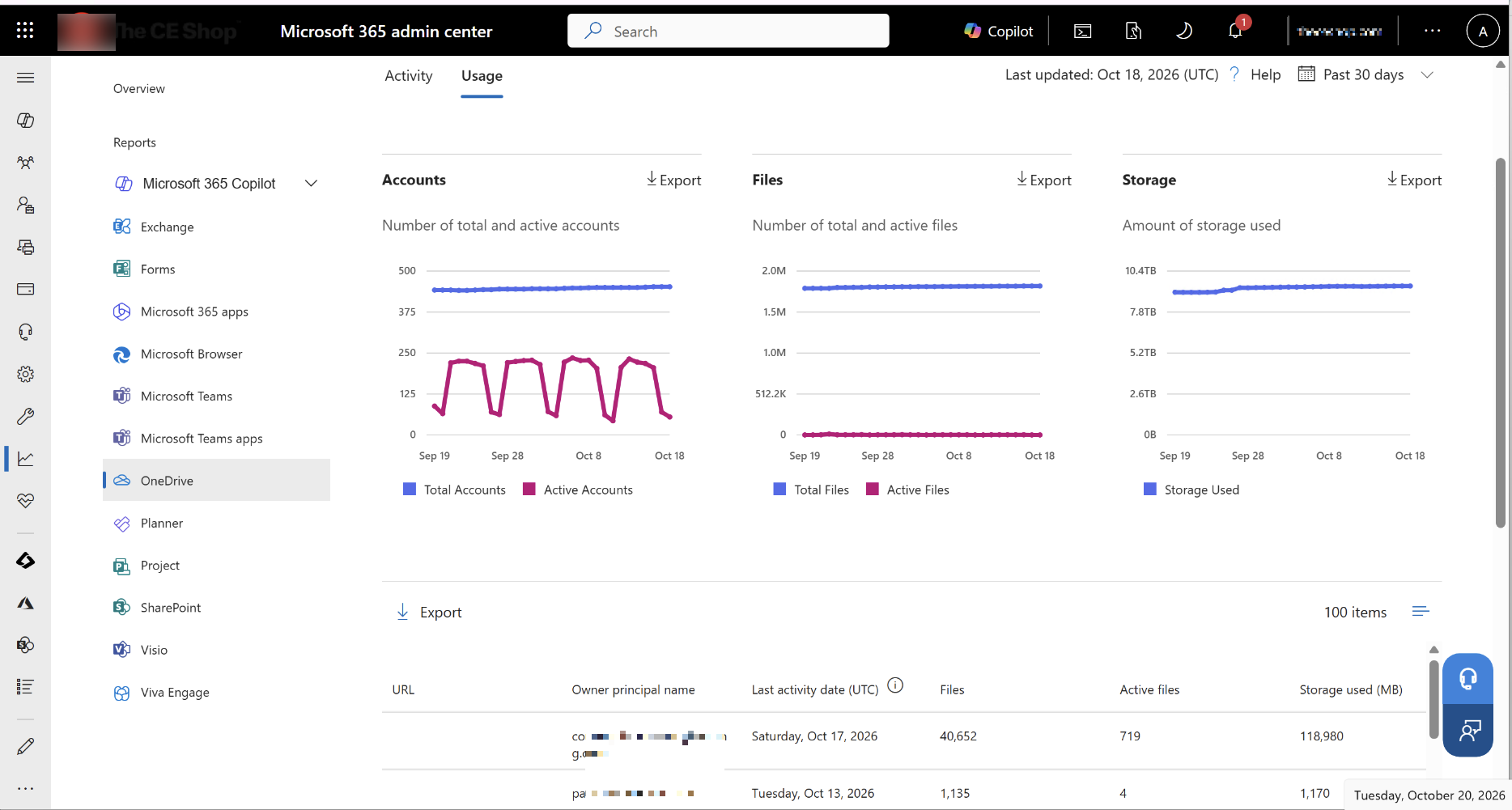
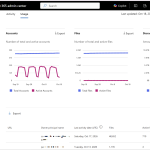
For the whole tenant there is the OneDrive usage report under Reports > Usage. I don’t trust it for this job right now. Microsoft flagged a refresh issue (MO1471241) that may have left usage reports stale since 8 September 2026, and the report doesn’t give you a percentage of quota anyway.
Using PowerShell
This script reads every OneDrive account directly, works out how much of its quota is used, and exports the accounts above a threshold to CSV. It uses the SharePoint Online Management Shell and needs the SharePoint Administrator role.
I use the SPO shell here over PnP.PowerShell because it needs no Entra app registration, and Microsoft’s own quota docs use it.
# Module: SharePoint Online Management Shell (Microsoft.Online.SharePoint.PowerShell)
$AdminURL   = "https://nrqk-admin.sharepoint.com"
$Threshold  = 80          # report accounts at or above this % of quota
$ReportPath = "C:\Temp\OneDriveQuotaReport.csv"

Connect-SPOService -Url $AdminURL

# Tenant default quota, in MB
$DefaultQuotaMB = (Get-SPOTenant).OneDriveStorageQuota
Write-Host "Tenant default OneDrive quota: $([math]::Round($DefaultQuotaMB / 1024)) GB"

$OneDrives = Get-SPOSite -IncludePersonalSite $true -Limit All `
    -Filter "Url -like '-my.sharepoint.com/personal/'"

$Report = foreach ($OD in $OneDrives) {
    if ($OD.StorageQuota -eq 0) { continue }   # skip anything without a quota
    [PSCustomObject]@{
        Owner       = $OD.Owner
        Url         = $OD.Url
        UsedGB      = [math]::Round($OD.StorageUsageCurrent / 1024, 2)
        QuotaGB     = [math]::Round($OD.StorageQuota / 1024, 2)
        PercentUsed = [math]::Round(($OD.StorageUsageCurrent / $OD.StorageQuota) * 100, 1)
        LockState   = $OD.LockState
    }
}

$Report | Where-Object { $_.PercentUsed -ge $Threshold } |
    Sort-Object PercentUsed -Descending |
    Export-Csv -Path $ReportPath -NoTypeInformation
Run it from the SharePoint Online Management Shell 16.0.27424.0. It writes one row per account at or above 80 percent, highest first.
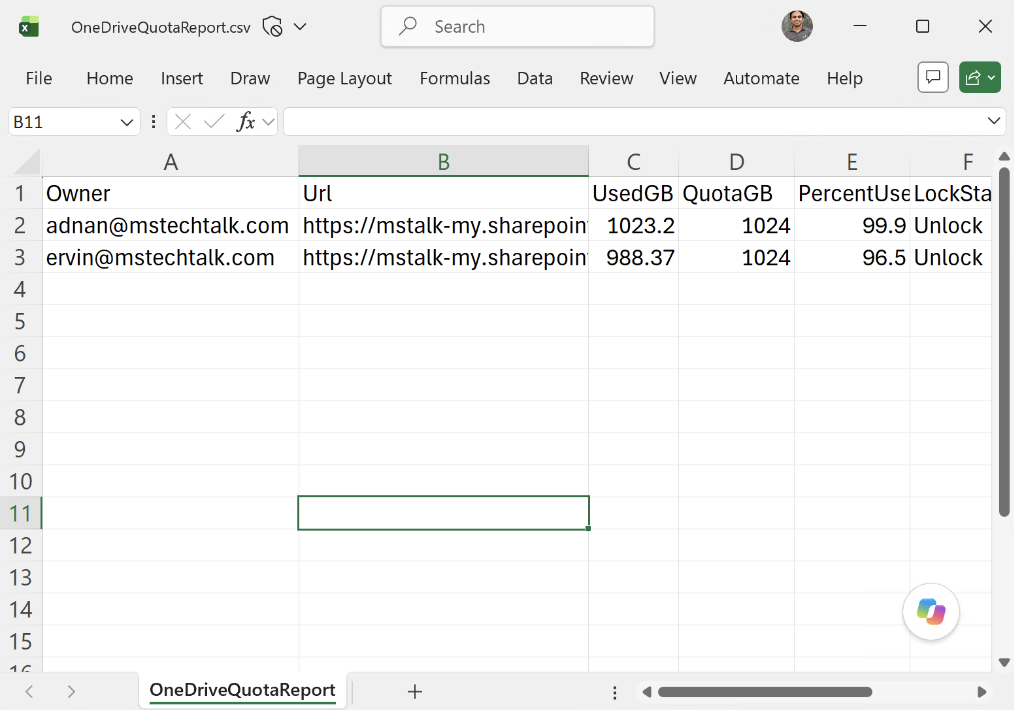
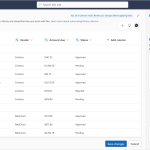
Both StorageUsageCurrent and StorageQuota come back in MB, which is why the script divides by 1024. “On a tenant with 1200 OneDrive accounts it took less than 1 minutes as there were only two accounts exceeding 80% usage limit as shown in above screenshot.
Note: StorageQuota is the limit set on the account, not the licensed entitlement. If someone has already raised a user to 3 TB, the report shows 3 TB. Compare those rows with the tenant default printed at the top, because PAYG bills anything above the licensed amount.
Raising the limit for selected accounts
Once you know who needs more room, the setup has two parts.
- Create a pay-as-you-go billing policy in Microsoft 365 admin center > Billing, and select Microsoft 365 OneDrive Storage as the service. You need an Azure subscription and resource group with Owner or Contributor rights.
- Raise the limit for each account that needs it, either on the user’s OneDrive tab > Storage used > Edit > Maximum storage for this user, or with
Set-SPOSite.
The PowerShell version, same module, quota in MB (3 TB = 3,145,728 MB):
# Module: SharePoint Online Management Shell
Set-SPOSite -Identity "https://nrqk-my.sharepoint.com/personal/adele_nrqk_com" `
    -StorageQuota 3145728 -StorageQuotaWarningLevel 2936012
The maximum is 25,600 GB per account. Run the report again afterwards and the new quota shows in QuotaGB.
Note: if you later disconnect the billing policy, quota enforcement comes back for every account still above its licensed limit. Keep the CSV so you know who to warn first.

Adnan, a distinguished professional, boasts an impressive track record as a Microsoft MVP, having achieved this prestigious recognition for the eighth consecutive year since 2015. With an extensive career spanning over 18 years, Adnan has honed his expertise in various domains, notably excelling in SharePoint, Microsoft 365, Microsoft Teams, the .Net Platform, and Microsoft BI. Presently, he holds the esteemed position of Senior Microsoft Consultant at Olive + Goose.Notably, Adnan served as the MCT Regional Lead for the Pakistan Chapter from 2012 to 2017, showcasing his leadership and commitment to fostering growth within the tech community. His journey in the realm of SharePoint spans 14 years, during which he has undertaken diverse projects involving both intranet and internet solutions for both private and government sectors. His impact has transcended geographical boundaries, leaving a mark on projects in the United States and the Gulf region, often collaborating with Fortune 500 companies.Beyond his roles, Adnan is a dedicated educator, sharing his insights and knowledge as a trainer. He also passionately advocates for technology, frequently engaging with the community through speaking engagements in various forums. His multifaceted contributions exemplify his dedication to the tech field and his role in driving its evolution.





No Comments