

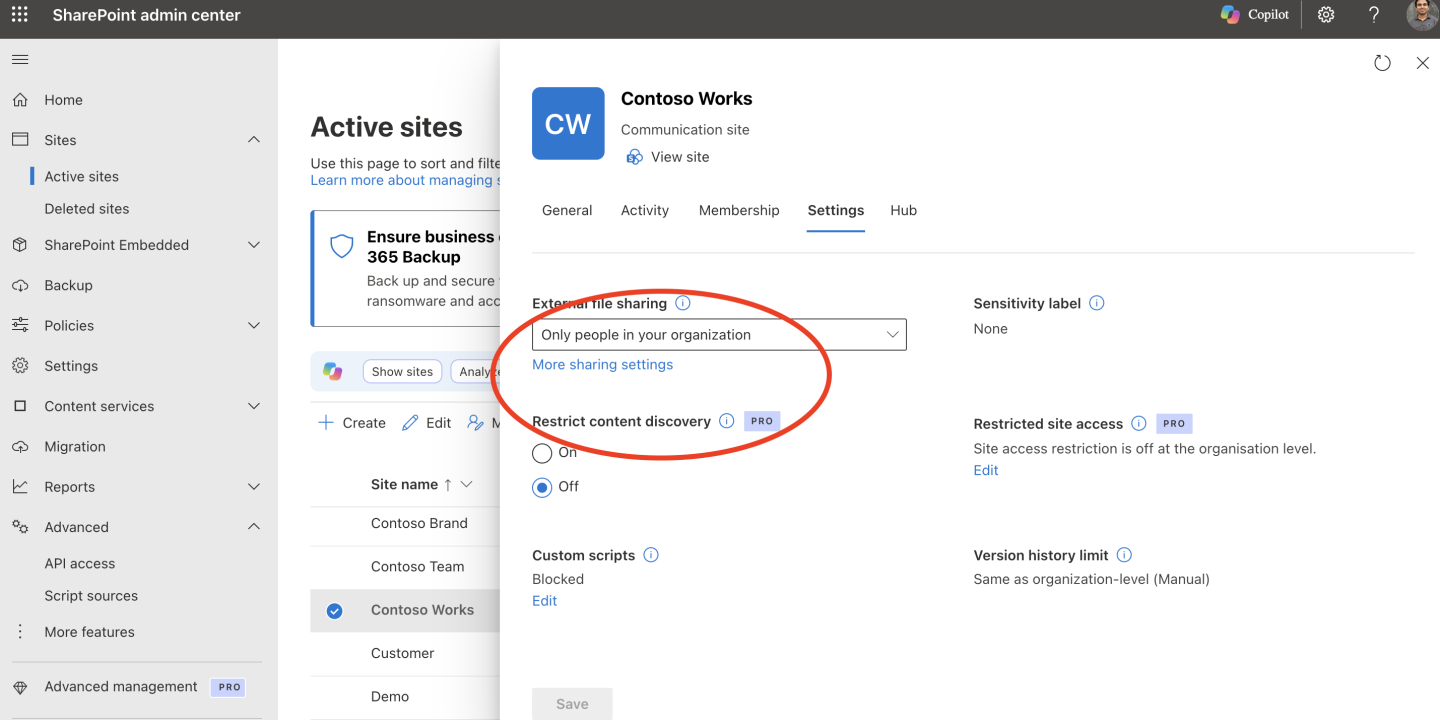
Last Wednesday morning a site owner at a client sent me a screenshot of the Copilot button on their Legal site, a site we had opted out with KnowledgeAgentScope back in June. Nothing was broken: the preview opt-outs were honoured until 1 November 2026, and that date passed on Sunday. I covered the preparation in How to keep Copilot in SharePoint off a site after the PowerShell opt-out ends, so this post is the after picture.
What users see now
The Set-SPOTenant values are no longer what decides who gets Copilot on a site. Learn now says: “After November 1, 2026, manage availability using Site AI settings and Restricted Content Discovery.” Everyday Copilot in SharePoint comes with the Microsoft 365 Copilot licence, with “no opt-in step”.
So what changed depends on the value your tenant had:
| Your preview setting | What licensed users see now |
|---|---|
NoSites | The Copilot button on every site, unless the site has Restricted Content Discovery on |
IncludeSelectedSites | The button on every site, not only your pilot list |
ExcludeSelectedSites | The button back on the sites you excluded, unless you moved them to Restricted Content Discovery |
AllSites | No change |
Microsoft doesn’t spell this out per value, so the table is my reading of Learn and MC1479277.
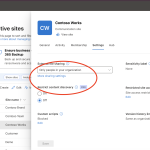
Users without a Copilot licence still don’t get the button. Visitors don’t get it on sites where the owner turned on hiding in Settings > Site AI, but owners and members still do.
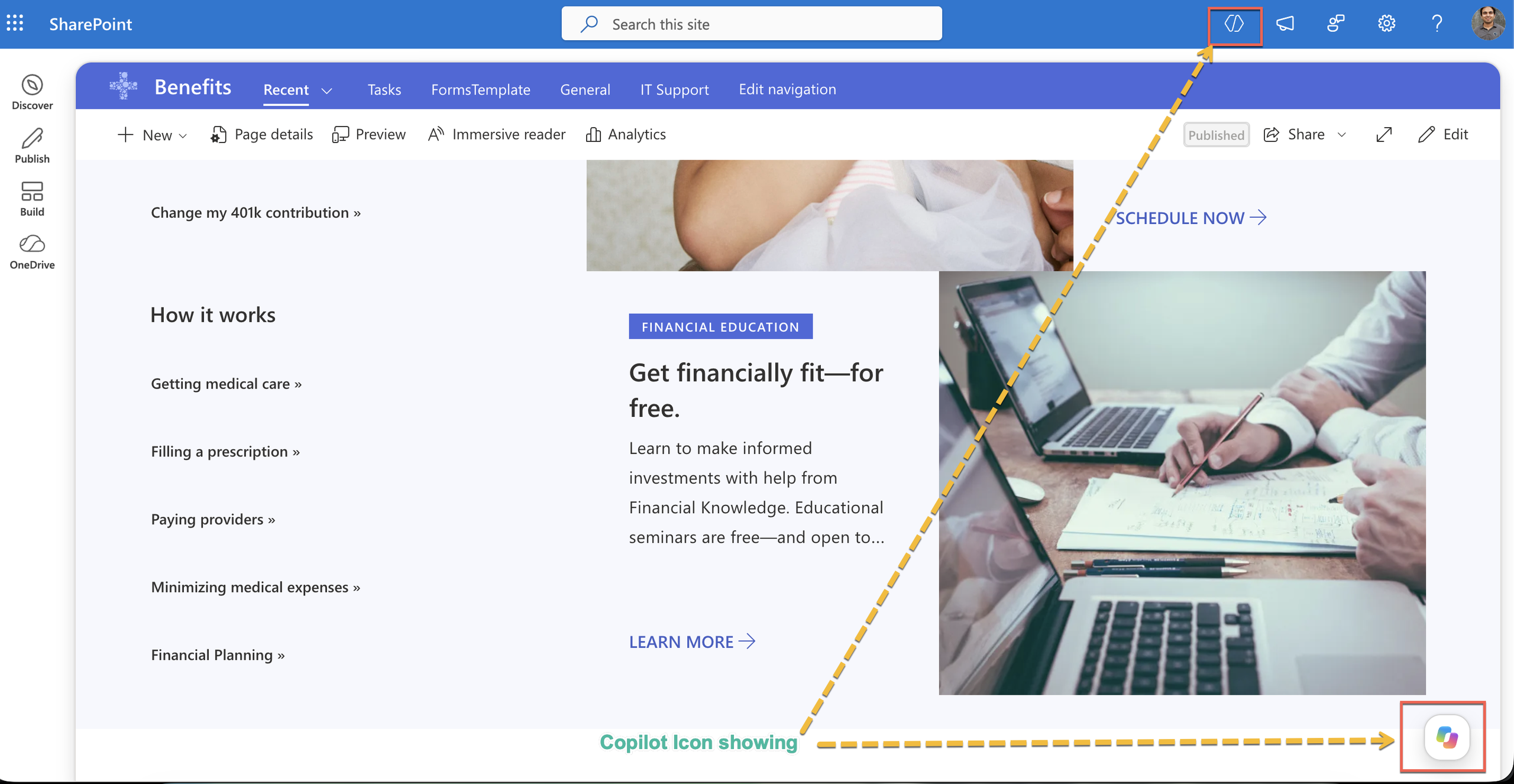
Checking it on a site
I test this with two licensed accounts: one member of the site and one visitor.
- Sign in as the member and open the site. The Copilot button shows at the bottom right. (Check the screenshot shared earlier.)
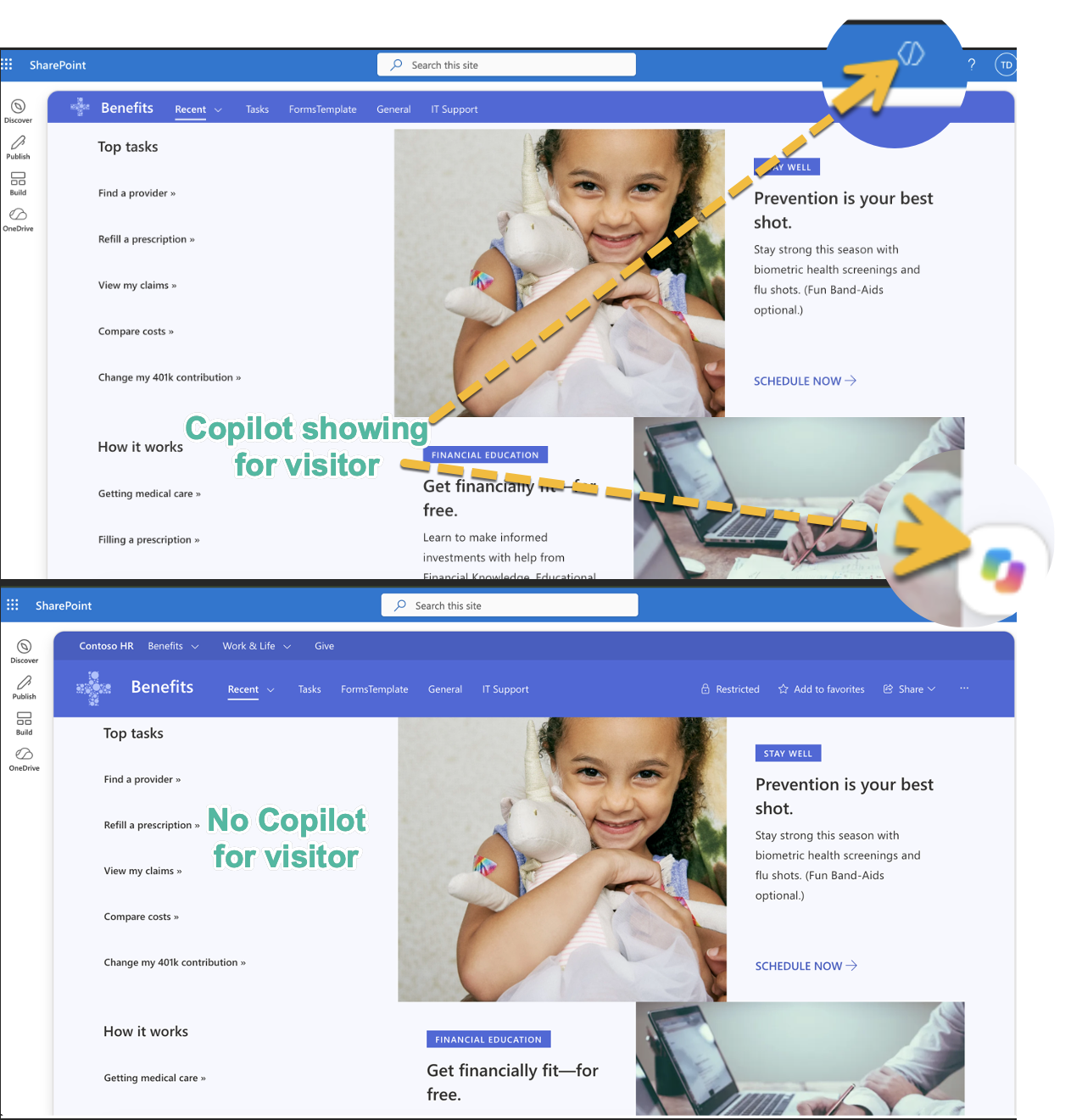
- Sign in as the visitor in a private window. If the owner hid Copilot for visitors, the button is gone. Below screen shots showing the visitor with copilot license can view Copilot button and after site hide it for visitors, it no longer showing up
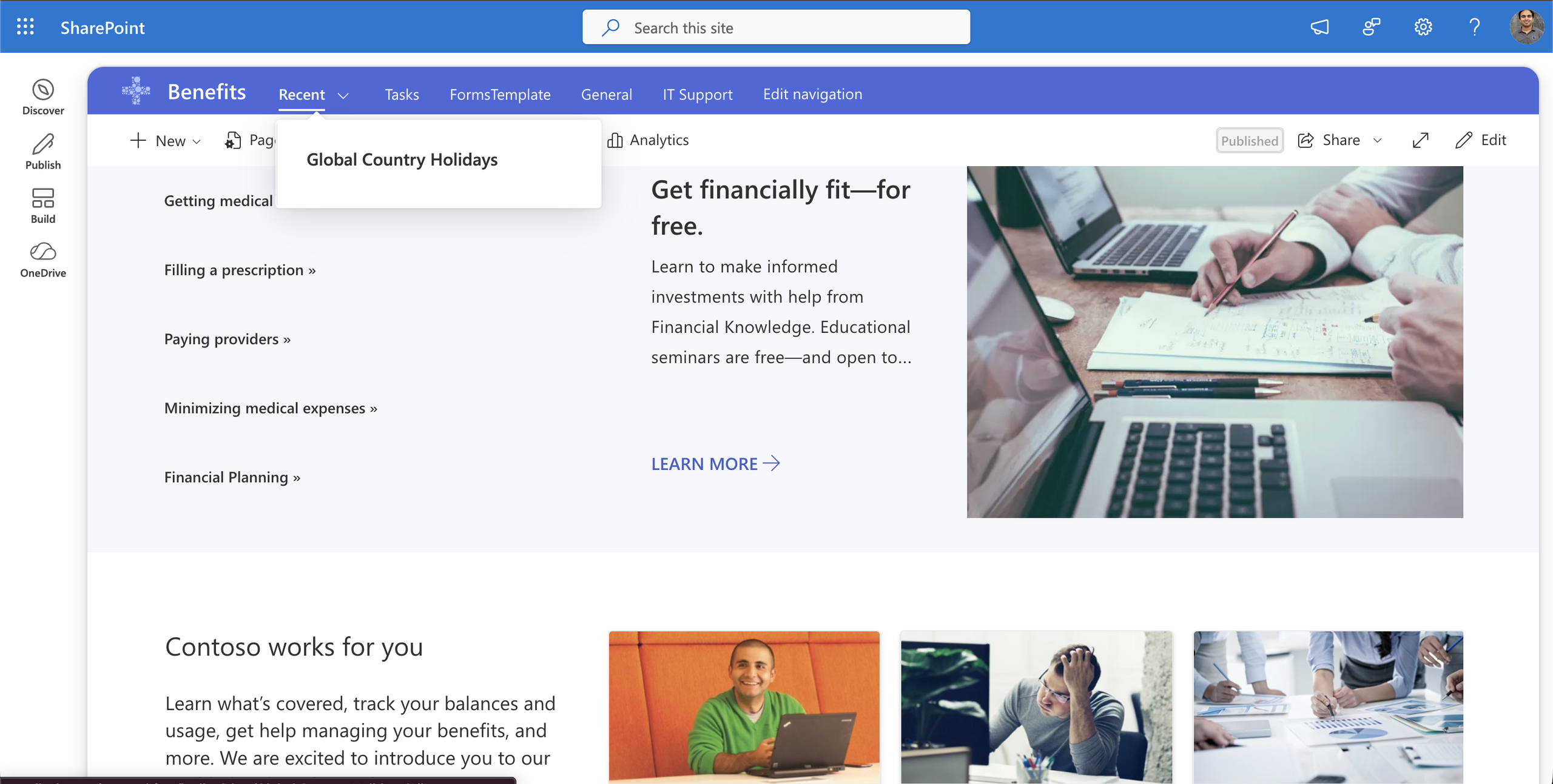
- Open a site with Restricted Content Discovery on. No button for either account.Below is the screenshot of site admin with Copilot License and now it is not showing the Copilot buttons.
Get-SPOTenant may still show your old KnowledgeAgentScope value. Don’t read that as the setting still working.
What Restricted Content Discovery doesn’t block
In my last post I covered what RCD takes away from a site. Now it’s the only switch left, so the gaps matter more.
What it doesn’t do:
- It doesn’t change permissions. Anyone who could open a file still can.
- It doesn’t stop search inside the site.
- It doesn’t stop Copilot working on a document the user already has open. Learn’s example is summarising an open document.
- It doesn’t cover OneDrive.
That third point catches people. A user can still open a contract from the Legal site in Word and ask Copilot to summarise it. If that’s the worry, the fix is permissions or sensitivity labels, not RCD.
If you were on NoSites, the only tenant-level lever left is who holds a Copilot licence.
Finding sites that lost their opt-out
This lists which sites have Restricted Content Discovery on, so you can compare it with the opt-out list you saved before 1 November. It uses the SharePoint Online Management Shell.
$AdminURL = "https://contoso-admin.sharepoint.com"
Connect-SPOService -Url $AdminURL

Get-SPOSite -Limit All | ForEach-Object {
    Get-SPOSite -Identity $_.Url | Select-Object Url, RestrictContentOrgWideSearch
} | Where-Object { $_.RestrictContentOrgWideSearch } |
    Export-Csv "C:\Temp\rcd-sites.csv" -NoTypeInformation
Any site on your old opt-out list that isn’t in this file now shows Copilot to licensed users. The loop is slow on a big tenant. The Start-SPORestrictedContentDiscoverabilityReport cmdlet is the faster option.

Adnan, a distinguished professional, boasts an impressive track record as a Microsoft MVP, having achieved this prestigious recognition for the eighth consecutive year since 2015. With an extensive career spanning over 18 years, Adnan has honed his expertise in various domains, notably excelling in SharePoint, Microsoft 365, Microsoft Teams, the .Net Platform, and Microsoft BI. Presently, he holds the esteemed position of Senior Microsoft Consultant at Olive + Goose.Notably, Adnan served as the MCT Regional Lead for the Pakistan Chapter from 2012 to 2017, showcasing his leadership and commitment to fostering growth within the tech community. His journey in the realm of SharePoint spans 14 years, during which he has undertaken diverse projects involving both intranet and internet solutions for both private and government sectors. His impact has transcended geographical boundaries, leaving a mark on projects in the United States and the Gulf region, often collaborating with Fortune 500 companies.Beyond his roles, Adnan is a dedicated educator, sharing his insights and knowledge as a trainer. He also passionately advocates for technology, frequently engaging with the community through speaking engagements in various forums. His multifaceted contributions exemplify his dedication to the tech field and his role in driving its evolution.

No Comments