


The Service Desk Tickets list on my demo tenant has 6,200 items. A SharePoint list can hold far more than that, but a query that has to scan more than 5,000 items at once is blocked. That’s the list view threshold, and you can’t raise it in SharePoint Online. You work around it with indexed columns and filtered views, and with paging in scripts.
Where you actually hit it
This surprised me. In the browser, the list opened fine. I filtered on Priority, a column that isn’t indexed, and the current list experience showed the P1 tickets with no error, as shown in the screenshot below.
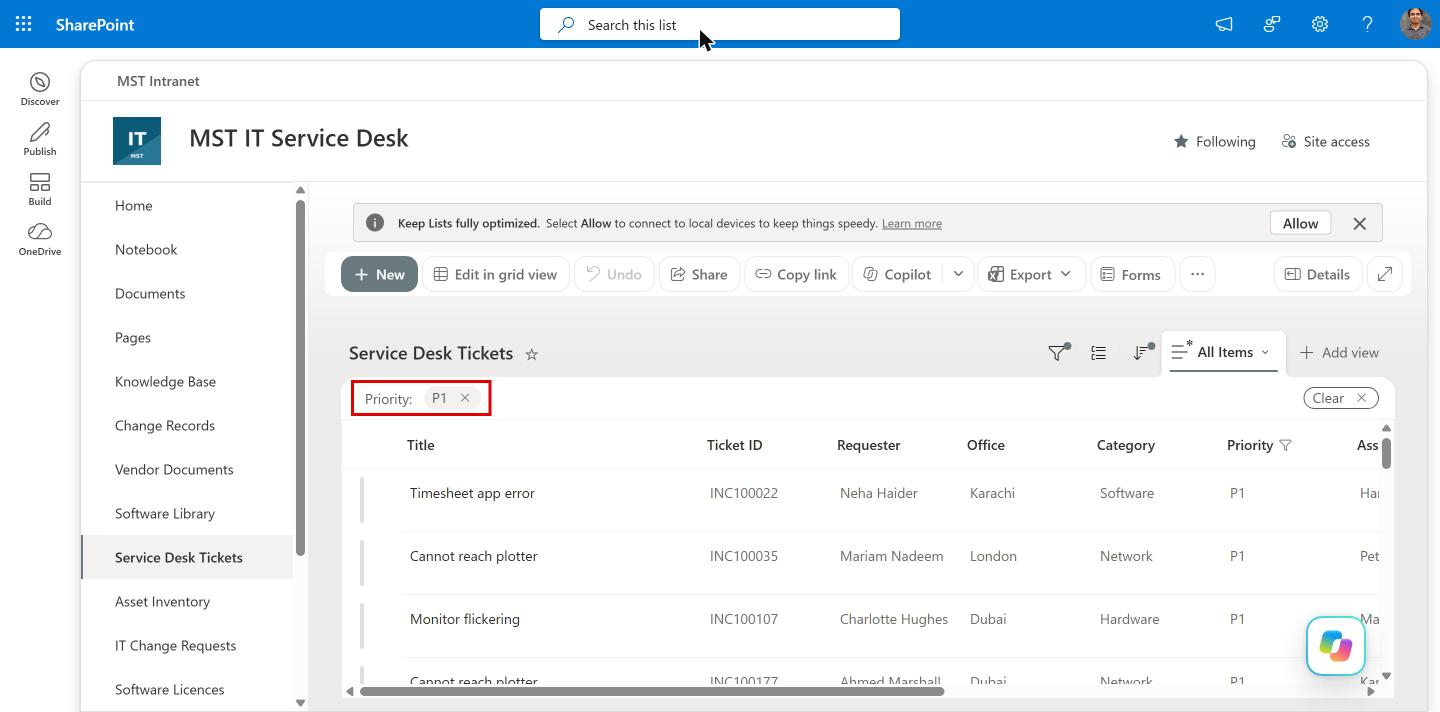
The same filter through the REST API failed straight away. I asked for P1 tickets with $filter=Priority eq 'P1' and got HTTP 500 with this message:
The attempted operation is prohibited because it exceeds the list view threshold.
The same filter on the indexed Status column worked for every value. So today the threshold mostly hits scripts, flows and apps that query the list, not people browsing it. Microsoft still documents two browser messages, and these are what people search for:
- The number of items in this list exceeds the list view threshold, which is 5000 items.
- Cannot show the value of the filter. The field may not be filterable, or the number of items returned exceeds the list view threshold enforced by the administrator.
Using indexed columns
An index lets SharePoint filter on a column without scanning the whole list.
- Open the list and select Settings > List settings.
- Under Columns, select Indexed columns.
- Select Create a new index, pick the column and select Create.
On Service Desk Tickets the page says You have created 3 of maximum 20 indices on this list: Modified (created automatically), Opened and Status. Note that Status is the display name. In code the column is TicketStatus.
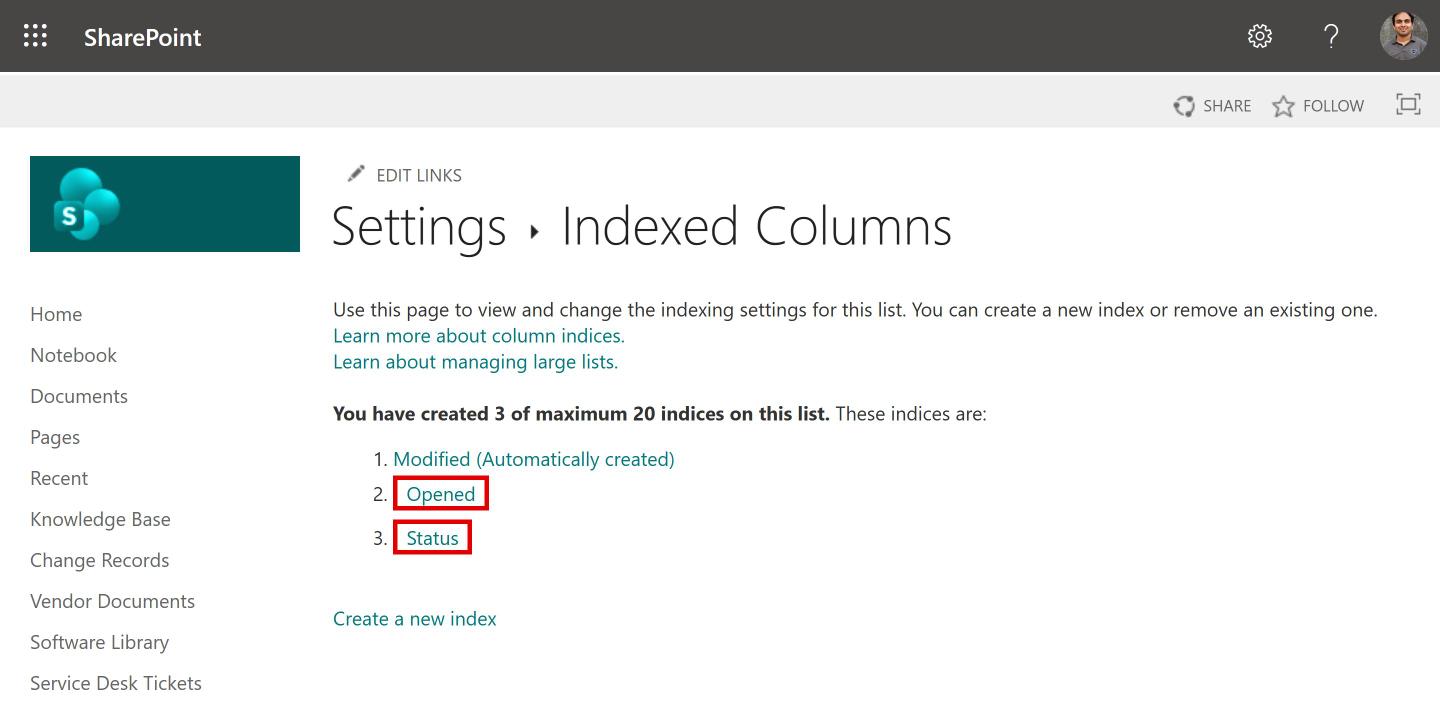
The detail that catches people: Learn says the limit for adding or removing an index is 20,000 items. At 6,200 you can still add one. Past 20,000 you’re stuck with the indexes you already have, so index the columns you filter on before the list grows.
The same with PnP PowerShell, here adding an index on Priority:
# Module: PnP.PowerShell 3.x (PowerShell 7.4+)
$SiteURL  = "https://mstalk.sharepoint.com/sites/MST-ITServiceDesk"  # Replace with your own
$ClientId = "<your-entra-app-client-id>"                              # Replace with your own

Connect-PnPOnline -Url $SiteURL -ClientId $ClientId -Interactive
Set-PnPField -List "Service Desk Tickets" -Identity "Priority" -Values @{ Indexed = $true }
Building a view that stays under 5,000
The first filter in the view should use an indexed column and return fewer than 5,000 items. A view of tickets Opened in the last 30 days is a good example.
- Open the list, then select the view menu > Create new view.
- Name it Opened last 30 days and create it.
- Edit the view and set the filter: Opened is greater than or equal to
[Today]-30. - Save and reload the list.
An index only helps when the result is small. When I counted on 15 November, the list had 4,637 Closed, 1,528 Resolved, 15 Waiting for user, 14 In progress and 6 New tickets. A Closed view works today, but it fails once Closed passes 5,000, and on a service desk that won’t take long. Filter by date too.
Reading all items in a script
Get-PnPListItem with -PageSize reads in batches, so you get all 6,200 items. My function Get-MttListItem does that for you, in pages of 500. Download it from my GitHub, sign in, load it and run it:
$SiteUrl  = "https://contoso.sharepoint.com/sites/ServiceDesk"
$ClientId = "<your Entra app client ID>"

Connect-PnPOnline -Url $SiteUrl -Interactive -ClientId $ClientId
. .\Get-MttListItem.ps1
Get-MttListItem -SiteUrl $SiteUrl -Library "Service Desk Tickets" -Field Title, TicketStatus, Opened | Export-Csv .\Tickets.csv -NoTypeInformation -Encoding UTF8
To read only part of the list, filter on the indexed column. The function builds the CAML query, with an Eq on that column, and keeps paging:
Get-MttListItem -SiteUrl $SiteUrl -Library "Service Desk Tickets" -Field Title, TicketStatus, Opened -FilterField TicketStatus -FilterValue "In progress"
It returns one row per item, with SiteUrl, List, Id and one property for each column in -Field. If you filter on a column that isn’t indexed on a list over 5,000 items, it warns you before it runs. Get-Help Get-MttListItem -Full shows its full help.
On the 6,200-item list, with PnP.PowerShell 3.5.0, counted per status:
Get-MttListItem -SiteUrl $SiteUrl -Library "Service Desk Tickets" -Field TicketStatus | Group-Object TicketStatus | Select-Object Name, Count
Name             Count
----             -----
Closed            4637
Resolved          1528
Waiting for user    15
In progress         14
New                  6
6 seconds for the whole list, in pages of 500, with no threshold error. The filter on the indexed TicketStatus column returned the 14 tickets in progress in about a second. The same filter on Title, which isn’t indexed, got the warning first and then the threshold error, and the function skipped the list instead of stopping.
The function, its README and a sample CSV from this run are on my GitHub: SharePoint-Large-Lists.
Power Automate and Power BI hit the same limit through the SharePoint connector. That’s a post of its own.
Try it yourself
- Install PnP.PowerShell 3.x on PowerShell 7.4 or later, and register your own Entra app for
Connect-PnPOnline. - Download
Get-MttListItem.ps1from GitHub. - Pick a big list you can read, and run the function with only
-Libraryand-Fieldto read every item in pages. - Index the column you filter on most, then add
-FilterFieldand-FilterValue. Check that the count matches the same view in the browser. - Try the same filter on a column that isn’t indexed, so you know what the warning looks like before you meet it in a real script.

Adnan Amin is a Microsoft MVP for Microsoft 365 (since 2015) and a Senior Microsoft Consultant. He writes practical guides and PowerShell scripts for SharePoint, OneDrive, Teams and Copilot admins.








No Comments