

At Microsoft Ignite 2026 on Tuesday, Microsoft announced that automated file-level archive in SharePoint is generally available, set up by asking the SharePoint Admin Agent, for example to archive files nobody has opened in 12 months (SharePoint content governance announcement). The same post lists the SharePoint Advanced Management inactive files policy, with the New-SPOFileArchivePolicy cmdlet behind it, as public preview. Roadmap item 573699 shows general availability in December 2026.
I tried the library, the Admin Agent and PowerShell on my demo tenant the day after the keynote. Two of the three did not behave the way the announcement reads, and that is the useful part of this post.
Before you start: Microsoft 365 Archive must be on
File-level archive is part of Microsoft 365 Archive, and Archive is a pay-as-you-go service. You need an Azure subscription and resource group linked to pay-as-you-go billing, and then Archive turned on under Pay-as-you-go services > Settings > Storage services in the Microsoft 365 admin center (Set up Microsoft 365 Archive).
This is easy to misread. On my tenant Get-SPOTenant showed AllowFileArchive as True, because that is the default:

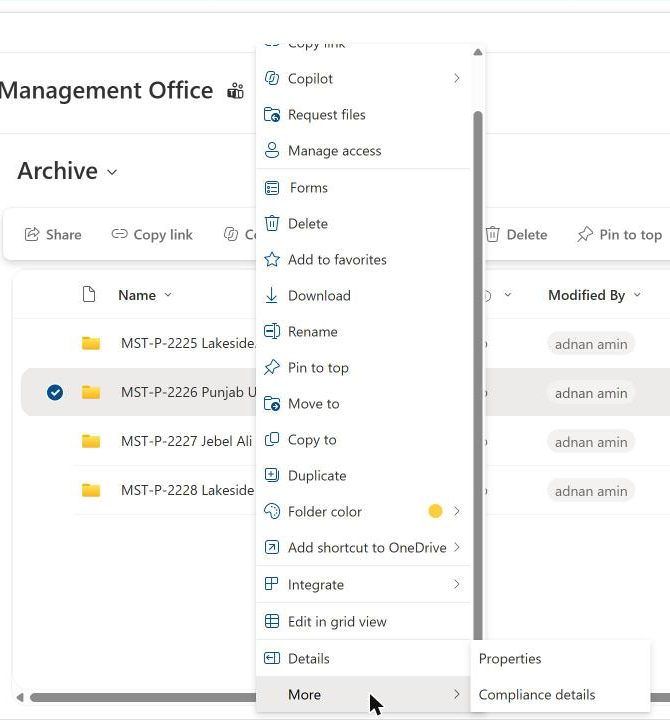
But there was no Archive action anywhere in the libraries. The screenshot below is the menu of a closed project folder in the Archive library of my test PMO site: Delete, Move to, Copy to, but no Archive. AllowFileArchive only says users are allowed to archive once Archive itself is turned on for the tenant.
Once Archive is on, users with edit permission select files and choose Archive. Any user with read access can reactivate a file, there is no reactivation fee, and recently archived files come back instantly. After a reactivation, the file can’t be archived again, manually or by policy, for 120 days (Manage Microsoft 365 Archive).
If you want admins and policies to archive but not every editor, this blocks manual archiving and keeps admin policies working:
Set-SPOTenant -AllowFileArchive $false
# or for one site
Set-SPOSite -Identity "https://mstalk.sharepoint.com/sites/MST-PMO" -AllowFileArchive $false   # Replace with your own
1 – Ask the SharePoint Admin Agent
The Admin Agent needs SharePoint Advanced Management and the SharePoint Advanced Management Administrator role (SharePoint Admin Agent). In the SharePoint admin center, select Copilot in the top bar and ask in plain words. I asked:
Help me set up a file archive policy for files not accessed in 12 months on the MST-PMO site
The agent proposed the right policy: MST-PMO only, files whose last human access date is more than 12 months old, archived with Microsoft 365 Archive. Its first check was whether Microsoft 365 Archive is enabled for the tenant.
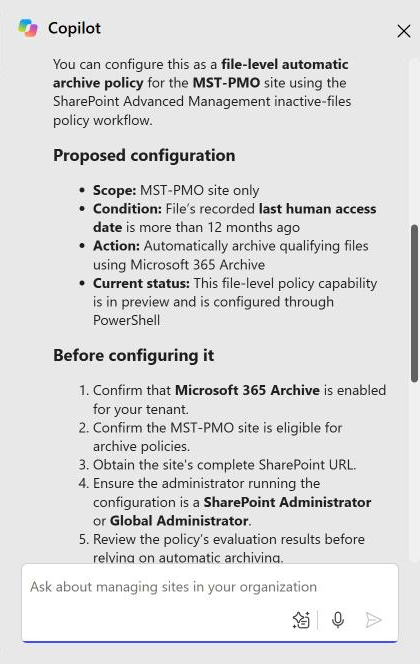
What it did not do on my tenant was create the policy. It described the capability as preview, configured through PowerShell, and asked me for the full site URL before going further. So the “set it up by asking the agent” experience from the keynote had not reached my tenant yet. Check what your own tenant’s agent offers before you plan a rollout around it.
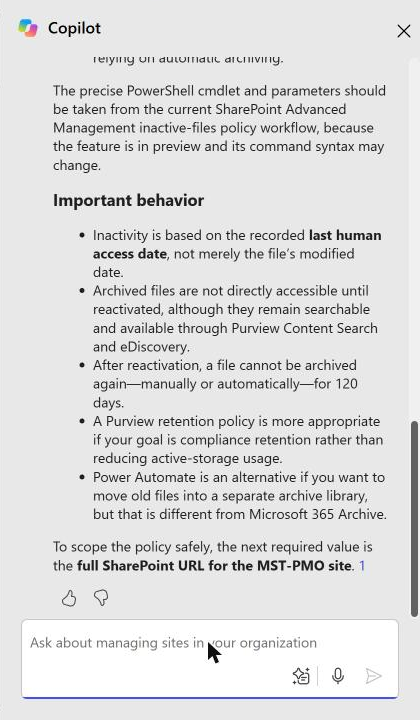
Its notes are worth reading too: inactivity is based on the last access date, not the modified date; archived files stay searchable and available to Purview Content Search and eDiscovery; and a Purview retention policy is the better tool if your goal is compliance rather than storage.
2 – Inactive files policy with PowerShell
The PowerShell route has a what-if mode, which is the safest way to start. You need a recent SharePoint Online Management Shell: 16.0.27814.12015 (13 November 2026) has -FileTypeExclusionCriteria, and the 16.0.27424 build I had did not.
Note: if you installed the Management Shell with the Windows installer, uninstall it before installing from the PowerShell Gallery. On my PC the installer’s older SharePoint client DLLs kept loading, and the new module failed with Could not load type ‘Microsoft.SharePoint.Client.Utilities.SmartWikiEntryScopeValue’. Removing the installer fixed it.
Create a policy for one site in what-if mode, add the site and activate it (SharePoint Online Management Shell):
Connect-SPOService -Url "https://mstalk-admin.sharepoint.com"   # Replace with your own
$SiteURL = "https://mstalk.sharepoint.com/sites/MST-PMO"        # Replace with your own

$Policy = New-SPOFileArchivePolicy -PolicyType SelectedSites -Name "MST PMO inactive files" -LastAccessDateCriteria 12 -IsWhatIfMode $true
Add-SPOSiteToFileArchivePolicy -PolicyId $Policy.PolicyId -Site $SiteURL
Set-SPOFileArchivePolicy -PolicyId $Policy.PolicyId -State Active
A new policy is created as Inactive, so nothing runs until you activate it. While WhatIfMode is True, the active policy only reports. This is the real output from my tenant:
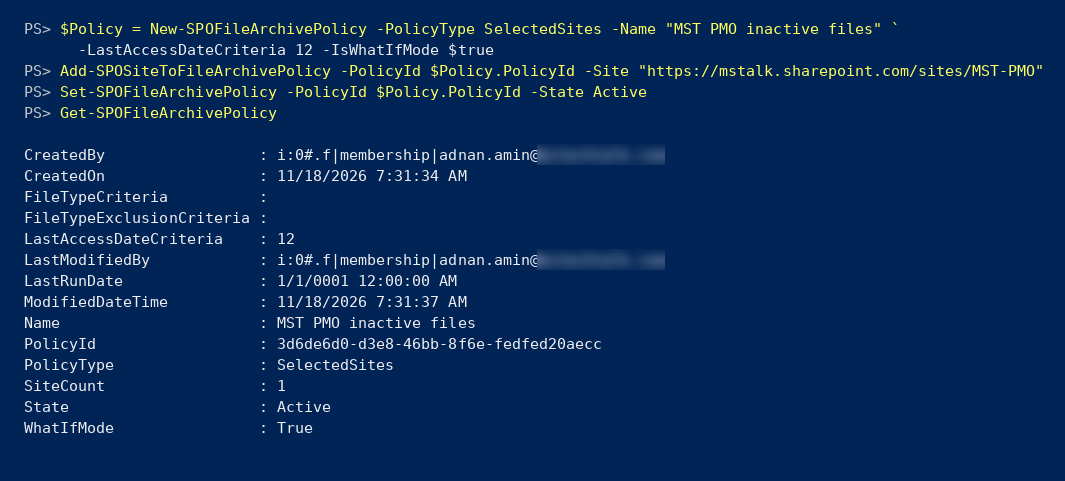
Interesting detail: the what-if policy was accepted while Microsoft 365 Archive was still off on my tenant. It reports, so it doesn’t need the archive tier. Turn Archive on before you switch what-if mode off.
-LastAccessDateCriteriais in months, from 6 to 48. Leave it out and the service uses 18.-PolicyTypeisAllSites,AllODBSitesorSelectedSites. ASelectedSitespolicy can’t be activated until at least one site is added.-FileTypeCriteriaand-FileTypeExclusionCriteriatake dot-prefixed extensions such as.pdf.- One policy holds up to 1,000 sites, inclusions and exclusions together.
The what-if results come from the policy’s run reports. LastRunDate stays at 1/1/0001 until the first run, and the report list is empty until then:
Get-SPOFileArchivePolicyReport -PolicyId $Policy.PolicyId | Format-List *
Each report shows the sites processed and the number of files and storage that would have been archived, and reports are kept for 12 months. On my demo site I expect zero files. The test files carry older Created and Modified dates, but they were really uploaded on 14 and 15 November 2026, and the policy reads the last access date. Microsoft also notes that last access dates are only accurate from July 2025 (New-SPOFileArchivePolicy). I’ll add the first report here once it runs.
When the what-if numbers look right, and Archive is on, switch the policy to real archiving:
Set-SPOFileArchivePolicy -PolicyId $Policy.PolicyId -IsWhatIfMode $false
Try it yourself
Get-MttArchivedFileStorage shows how much archived file storage each site holds and whether manual archive is allowed there. It reads ArchivedFileDiskUsed from Get-SPOSite, so it is read-only:
Connect-SPOService -Url "https://mstalk-admin.sharepoint.com"   # Replace with your own
. .\Get-MttArchivedFileStorage.ps1
Get-SPOSite -Limit All | Where-Object Url -like "*/sites/MST-*" | Get-MttArchivedFileStorage | Export-Csv .\MST-ArchivedFiles.csv -NoTypeInformation
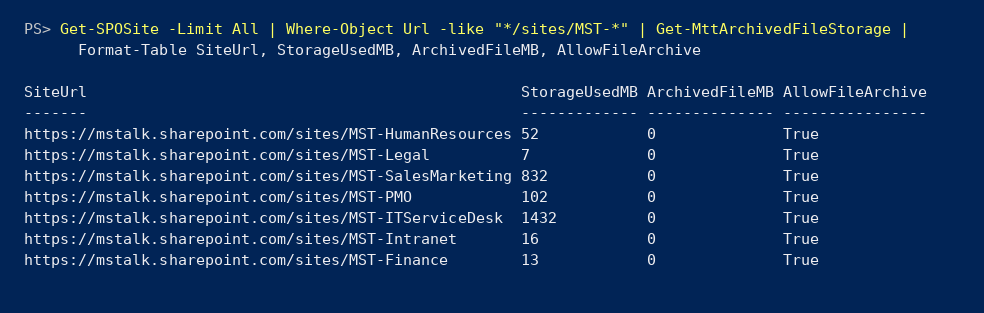
- Permissions: SharePoint Administrator, signed in with
Connect-SPOService. - Output columns: SiteUrl, Title, StorageUsedMB, ArchivedFileMB, AllowFileArchive. Sites it can’t read are skipped with a warning.
- Part of my MSTechTalk.M365 reporting module.
The full script is on my GitHub: SharePoint-File-Archive










No Comments