

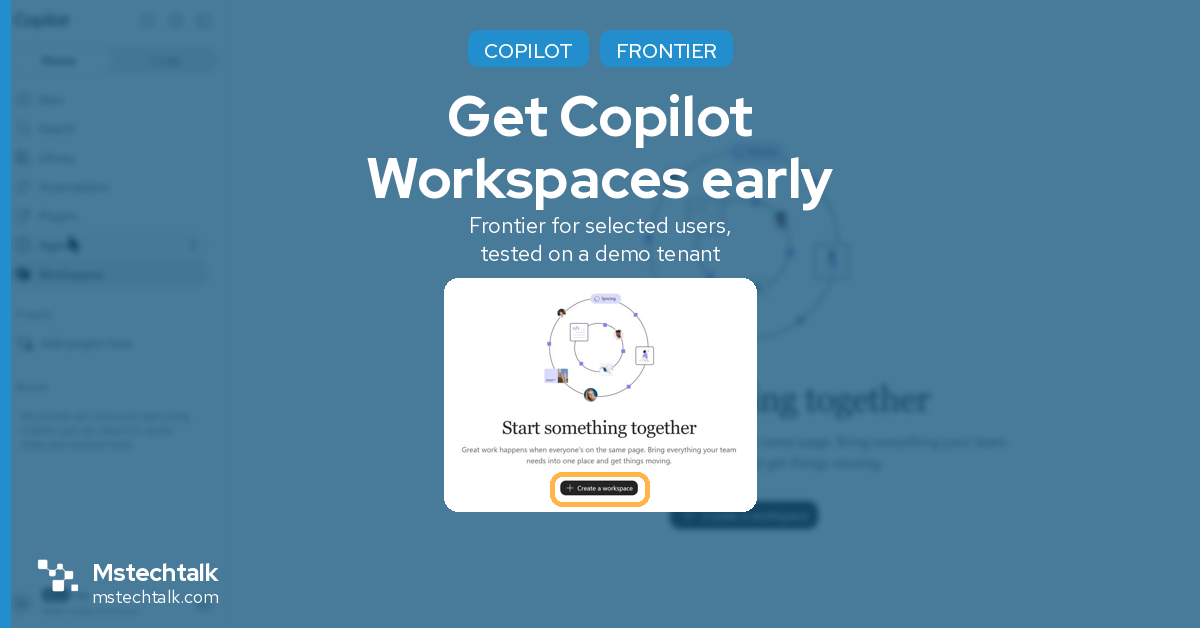
Copilot Notebooks is becoming Copilot Workspaces, and two Message Center posts about it arrived on my demo tenant on 19 November 2026, the same week as Microsoft Ignite. Workspaces is only available through the Frontier program for now, and Frontier was switched off on my tenant. This post covers what I changed to get Workspaces working for three test users, and what I saw while waiting for it to appear.
What Microsoft announced
At Ignite 2026, Microsoft described Workspaces as the evolution of Copilot Notebooks: a shared space in the Copilot app where a team keeps the context, people and files for one piece of ongoing work. Copilot tracks what teammates change and what is still open.
Two posts in Message Center cover the rollout:
- MC1559638, New capabilities in Copilot Workspaces: adds an activity feed, suggested workspaces, team presence, group ownership and the option to add a Project as a reference file. Frontier rollout began in November 2026, and worldwide general availability is expected from early to mid December 2026. No admin action is needed.
- MC1559632, Copilot Workspaces: Updated workspace memory: Copilot now keeps workspace context, recurring instructions and working preferences between sessions. Public preview started in November 2026 and general availability runs from December 2026 to early March 2027.
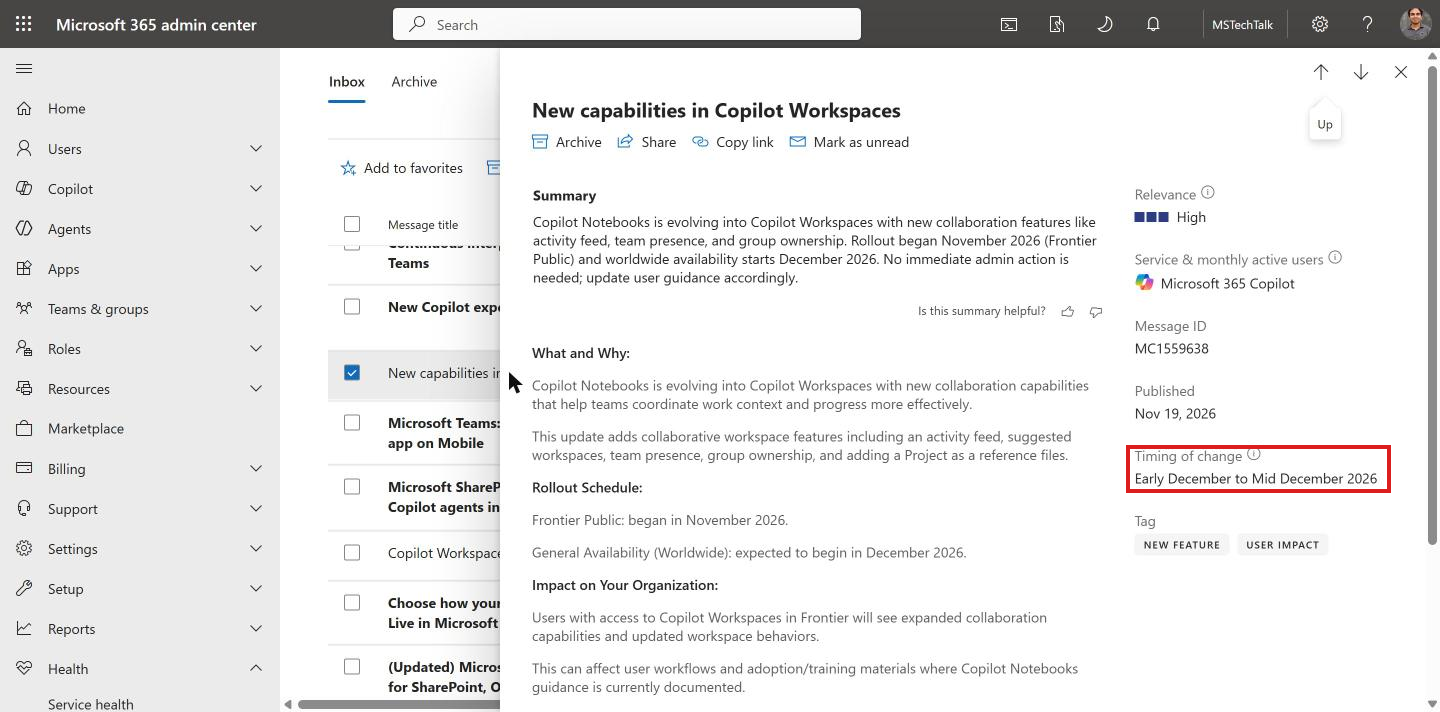
If you are happy to get Workspaces in December with everyone else, you don’t have to do anything. If you want to test it before your users get it, read on.
Prerequisites
- An admin account with AI Administrator, Security Administrator or Office Apps Administrator (Global Administrator also works). If you split admin duties, my post on roles and permissions for Copilot and agents covers who can do what. Microsoft lists these roles on the Frontier program page.
- A Microsoft 365 Copilot licence for each test user. Frontier no longer needs a Copilot licence to enrol a user, but users without one don’t see the Copilot Frontier features.
- Your own admin account should be licensed too, or some Frontier settings may not show.
On my tenant I used my admin account and two normal users, Tim Devis and Alex Miller. Both have E5 and a Copilot licence, and no admin roles.
1 – Check if Frontier is on
- Open the Microsoft 365 admin center.
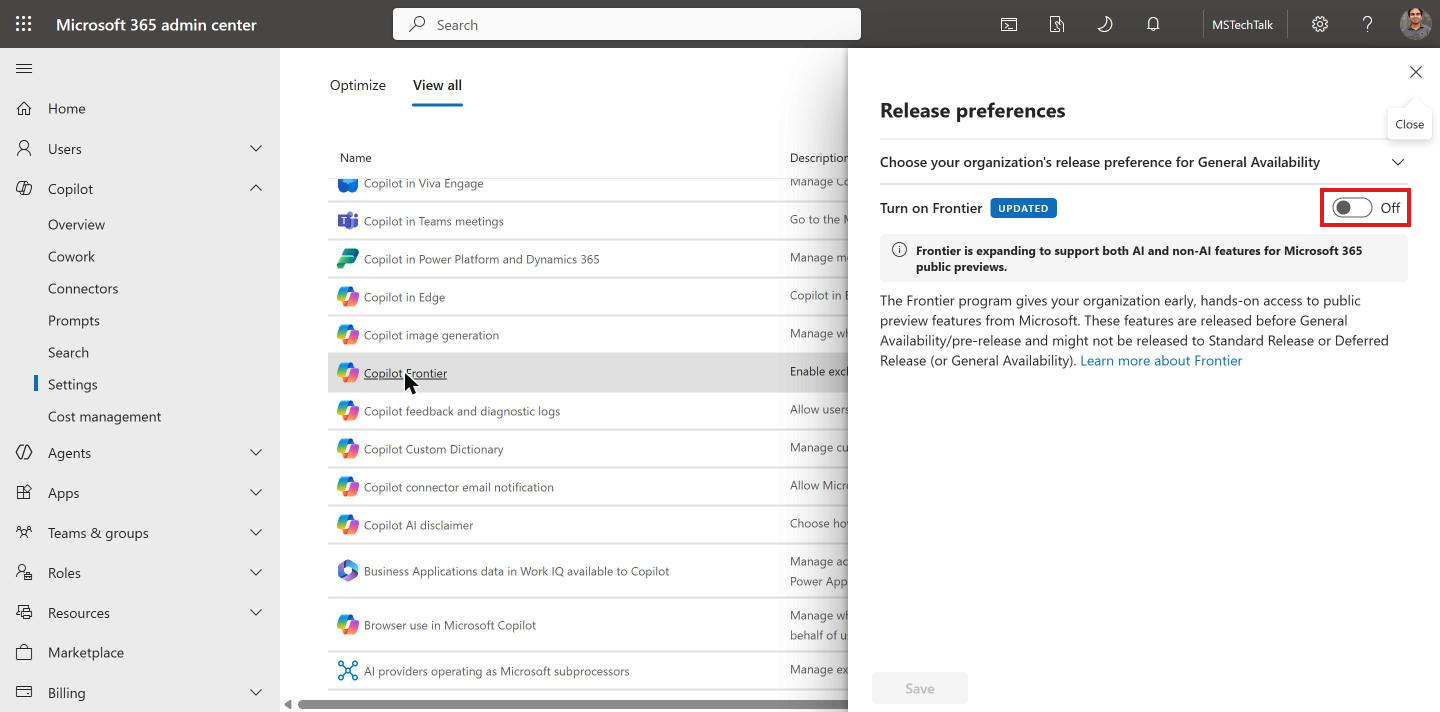
- Go to Copilot > Settings and select View all.
- Search for Frontier and select Copilot Frontier.
The Release preferences panel opens. On my tenant Turn on Frontier was Off, which is why nobody could see Workspaces.
Note: Microsoft is also rolling out a second place for the same setting, Settings > Org settings > Organization profile > Release preferences. It started rolling out in mid November 2026, so your tenant may have one or both paths.
2 – Turn on Frontier for specific users
I don’t recommend All users on a production tenant. Frontier now covers AI and non-AI previews across Microsoft 365, so everyone would get every preview feature, not just Workspaces.
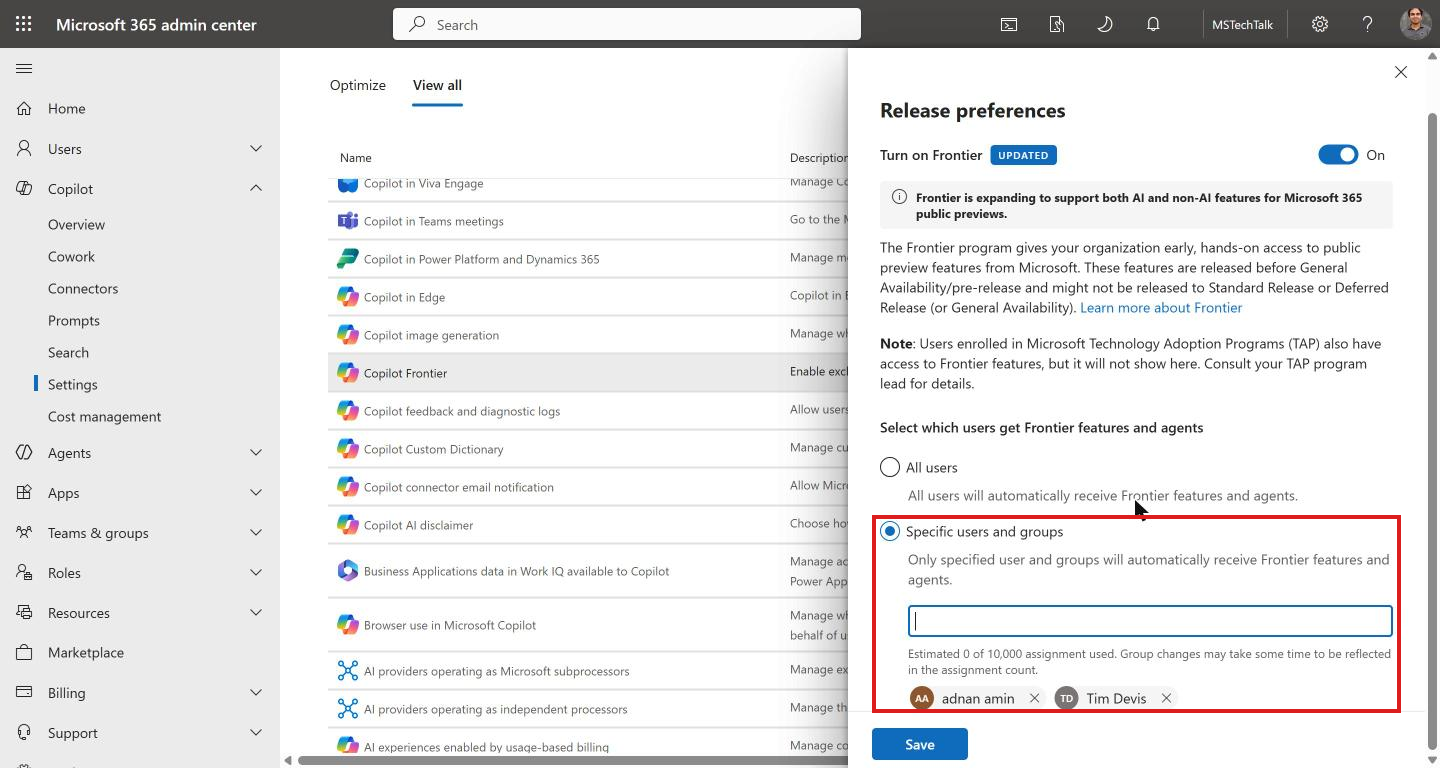
- Switch Turn on Frontier to On.
- Under Select which users get Frontier features and agents, choose Specific users and groups.
- Type a user or group name and select it. A security group is easier to manage later than single users.
- Select Save. The panel shows Changes saved and the assignment count (mine showed 2 of 10,000, and 3 after I added Alex).
One thing to tell your compliance team before you switch it on. Frontier features are previews, so they aren’t covered by a HIPAA BAA and don’t meet the ISO 27001, 27002 and 27018 requirements. Use test accounts and test data, not regulated content.
3 – Wait, then check as a user
Microsoft says it might take three hours for Frontier features to reach users. What I saw on my tenant (Pakistan time):
| Account | Added to Frontier | Workspaces showing |
|---|---|---|
| Admin account (older account) | 19 Nov, about 7:55 PM | About 1 hour 15 minutes later |
| Tim Devis (older account) | 19 Nov, about 7:55 PM | About 1 hour 15 minutes later |
| Alex Miller (created the same day) | 19 Nov, about 9:15 PM | About 2 hours later |
The two older accounts got it in about 75 minutes and the new account took about 2 hours. All three were inside Microsoft’s three hours, so I can’t say the account age is the reason. It could just be how the rollout reaches each user. If it’s still missing after three hours, sign the user out of the Copilot app and back in.
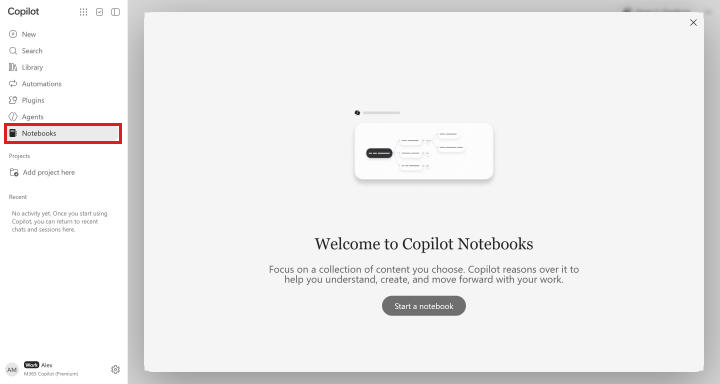
To check, sign in as the test user and open the Copilot app at copilot.cloud.microsoft. Before Frontier reaches the user, the menu shows Notebooks and the page says Welcome to Copilot Notebooks.
After Frontier reaches the user, the same page shows Workspaces, with “Start something together” and a Create a workspace button.
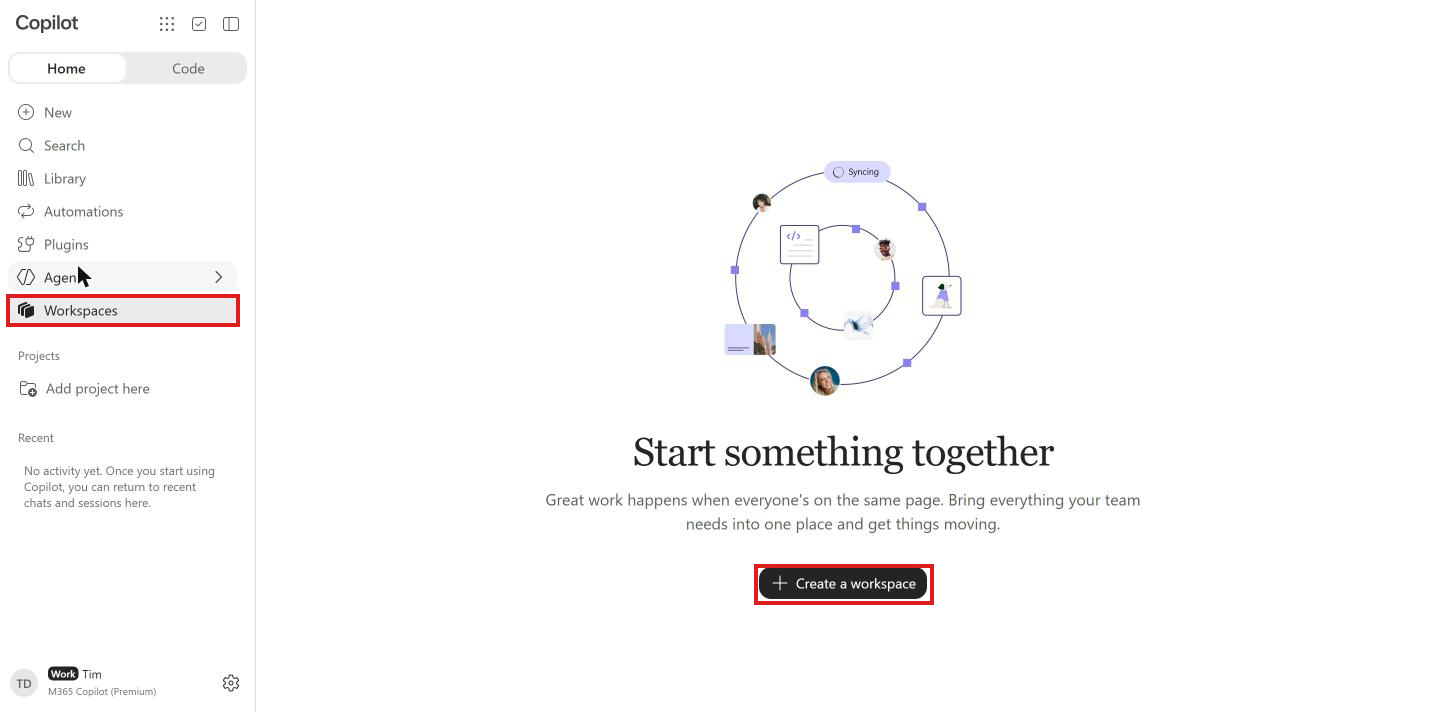
One small thing caught me. Tim’s menu still said Notebooks when the page first loaded. It changed to Workspaces when he clicked it, and new Home and Code tabs appeared at the top of the menu at the same moment. So don’t decide it isn’t working from the first page load.
4 – Check the policy that controls creation
Workspaces is built on Notebooks. Microsoft currently documents a Cloud Policy setting called Create and view Copilot Pages and Copilot Notebooks, which is on by default, on the Copilot Pages and Notebooks admin policies page. If a user sees Workspaces but can’t create one, check that this policy isn’t turned off for them.
Licensing, where Workspaces content is stored, security and usage monitoring are in my next post for admins (for Copilot usage reporting in general, see how to monitor Microsoft 365 Copilot and agents usage), and after that a post on what users can do with it, with real examples from my demo tenant.

Adnan Amin is a Microsoft MVP for Microsoft 365 (since 2015) and a Senior Microsoft Consultant. He writes practical guides and PowerShell scripts for SharePoint, OneDrive, Teams and Copilot admins.


No Comments