

Every project I’ve worked on has the same problem: the context is spread over a SharePoint library, a few Teams chats and somebody’s inbox. Copilot Workspaces, the new version of Copilot Notebooks announced at Ignite 2026, keeps a team’s files, people and Copilot conversations for one piece of work in a single place. I tested it for two days with two normal users, Tim Devis and Alex Miller, on one project folder.
Key takeaways
- Copilot Workspaces gives a project team shared files, people, an activity feed and memory, with Copilot answering from all of them.
- In the Copilot app, open Workspaces > Create a workspace, invite people and add a whole SharePoint folder.
- It’s a Frontier preview: your chats stay private, but added files are shared with members, and the feed can lag behind.
Note
This post uses the demo company on my test tenant (Meridian Summit Technologies) and a made-up project: MST-P-2610, a laboratory block for a university client. Nothing here is client data. Workspaces is in Frontier preview until the worldwide rollout in December 2026, so screens may change. How to turn it on is in my setup post.
On this page
What’s new compared with Notebooks
A notebook was one person, their files and Copilot. A workspace is shared, and Microsoft’s Message Center posts MC1559638 and MC1559632 add these:
- Team members and presence: you invite people, and their initials show at the top of the workspace.
- Pulse page: a “What’s next?” card and an activity feed that Copilot writes from the files and from what the team does.
- Workspace memory: Copilot keeps your recurring instructions for this workspace between sessions.
- Suggested workspaces: as you work, Copilot suggests workspaces you might want to create.
Create your first workspace
- Open the Copilot app (copilot.cloud.microsoft) and select Workspaces in the left menu.
- Select Create a workspace. Give it a name. Tim used MST-P-2610 Northgate Lab Block.
- Write a real description: the project, the client, where the files live and what the workspace is for. Copilot uses it to find related content.
- Under Invite your team, search for people. It also accepts a Teams channel or a Microsoft 365 group. Tim added Alex.
- Under Add files, meetings, and more, search your content. There are tabs for Files, Meetings, Emails and Sites, plus buttons to upload, paste a link or browse OneDrive and SharePoint.
- Select Create.

One tip from my test: search didn’t find files I had uploaded less than an hour earlier, so I used the cloud button to browse to the MST-PMO site and added the whole project folder. A folder brings in every file in it, 14 Word, Excel and PDF files here, and they’re shared with the workspace members.
The workspace opens on its Pulse page with your description, a What’s next? card and the Activity feed. The content list is on the right.

Four tests on one project
1 – Steering committee summary (Tim)
Tim’s first prompt:
Prepare a steering committee summary for MST-P-2610 using all the project files in this workspace: programme against baseline, cost and variation exposure, the fume cupboard procurement, top risks and the stakeholder engagement. End with the decisions the steering committee needs to make this month.
Copilot planned the work and showed “10 steps completed” while it read the Excel registers and PDF reports. The answer opened with “Overall position: AMBER, with cost trending RED”, a handover forecast two weeks behind the contractual date, and a USD 820,000 overrun if the unresolved variations were accepted at their submitted values. It ended with six decisions, from approving the fume cupboard award to escalating the power-connection approval.

The useful part was the arithmetic across files: USD 1.01 million of unresolved variations against USD 190,000 of headroom in the cost report. Each statement has a small source chip, so you can open the register it came from.
2 – The activity feed fills itself
Without being asked, Copilot added cards to the Activity feed. Each card links to its source files and has buttons such as Review request or Dismiss:
- Response needed: “Steering decisions pending”, listing the open decisions on the fume cupboard award and three variations.
- Task assigned: “DEWA approval follow-up”, assigned to Tim, who owns that risk in the Risk Register.
- Updated: “Chemistry engagement may be insufficient”. The stakeholder register rates the chemistry lead as high influence and high interest, but plans only a monthly report for them. I had planted that gap in the test data, and Copilot found it.
- Needs review: “Found 1 person to invite”.

3 – Workspace memory (Tim)
Tim told Copilot once:
For this workspace, remember this: weekly updates are for Prof. Sarah Al Mansoori. Write them as short bullet points, start with the project code MST-P-2610, give money in USD thousands, and always end with a section called Decisions needed.
Copilot confirmed it had saved the five rules for this workspace.
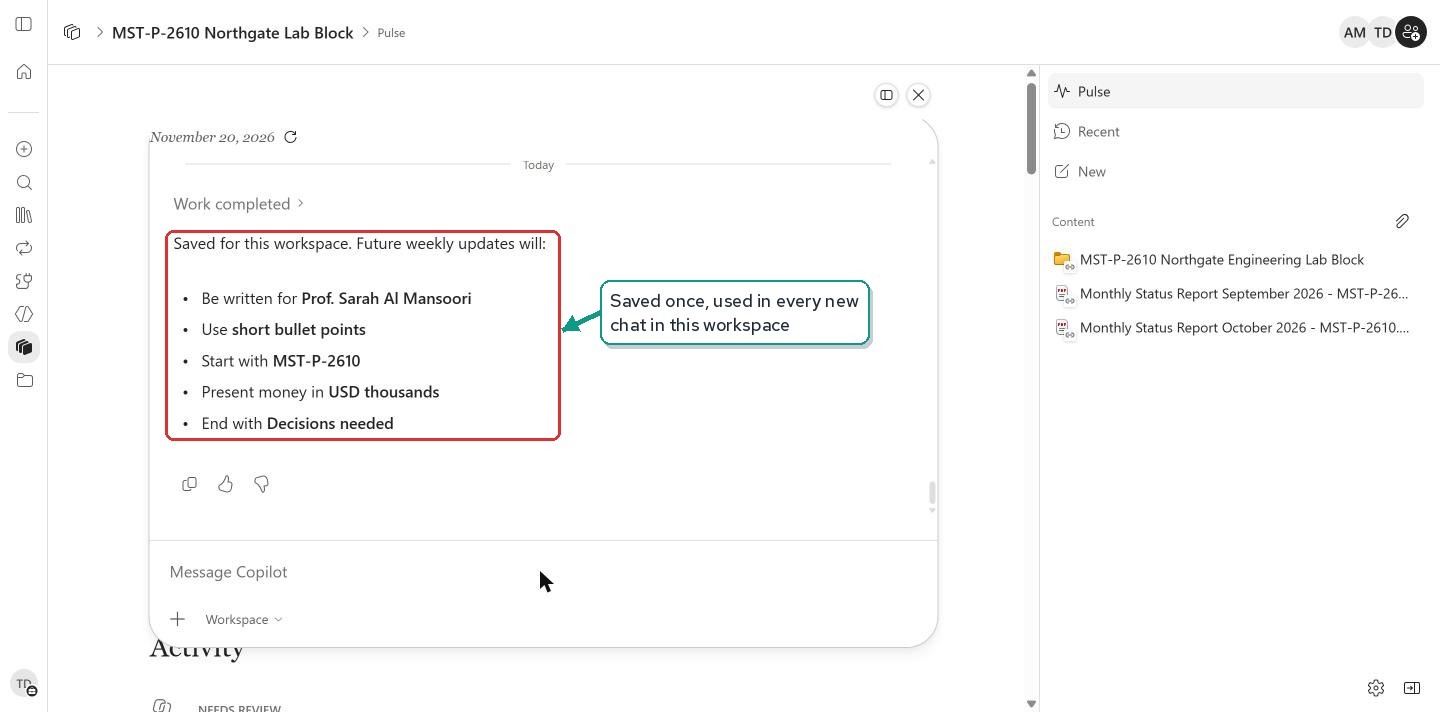
That evening, about 18 hours later, Tim started a new chat and typed only “Write this week’s update.” The update started with MST-P-2610, was addressed to Prof. Al Mansoori, used short bullets, showed money as USD 18,448k and USD 52k, and ended with three decisions under Decisions needed. All five rules held in a new session.

4 – What changed since yesterday (Alex)
The next day, Alex uploaded the November status report and the minutes of progress meeting 13 to the project folder, opened the workspace and asked:
What changed in this project since Tim’s update last night, and what is still open? Compare the November status report and progress meeting 13 with the October position.
The answer was right on every point I had put in the test files: the project moved from Amber to Red, the fume cupboard award slipped two more weeks, handover is now four weeks late, headroom fell to USD 52,000, and the power-connection approval came through, which closed that risk. It laid the changes out as a table of October position against current position.

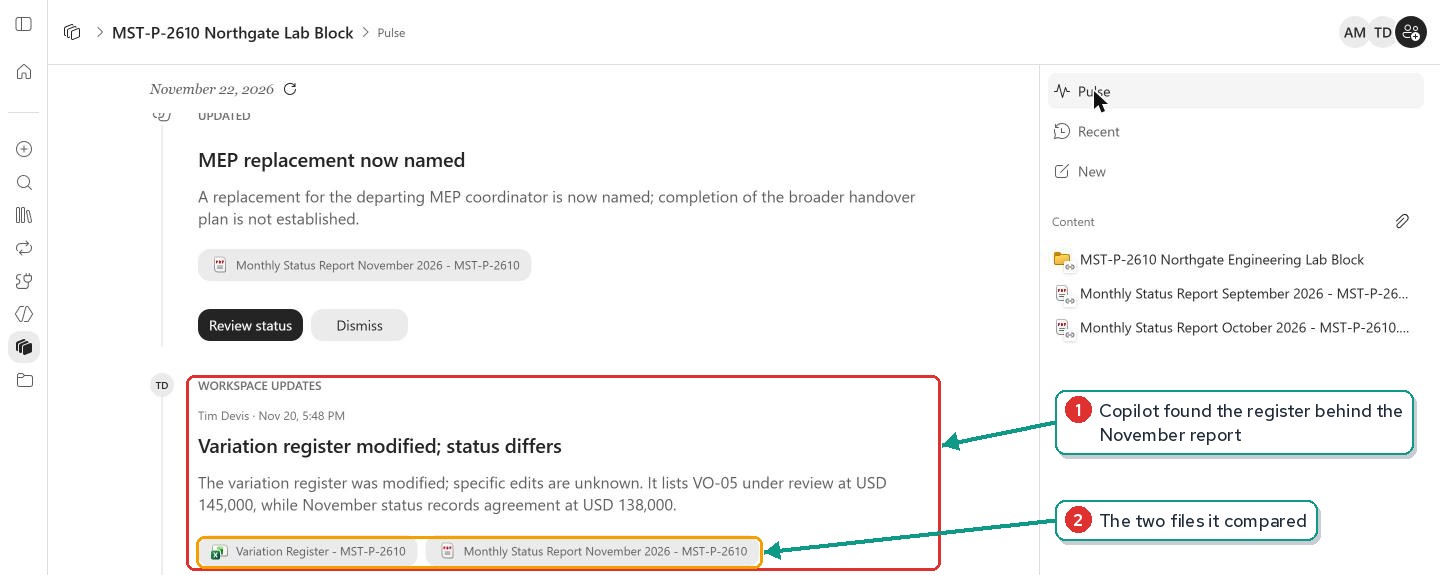
Later the feed added something I hadn’t asked for. The Variation Register still listed variation VO-05 as under review at USD 145,000, while the November report recorded it as agreed at USD 138,000, and Copilot raised it as a card. Spotting a register that has fallen behind the report is exactly the kind of check a project controller does by hand.
What to watch
- Permissions decide what Copilot sees. Copilot only reads files each member can open, so check folder permissions before you build a workspace around them. Adding a file or folder shares it with the members.
- Your chats are private. The Recent list says “Only you can see these chats”. The Pulse page, feed and content are shared.
- The feed can lag. Two days after the November report said the power connection was approved, my “What’s next?” card still suggested reviewing that escalation.
- Background activity. Feed cards say a register was “modified” under the user’s name even when nobody edited it. I explain what that looks like in the audit log in my admin post.
- Check the numbers. Treat a summary as a first draft before it goes to a steering committee.
Try it yourself
- Turn on Frontier for a few test users, or wait for the December rollout. Each user needs a Microsoft 365 Copilot licence.
- Create a workspace for a real project with a good description, invite one colleague and add the project folder.
- Ask for a status summary that ends with the decisions needed, then check every figure against its source chip.
- Save one rule in memory, such as your update format, and test it in a new chat the next day.
- Ask a teammate to add a new report and ask “what changed since yesterday?”
Questions
It’s the next version of Notebooks. Workspaces adds team members, presence, a Pulse page with an activity feed, and workspace memory.
Only you. The Recent list in a workspace shows your own chats. The Pulse page, activity feed and content are shared with members.
No. Copilot uses each person’s own permissions, so a member only gets answers from files they can open. Adding a file to a workspace shares it with the members.


Leave a Reply