

The PMO site on my demo tenant has 24 project folders with their own permissions, plus 12 more breaks inside the Commercial subfolders. The site permissions page only tells you that some items are different. It doesn’t tell you which ones. This post covers where SharePoint shows the breaks, and a PnP PowerShell unique permissions report that lists every library, folder, file and list item.
Updated 16 November 2026: the script is now a function, Get-MttUniquePermission. It works the same way, but it no longer signs in or writes the CSV itself, so you can point it at one library or pipe in more sites. List items now show as Item instead of File. The output below is from a new run with the function.
Using the site permissions page
SharePoint warns you when content below the site has its own permissions. It’s a starting point, not a report.
- Open the site, for example MST Project Management Office.
- Select Settings > Site permissions > Advanced permissions settings.
- The yellow bar says Some content on this site has different permissions from what you see here. Select Show these items.
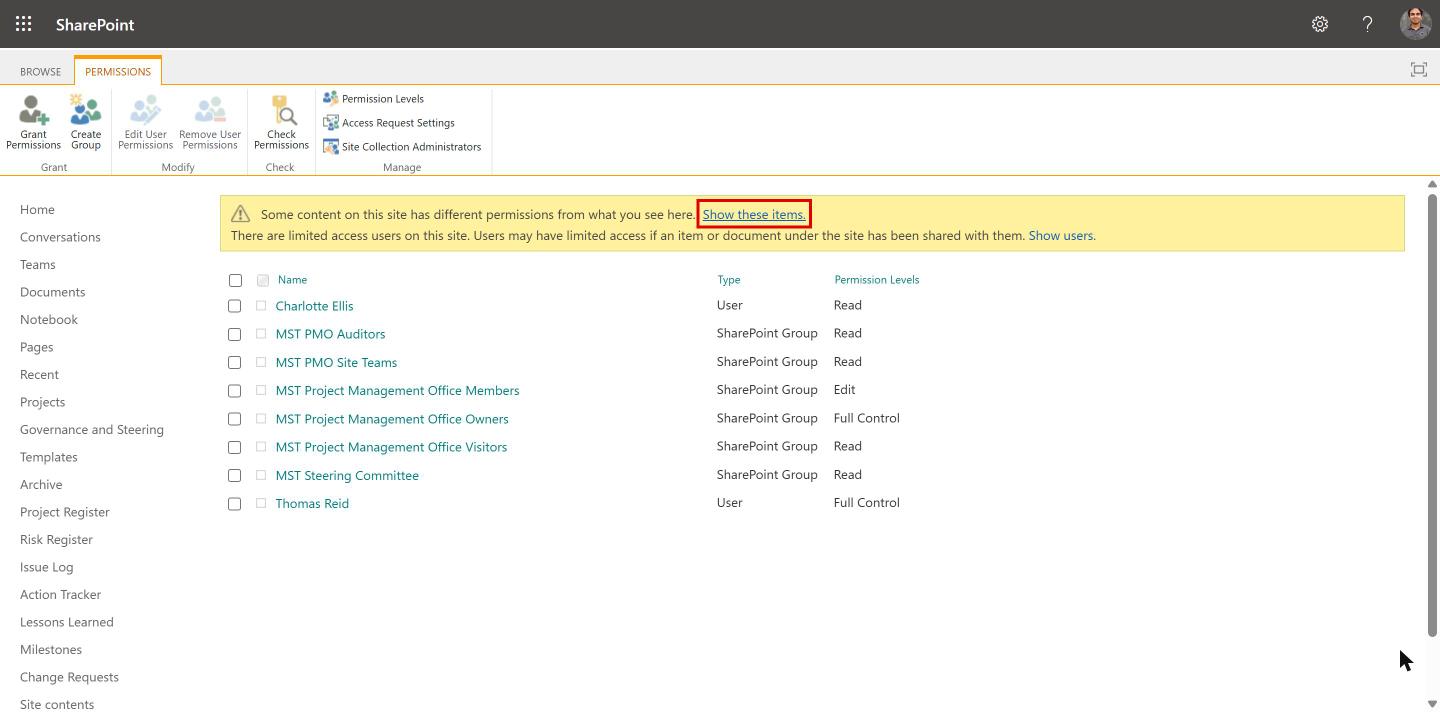
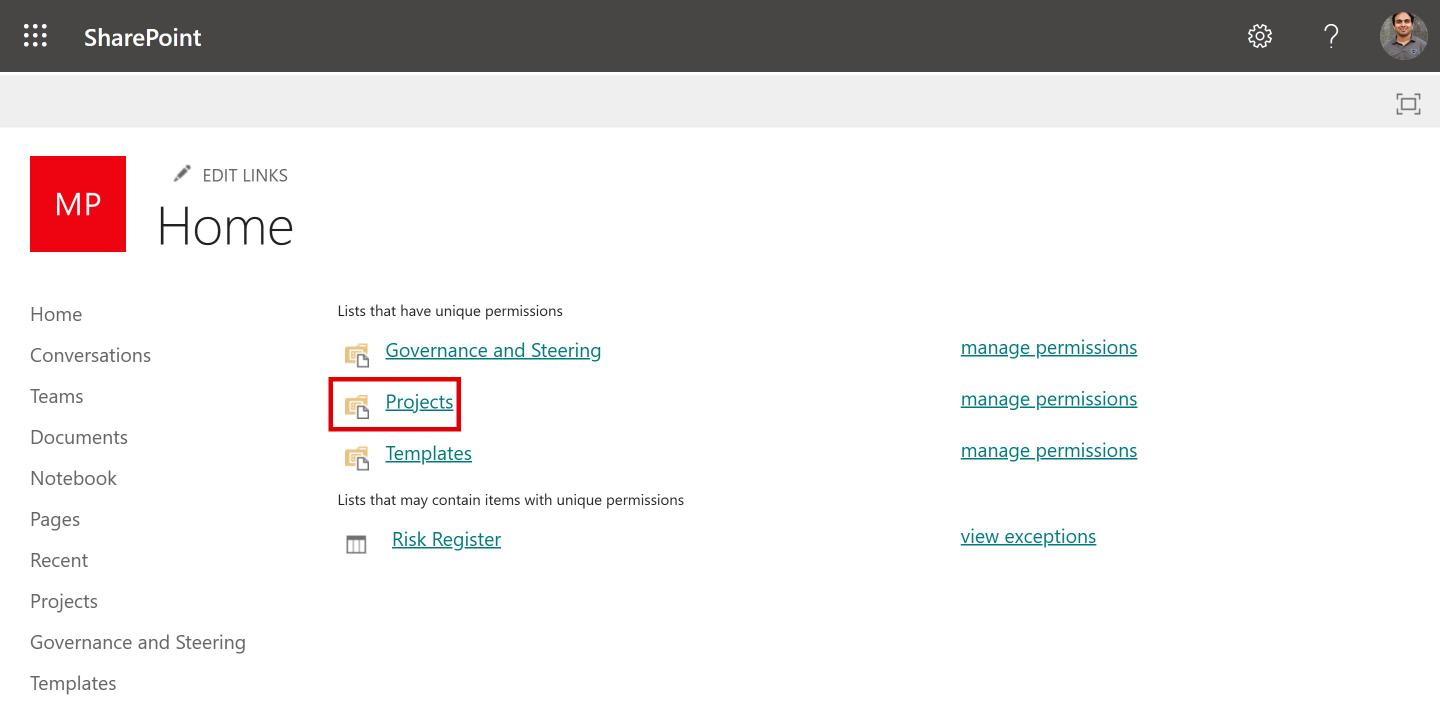
The exceptions page lists only lists and libraries. On MST-PMO it shows Governance and Steering, Projects and Templates under “Lists that have unique permissions”, and Risk Register under “Lists that may contain items with unique permissions”. None of the project folders inside Projects appear there. That’s the gap the script fills.
Using PnP PowerShell
You need PnP.PowerShell 3.x on PowerShell 7.4 or later, your own Entra app registration, and site collection admin rights on the site.
Get-PnPListItem doesn’t load HasUniqueRoleAssignments by default, and it has no -Includes parameter. So the function loads that one property for each item with Get-PnPProperty. It goes through every visible library and list and returns one row for each object with unique permissions: SiteUrl, List, Level (List, Folder, File or Item) and Path.
Download Get-MttUniquePermission.ps1 from my GitHub. Sign in, load the function and run it:
$SiteUrl  = "https://contoso.sharepoint.com/sites/PMO"   # Replace with your own
$ClientId = "<your-entra-app-client-id>"                # Replace with your own

Connect-PnPOnline -Url $SiteUrl -Interactive -ClientId $ClientId
. .\Get-MttUniquePermission.ps1
Get-MttUniquePermission -SiteUrl $SiteUrl | Export-Csv .\UniquePermissions.csv -NoTypeInformation -Encoding UTF8
The function checks that you are signed in to the site, and tells you which command to run if you aren’t. Its full help, with more examples, is in the file: run Get-Help Get-MttUniquePermission -Full.
To see straight away where the breaks are, count the rows per list and level:
Get-MttUniquePermission -SiteUrl $SiteUrl | Group-Object List, Level | Select-Object Name, Count
The function is slow because it makes one call per item. MST-PMO has about 9,000 items across 16 lists, including 2,929 in Projects and 2,400 in the Action Tracker list. On a big site, check one library first: Get-MttUniquePermission -SiteUrl $SiteUrl -Library "Projects".
This is the real output from MST-PMO, run with PnP.PowerShell 3.5.0 on PowerShell 7.6:
Name                          Count
----                          -----
Governance and Steering, File     1
Governance and Steering, List     1
Projects, File                   11
Projects, Folder                 39
Projects, List                    1
Risk Register, Item               3
Templates, File                   2
Templates, Folder                 1
Templates, List                   1

Run time: 29:35
About 30 minutes for the whole site. It found the same 60 objects as the original script. The only change is the three Risk Register rows: SharePoint reports a list item’s file system object type as File, so the function shows them as Item.
The function, its README and the sample CSV from this run are on my GitHub: SharePoint-Unique-Permissions.
Why the count is higher than expected
The report found 39 folders and 11 files with unique permissions in Projects. I broke 36 folders by hand (24 project folders and 12 Commercial subfolders). So where did the extra 3 folders come from?
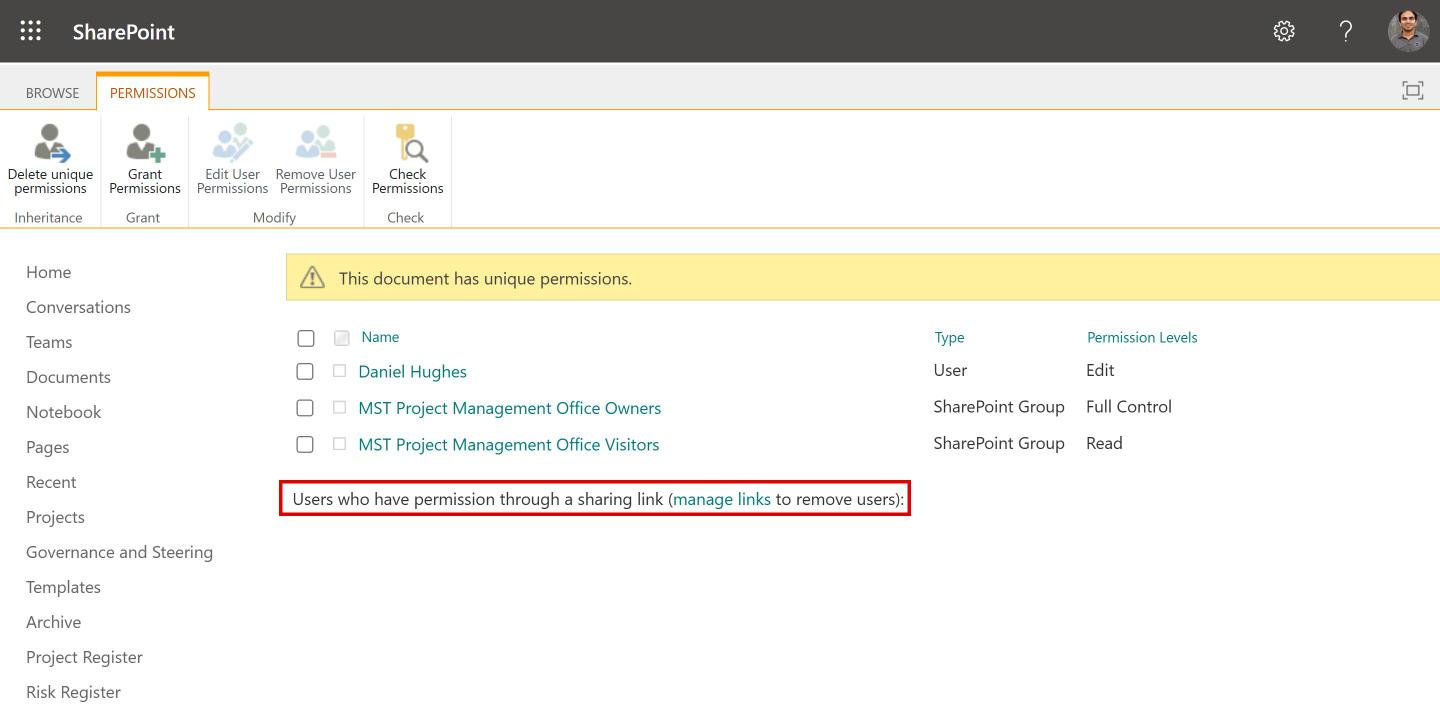
Sharing links. Eight of those 50 items (3 folders and 5 files) had a SharingLinks group in their permissions. Every sharing link gives the item its own permission scope. Microsoft says so in Permission levels in SharePoint: sharing a document with someone who doesn’t have access stops inheritance on it automatically. The other 6 files were broken directly. Some items have both: the Monthly Status Report 03 file below has a sharing link and a direct Edit grant for Daniel Hughes.
The classic permissions page doesn’t show the SharingLinks group at all. It shows a line instead: Users who have permission through a sharing link (manage links to remove users), as shown in the screenshot below.
So before you restore inheritance on a long list of files, check which rows are only sharing links. Restoring inheritance removes those links, and the people using them lose access. The Anyone links script from my last post helps here.
Try it yourself
- Install PnP.PowerShell 3.x on PowerShell 7.4 or later, and register your own Entra app for
Connect-PnPOnline. - Download
Get-MttUniquePermission.ps1from GitHub. - Pick a small site where you are site collection admin, and run the function with
-Libraryon one library first. - Open the site’s Advanced permissions settings page and compare: the report should list the same libraries, plus the folders, files and items the page doesn’t show.
- Before you restore inheritance on anything, check which rows are only sharing links.

Adnan, a distinguished professional, boasts an impressive track record as a Microsoft MVP, having achieved this prestigious recognition for the eighth consecutive year since 2015. With an extensive career spanning over 18 years, Adnan has honed his expertise in various domains, notably excelling in SharePoint, Microsoft 365, Microsoft Teams, the .Net Platform, and Microsoft BI. Presently, he holds the esteemed position of Senior Microsoft Consultant at Olive + Goose.Notably, Adnan served as the MCT Regional Lead for the Pakistan Chapter from 2012 to 2017, showcasing his leadership and commitment to fostering growth within the tech community. His journey in the realm of SharePoint spans 14 years, during which he has undertaken diverse projects involving both intranet and internet solutions for both private and government sectors. His impact has transcended geographical boundaries, leaving a mark on projects in the United States and the Gulf region, often collaborating with Fortune 500 companies.Beyond his roles, Adnan is a dedicated educator, sharing his insights and knowledge as a trainer. He also passionately advocates for technology, frequently engaging with the community through speaking engagements in various forums. His multifaceted contributions exemplify his dedication to the tech field and his role in driving its evolution.




No Comments