

A client asked me a simple question after their first Copilot rollout: who is using it, which agents are people talking to, and who owns those agents? The answers live in three different places in Microsoft 365, and none of them shows the whole picture alone.
Prerequisites
- Reports Reader to open the usage reports, AI Reader or higher for the Agents pages. The full role list is in part 2.
- Copilot licences in the tenant. Some Agents pages (risks, the Security and Activity tabs on an agent) also need Microsoft Agent 365 or Microsoft 365 E7.
- A Global Administrator, once, if you want real user names instead of hashed values in the reports (see the Note at the end).
Copilot usage report
This one answers “who uses Copilot and in which app”.
- Sign in to the Microsoft 365 admin center.
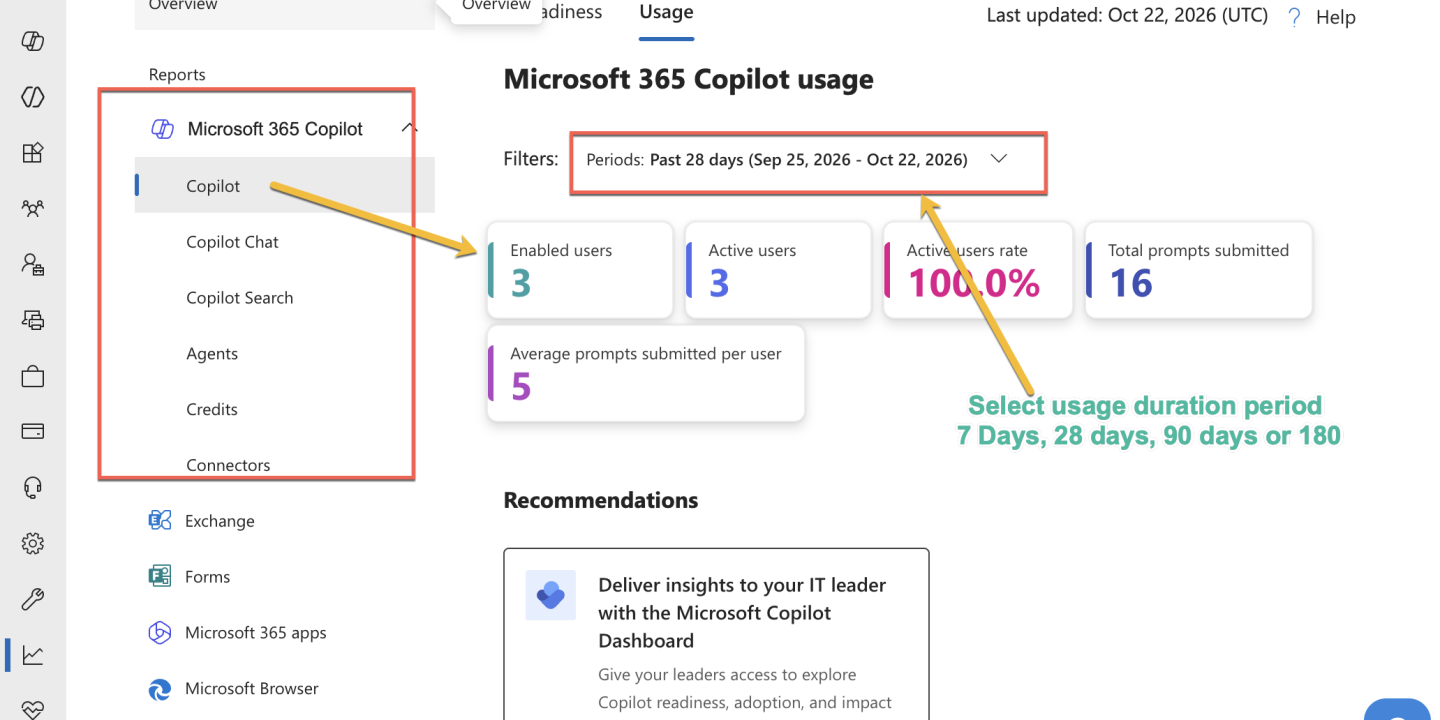
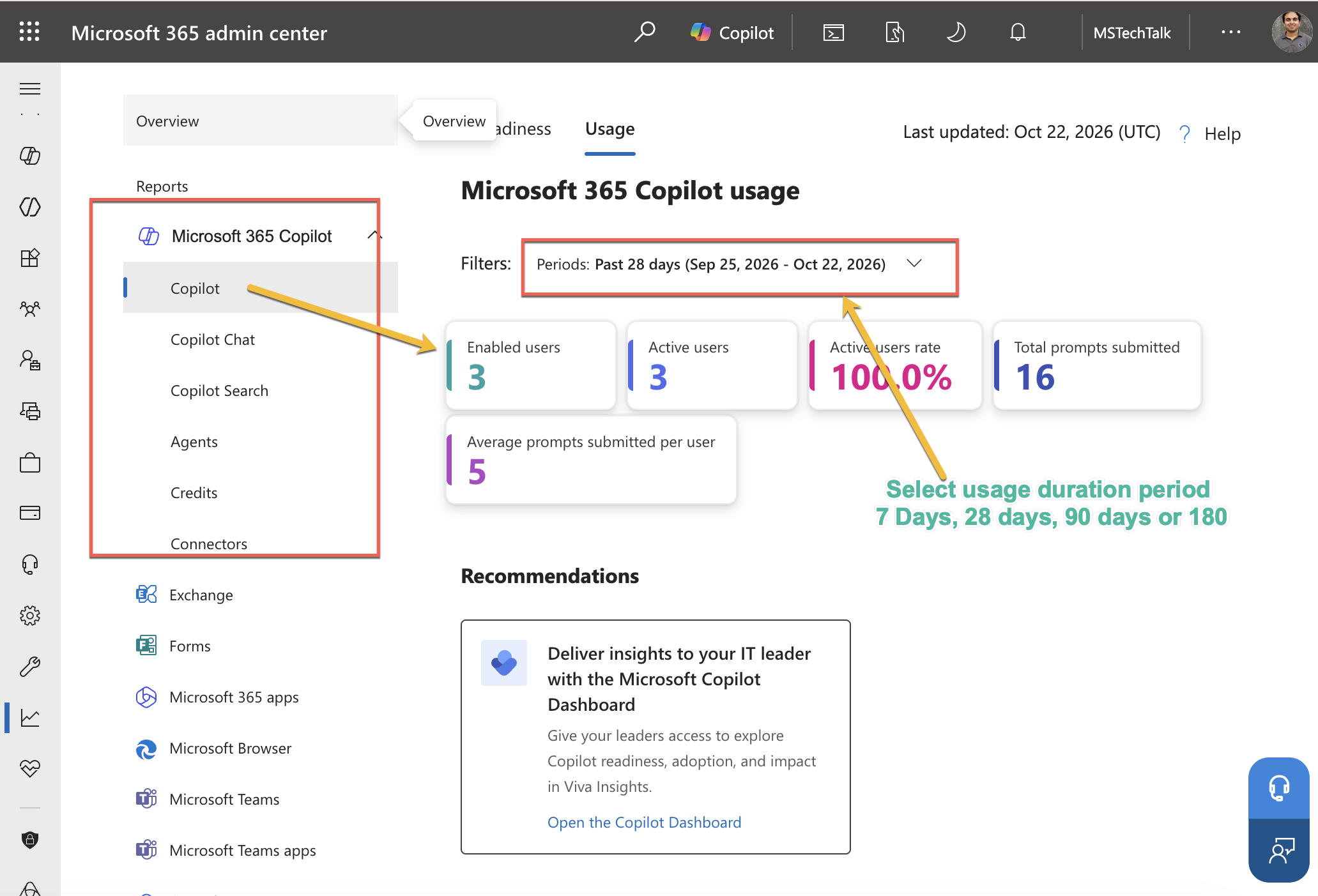
- Select Reports > Usage. If you don’t see Reports, select Show all first.
- Under Reports, select Microsoft Copilot > Copilot.
- Open the Usage tab and pick a period: 7, 28, 90 or 180 days.
- Scroll to the user table. Select Choose columns to add the per-app columns, such as Last activity date of Teams Copilot (UTC).
- Select Export to download the CSV.
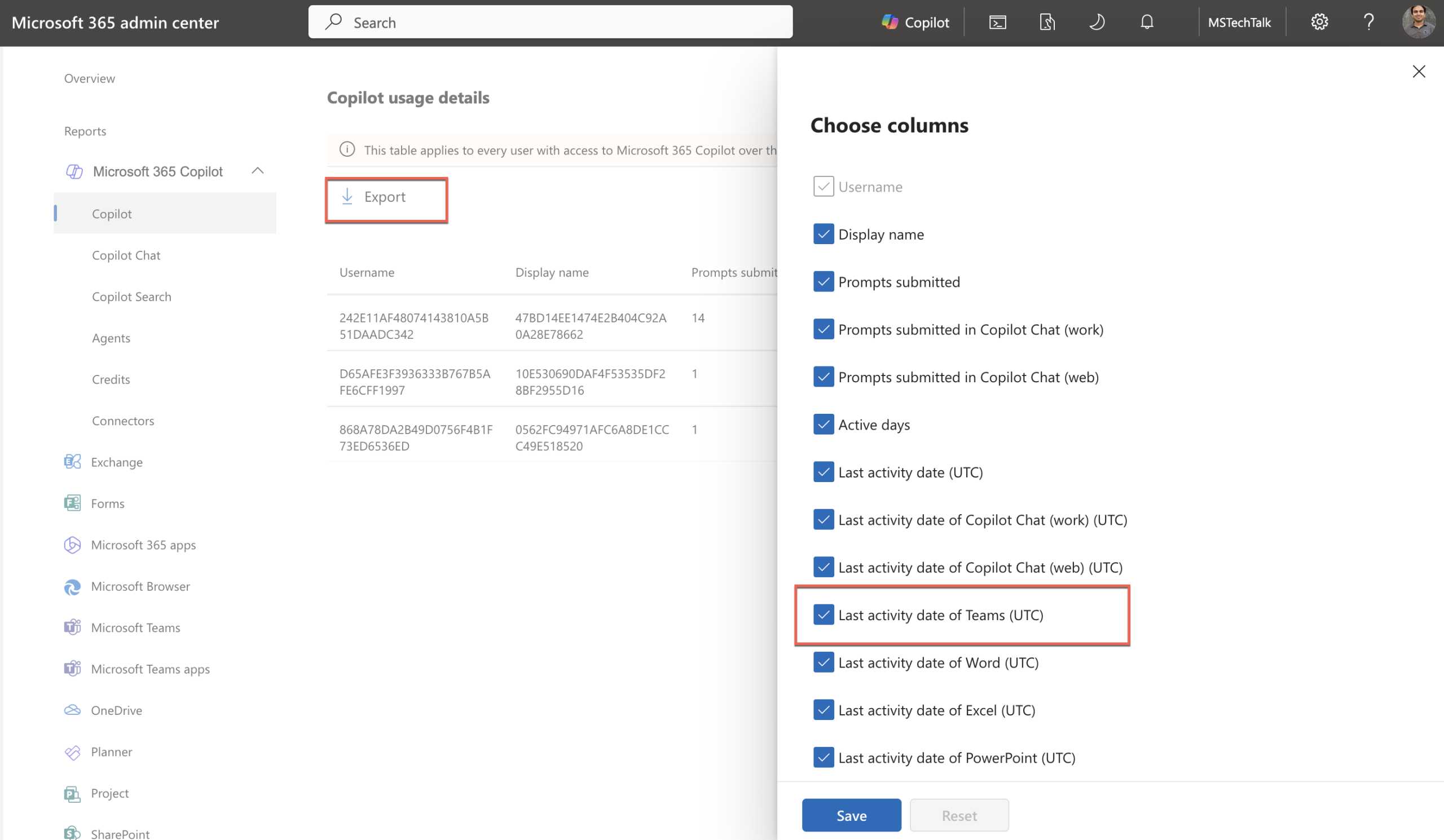
The table lists every user who had a Copilot licence at any point in the last 180 days. That makes it the quickest way to find licences nobody uses. I sort by Last activity date (UTC) and start with the blanks.
Data for a day usually lands within 48 hours (it was 72 until the August 2026 change).
Agents usage report
This one answers “which agents get used, and by whom”. It is still marked preview.
- In Reports > Usage, select Microsoft Copilot > Agents.
- Pick 7 or 30 days. 90 and 180 days aren’t supported yet.
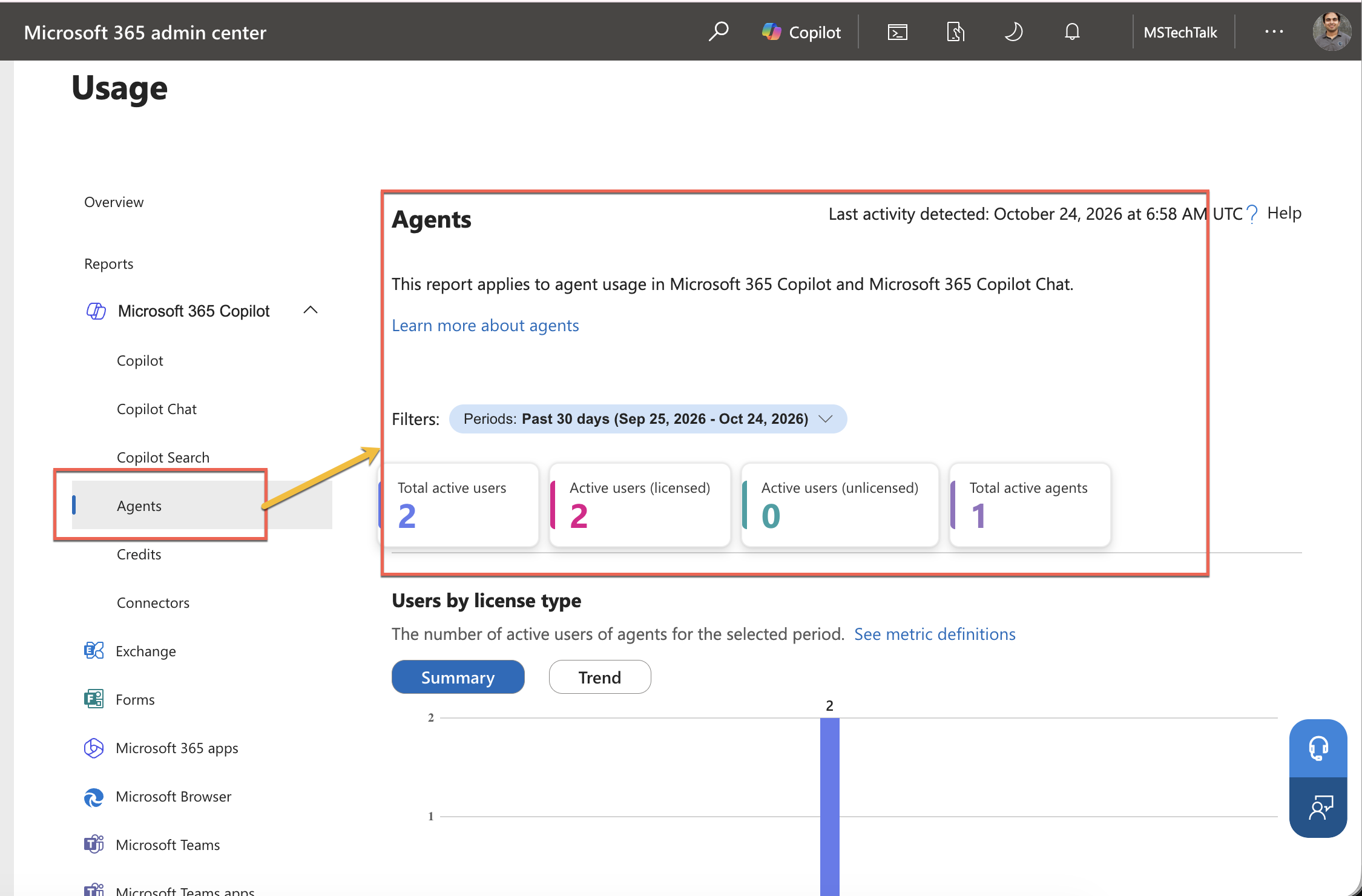
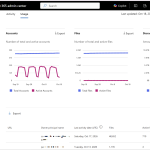
- Check the three charts: Users by license type, Users by creator type and Agents by creator type. Switch each between Summary and Trend.
- Scroll to the three tables at the bottom: User details table, Agent details table and Users and agent details table.
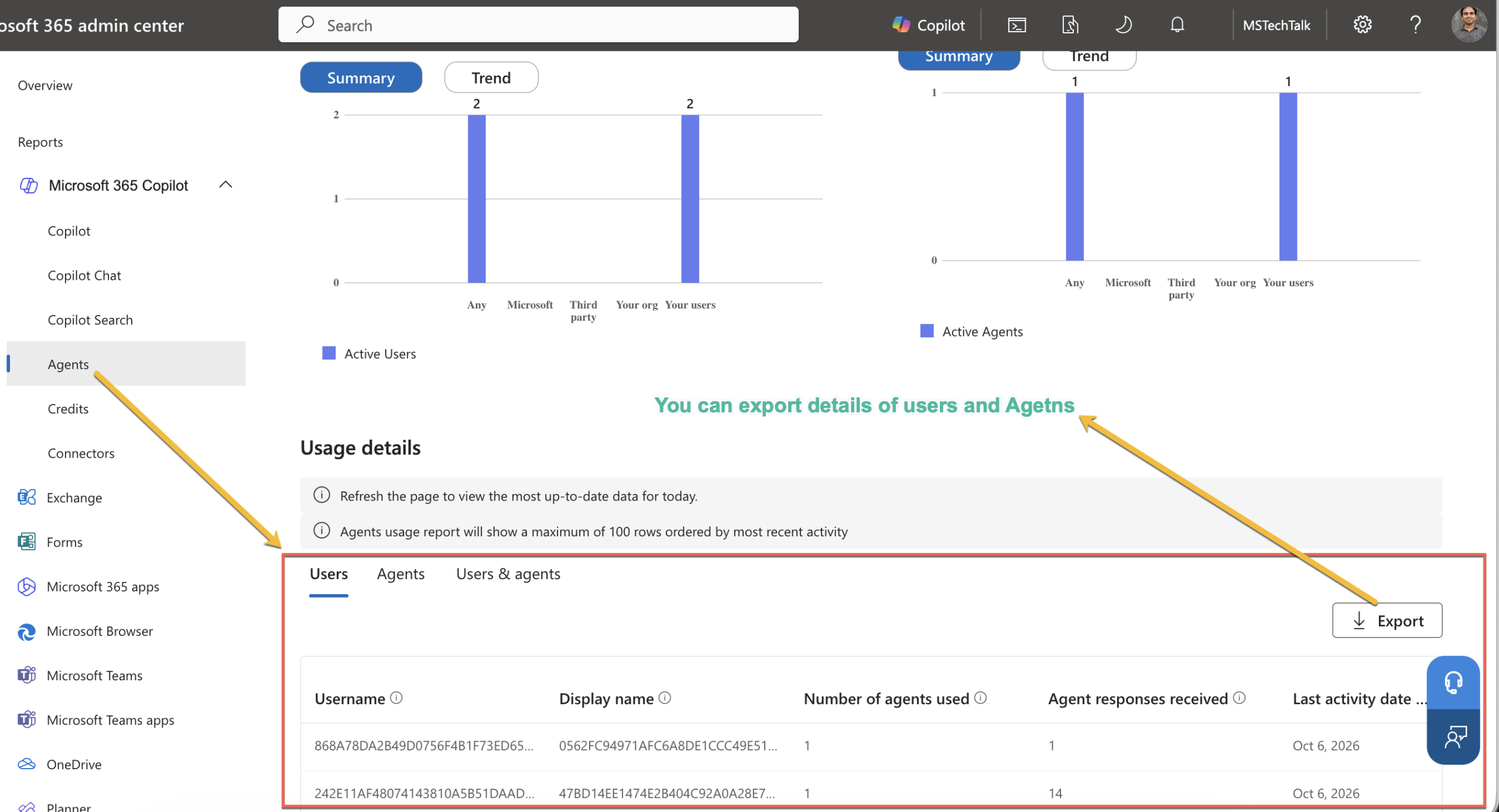
The Agent details table has Agent ID, Agent name, Creator type, Active users (licensed), Active users (unlicensed), Responses sent to users and Last activity date (UTC). Creator type tells you whether a user built it in agent builder (User), it was approved for the org (Your org), or it came from Microsoft or a partner.¬
Two gaps I’d tell any client about. The Export button on these tables is temporarily removed, per Learn. And SharePoint agents used inside Teams don’t show up at all. Usage appears within an hour, which is much faster than the Copilot report.
Agent overview and Registry (owners)
Usage reports don’t tell you who owns an agent. The Agents section does.
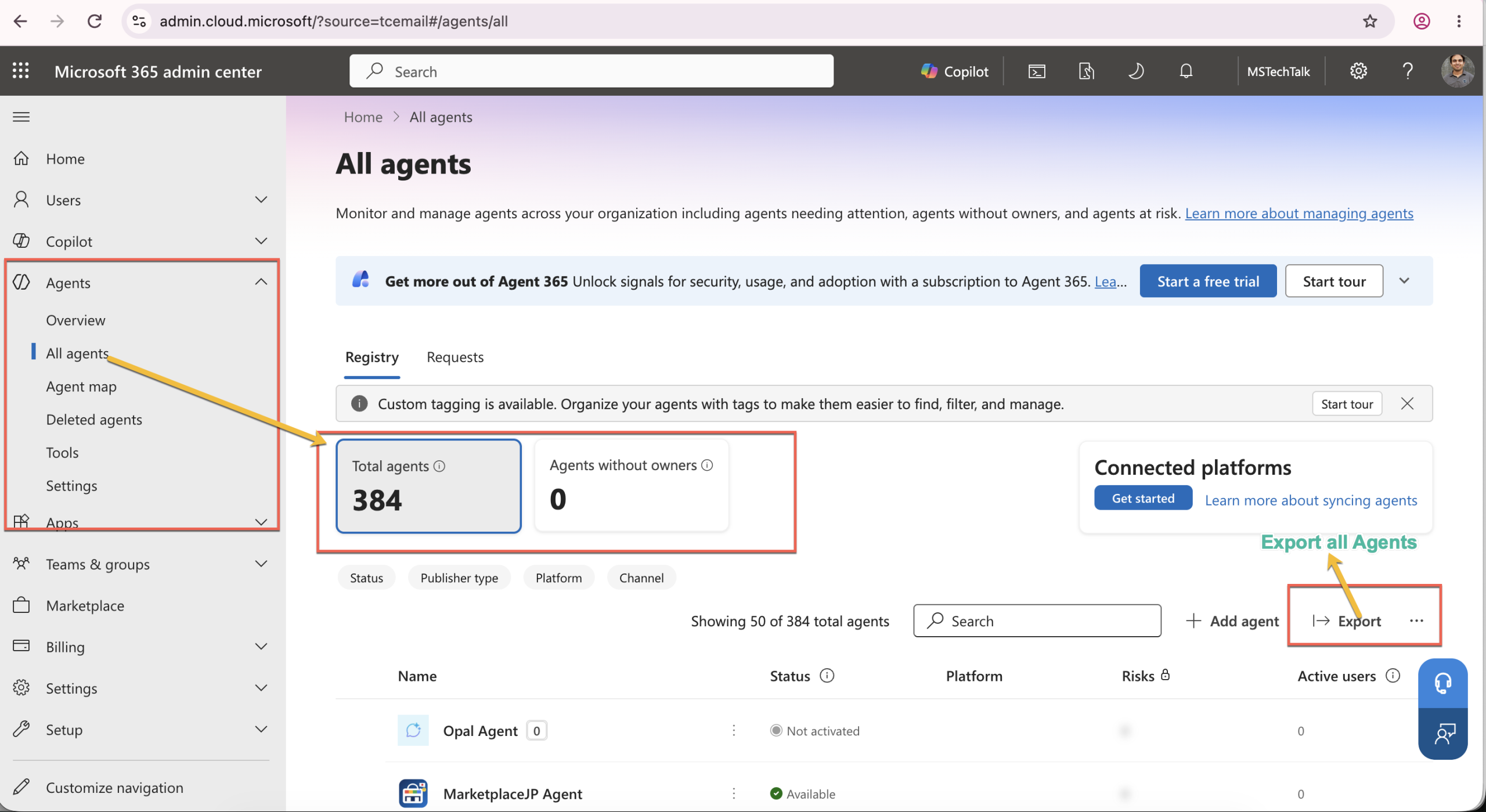
- Select Agents > All agents > Registry for the full list.
- Select the Agents without owners card. The list filters to agents whose creator has left the organization.
- Select an agent to open its details. The Users tab shows Installed to and Available to, and Activity shows sessions and run-time.
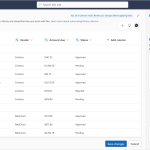
- Select Export and choose All agents. The file includes Owner, Publisher, Platform, Channel, Status and over 30 other fields. Check the above screenshot showing Export option.
Note: Microsoft Learn says the export stops at one minute and keeps only what it collected by then. On a big tenant, export with filters in batches. My test tenant has around 384 agents, no agent without owner as its a demo tenant.
Agents built in Copilot Studio also appear in the Power Platform admin center under Manage > Inventory, including drafts, which the Microsoft 365 Registry doesn’t show. Use Download there for a CSV.
Purview audit (per prompt)
When you need to know exactly when a user talked to a specific agent, go to the audit log.
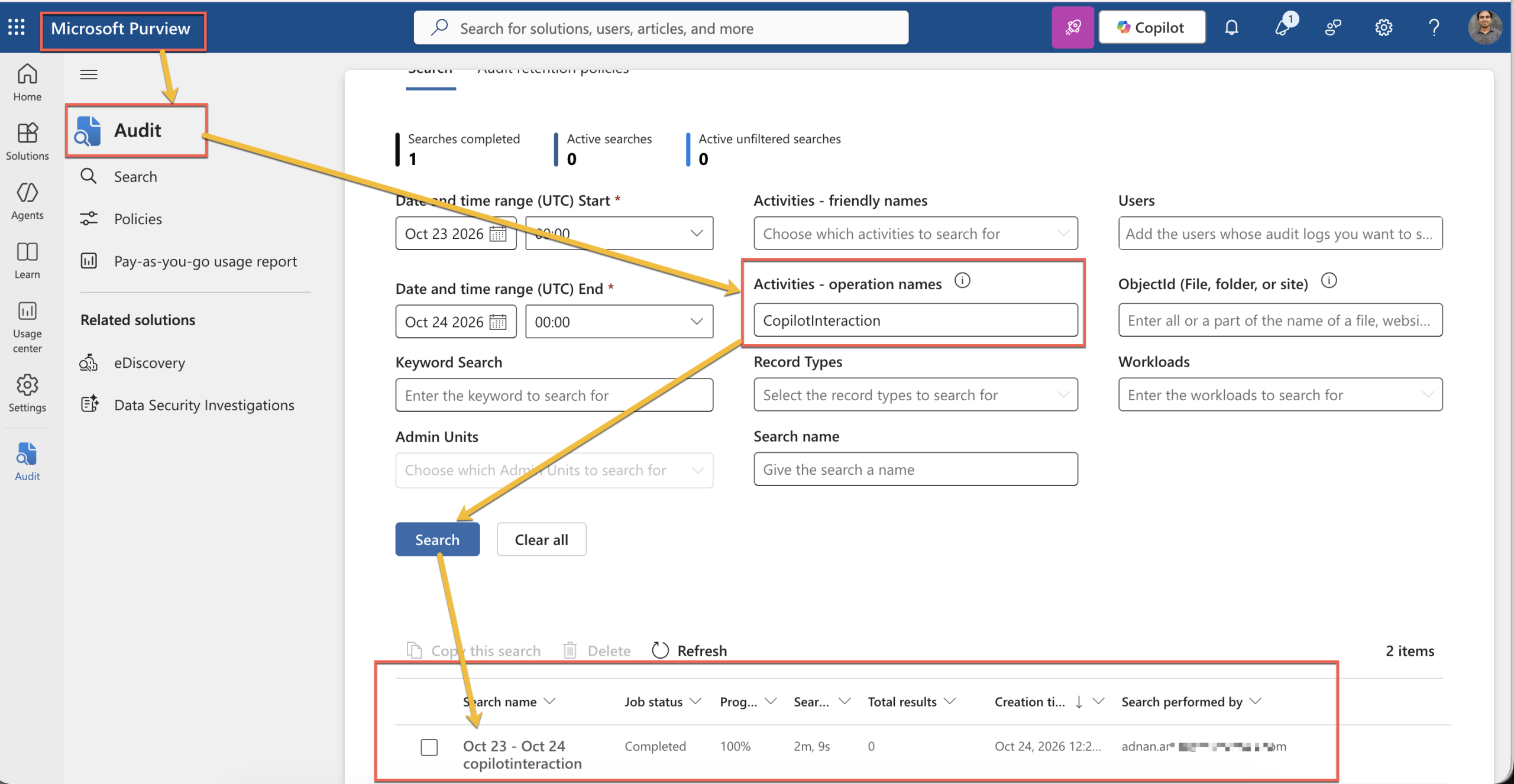
- Open the Microsoft Purview portal and select Audit.
- Under Activities – operation names, enter CopilotInteraction.
- Set the date range and select Search.
- Export the results and filter on AgentName or AgentId. (In Below screenshot it not showing any result as this is demo tenant, but would be showing data in production)
Audit Standard keeps these records for 180 days.
Using PowerShell
If you want all of this in two CSV files, I wrote a read-only script for it: Get-CopilotAgentUsage.ps1. Click here to Download/view PowerShell script. It needs PowerShell 7 and only the Microsoft.Graph.Authentication module, so it runs on Windows and macOS.
This command pulls the last 28 days and saves the files to a folder you choose.
.\Get-CopilotAgentUsage.ps1 -Days 28 -OutputFolder "C:\Reports"
You get CopilotUserUsage-<date>.csv (per-user Copilot activity by app) and CopilotAgents-<date>.csv (each agent with its owner, active users, sessions, last used date and whether it’s blocked). The console also prints how many agents have no owner and how many nobody used. Part 2 lists the permissions it needs.
Note: the script doesn’t replace the Agents usage report. There’s no Graph endpoint for that report yet, so the script’s agent numbers come from the agent list API and always cover the last 30 days. You won’t get Creator type, Responses sent to users or the licensed/unlicensed split, and unlicensed Copilot Chat users aren’t in the user CSV. Owners come from the API, so check a few against the Registry export the first time you run it.
Note: User names in every usage report are hashed by default. A Global Administrator can show them from Settings > Org settings > Services > Reports by clearing Conceal user, group, and site names in all reports. The change is logged in the Purview audit log, so agree it with HR or your privacy team first.

Adnan, a distinguished professional, boasts an impressive track record as a Microsoft MVP, having achieved this prestigious recognition for the eighth consecutive year since 2015. With an extensive career spanning over 18 years, Adnan has honed his expertise in various domains, notably excelling in SharePoint, Microsoft 365, Microsoft Teams, the .Net Platform, and Microsoft BI. Presently, he holds the esteemed position of Senior Microsoft Consultant at Olive + Goose.Notably, Adnan served as the MCT Regional Lead for the Pakistan Chapter from 2012 to 2017, showcasing his leadership and commitment to fostering growth within the tech community. His journey in the realm of SharePoint spans 14 years, during which he has undertaken diverse projects involving both intranet and internet solutions for both private and government sectors. His impact has transcended geographical boundaries, leaving a mark on projects in the United States and the Gulf region, often collaborating with Fortune 500 companies.Beyond his roles, Adnan is a dedicated educator, sharing his insights and knowledge as a trainer. He also passionately advocates for technology, frequently engaging with the community through speaking engagements in various forums. His multifaceted contributions exemplify his dedication to the tech field and his role in driving its evolution.





No Comments