

I have been working with Microsoft 365 tools for years. Copilot in SharePoint and Power Automate has been a game-changer for ditching repetitive tasks. No more endless clicking through lists or building flows from scratch. You tell it what you want in plain English and it handles the rest. Whether you manage project trackers or approval chains this combo saves real time.
Let me walk you through how I set these up in my last project step by step.
Starting Simple Copilot Powered SharePoint Lists
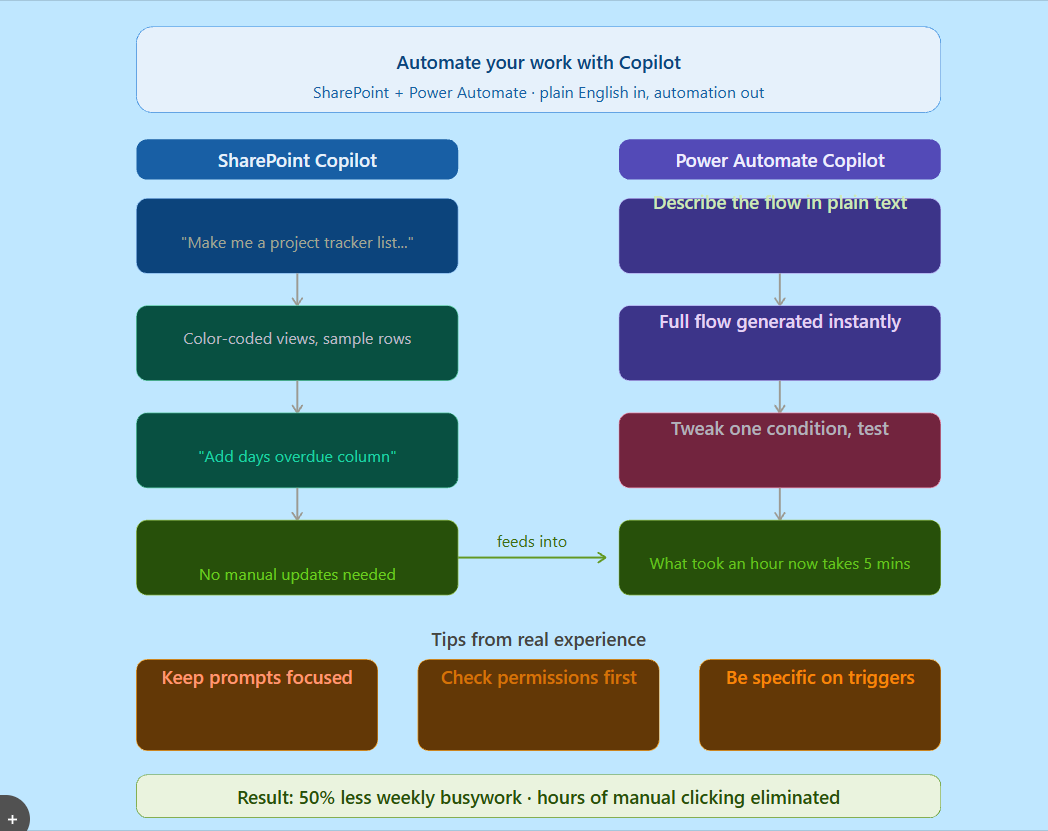
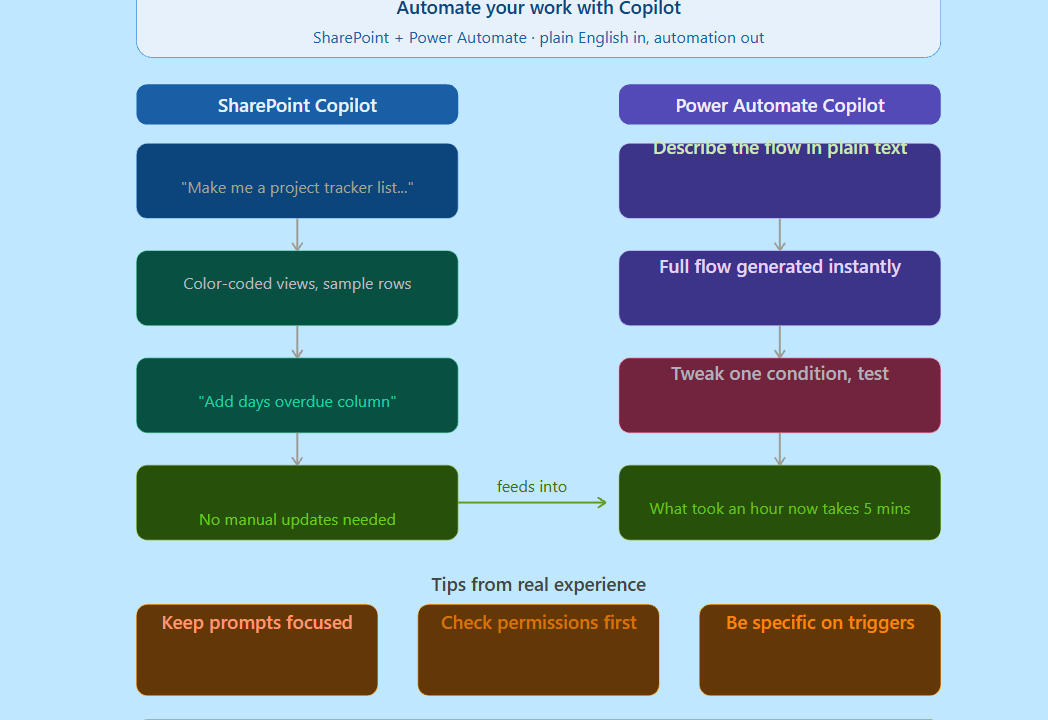
The first time I tried Copilot in SharePoint I was skeptical. On a new team site I typed “Make me a project tracker list with columns for task name owner due date priority and status dropdown”. There it was complete with color-coded views and sample rows. Took 30 seconds.
From there I asked it to “Add a calculated column showing days overdue” and “Summarize overdue tasks on the homepage”. It built the list and embedded a live summary web part. No more manual updates or begging IT for help.
If your lists get messy highlight items and say “Find all high-priority tasks due this week”. It gives a clean report you can copy into an email or Teams post.
Building Flows Without the Headache
Power Automate used to feel like programming lite. Dragging connectors and fixing errors at 2 AM. Copilot changes that. Open a new cloud flow hit the Copilot pane and describe “When someone submits a new expense in the Finance SharePoint list email their manager for approval then update the status and notify accounting if approved over $500”.
It generates the whole thing. SharePoint trigger Get manager action conditional approval email update item and error handling for rejected requests. Tweak one condition hit test and its live. What used to take an hour? Five minutes.
Old way: Hunt for triggers link SharePoint to Outlook debug why approvals were not routing.
Copilot way: Describe the story review the logic deploy. Done.
Real Examples I Have Used
Last month we had a client onboarding process that was killing us. Manual emails status updates across sheets forgotten follow-ups. I built this flow with Copilot.
“When a new client is added to the CRM SharePoint list create a Teams channel send a welcome email assign onboarding tasks to the account manager and set a reminder in two weeks if no activity.” Nailed it first try.
Another one daily reports. “Email the team lead a summary of new support tickets created today in SharePoint grouped by category.” Scheduled it to run at 4 PM. Execs get clean bullet points without me touching Excel.
For bigger wins chain them together. Copilot in SharePoint creates your list structure then Power Automate keeps it humming.
A Few Lessons from Trial and Error
Do not overcomplicate your first prompt. Keep it to one clear process. If it misses something like “only for items assigned to me” reply in the pane “Add a filter for my department”. It revises instantly.
Watch permissions. Copilot cannot invent access you do not have so test in a shared site. Always run a test flow with dummy data. I have caught weird edge cases that way.
One quirk super vague prompts like “automate stuff” will not fly. Be specific about triggers and actions. You will avoid backtracking.
This setup has cut my weekly busywork by half. If you are staring at a SharePoint list thinking there must be a better way start with one automation today. What is the most annoying task on your plate?

Adnan, a distinguished professional, boasts an impressive track record as a Microsoft MVP, having achieved this prestigious recognition for the eighth consecutive year since 2015. With an extensive career spanning over 18 years, Adnan has honed his expertise in various domains, notably excelling in SharePoint, Microsoft 365, Microsoft Teams, the .Net Platform, and Microsoft BI. Presently, he holds the esteemed position of Senior Microsoft Consultant at Olive + Goose.Notably, Adnan served as the MCT Regional Lead for the Pakistan Chapter from 2012 to 2017, showcasing his leadership and commitment to fostering growth within the tech community. His journey in the realm of SharePoint spans 14 years, during which he has undertaken diverse projects involving both intranet and internet solutions for both private and government sectors. His impact has transcended geographical boundaries, leaving a mark on projects in the United States and the Gulf region, often collaborating with Fortune 500 companies.Beyond his roles, Adnan is a dedicated educator, sharing his insights and knowledge as a trainer. He also passionately advocates for technology, frequently engaging with the community through speaking engagements in various forums. His multifaceted contributions exemplify his dedication to the tech field and his role in driving its evolution.






No Comments