

A client opted a handful of sites out of the Copilot in SharePoint preview with Set-SPOTenant back in June (e.g:HR and Legal sites at a government client). Microsoft has now confirmed those PowerShell settings are honoured only until 1 November 2026 (MC1479277). After that, the job moves to site AI settings and Restricted Content Discovery, and the two don’t do the same thing.
Here is how I’d find the sites you opted out and set them again before the deadline.
Prerequisites
- SharePoint Administrator role.
- SharePoint Online Management Shell 16.0.26615.12013 or later.
- Microsoft 365 Copilot licences in the tenant. Restricted Content Discovery also needs SharePoint Advanced Management available.
- Owner rights on the site, for the site AI settings method.
Find the sites you opted out
The preview controls were three Set-SPOTenant parameters: KnowledgeAgentScope, KnowledgeAgentSelectedSitesList and KnowledgeAgentSelectedSitesListOperation. Export what you set before it stops meaning anything.
This uses the SharePoint Online Management Shell.
$AdminURL = "https://contoso-admin.sharepoint.com"Connect-SPOService -Url

$AdminURLGet-SPOTenant | Select-Object KnowledgeAgentScope, KnowledgeAgentSelectedSitesList |    Format-List
What the result means:
ExcludeSelectedSites: the URLs in the list are your opted-out sites.IncludeSelectedSites: every site not in the list is opted out. That can be most of the tenant.NoSites: Copilot was off everywhere.AllSites: nothing was opted out.
Note: the list holds 100 URLs at most, so it’s short. Save it to a file now.
Using site AI settings
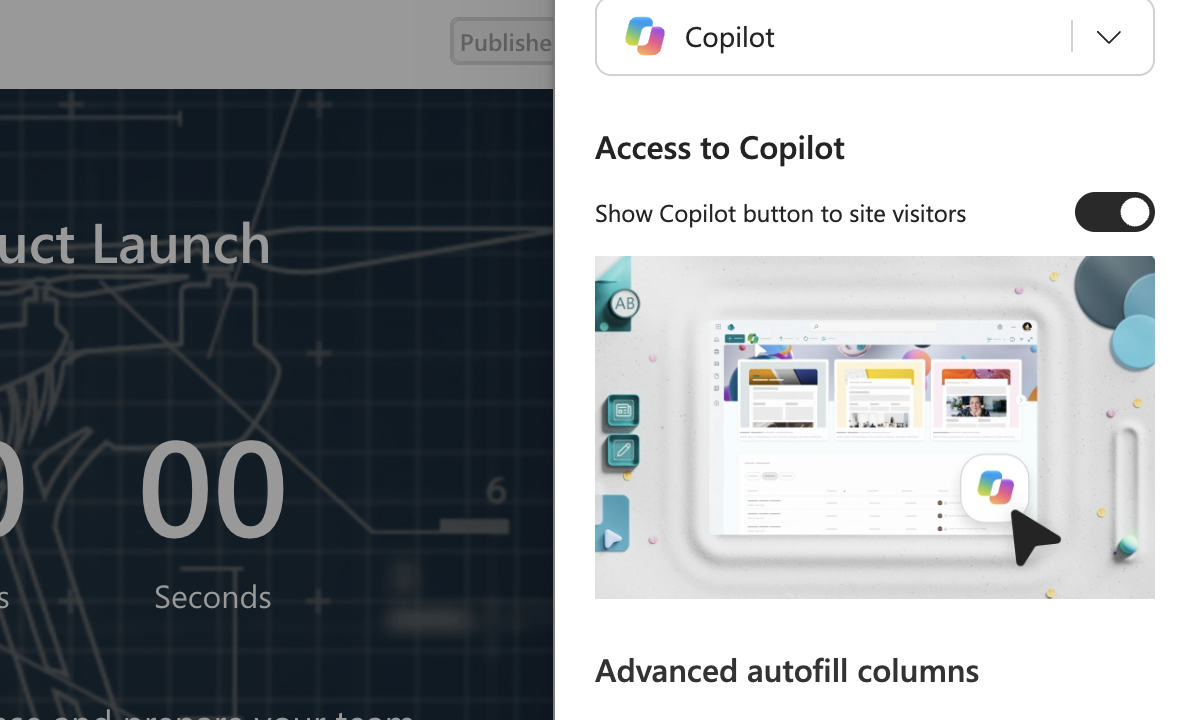
Most posts about the deadline point you here, but read what it does first. Site AI settings lets the owner hide the Copilot button for site visitors only. Owners and members still see it. It doesn’t remove Copilot from the site.
- Open the site as an owner.
- Select Settings (gear icon) > Site AI. The site AI settings panel opens.
- Turn on the option to hide the Show Copilot button to site visitors.
- Under the agent option, pick whether the header agent icon opens Copilot in SharePoint or a custom agent.
- Save.
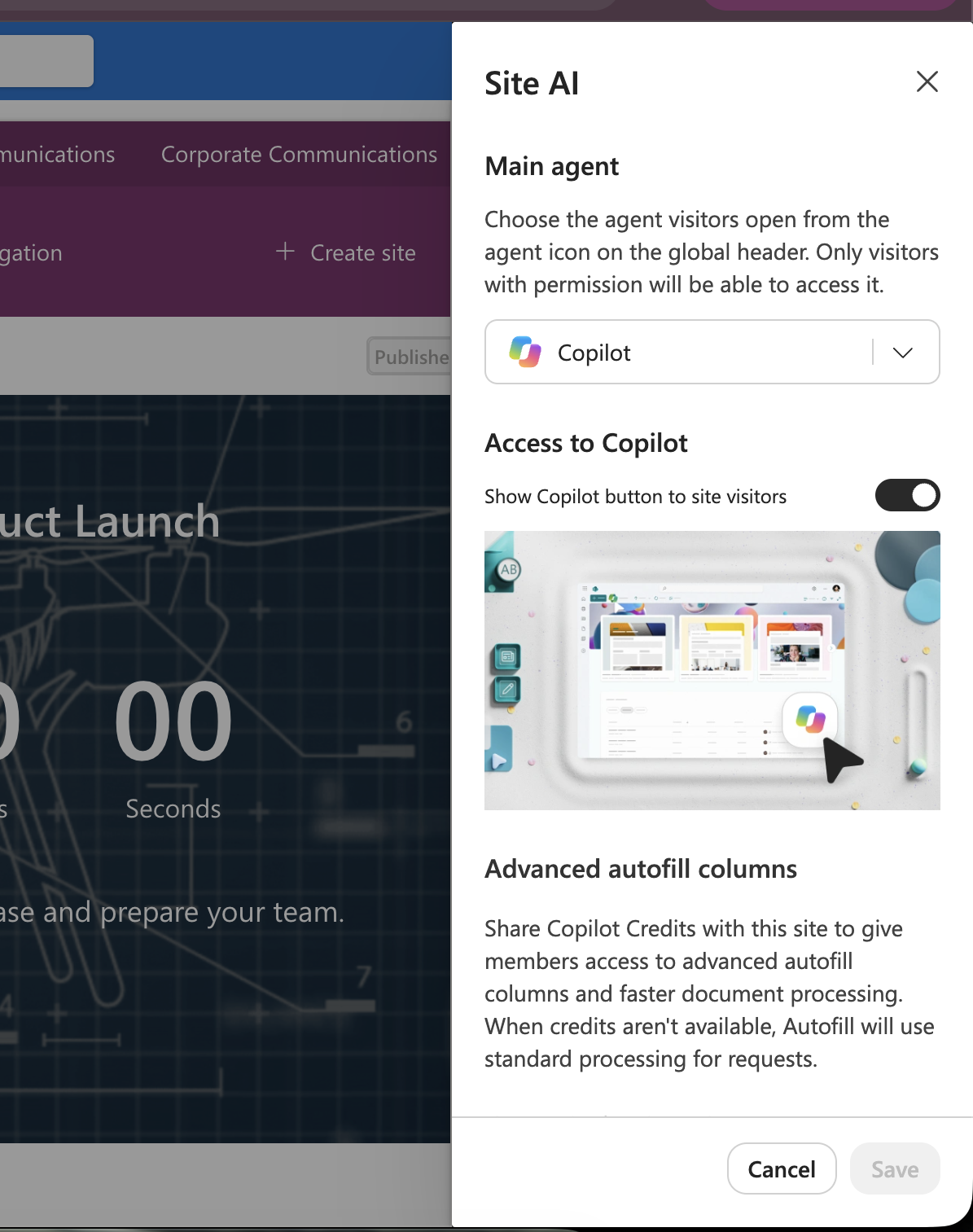
To check, open the site in a private window as a user in the Visitors group. The Copilot button shouldn’t appear on pages.
I use this for intranet and communication sites where visitors are most of the audience and nobody needs Copilot there.
Note: the list holds 100 URLs at most, so it’s short. Save it to a file now.
Using SharePoint admin center (Restricted Content Discovery)
If the site was opted out because of what’s in it, this is the setting you want. With Restricted Content Discovery on, Copilot in SharePoint, the AI actions menu and Create pages with AI don’t appear on the site at all, whatever the other settings say. Permissions don’t change and the content stays in the search index.
- Open the SharePoint admin center and go to Sites > Active sites.
- Select the site name. The details panel opens.
- Select the Settings tab.
- Turn on Restrict content Discovery from Microsoft Copilot.
- Select Save.
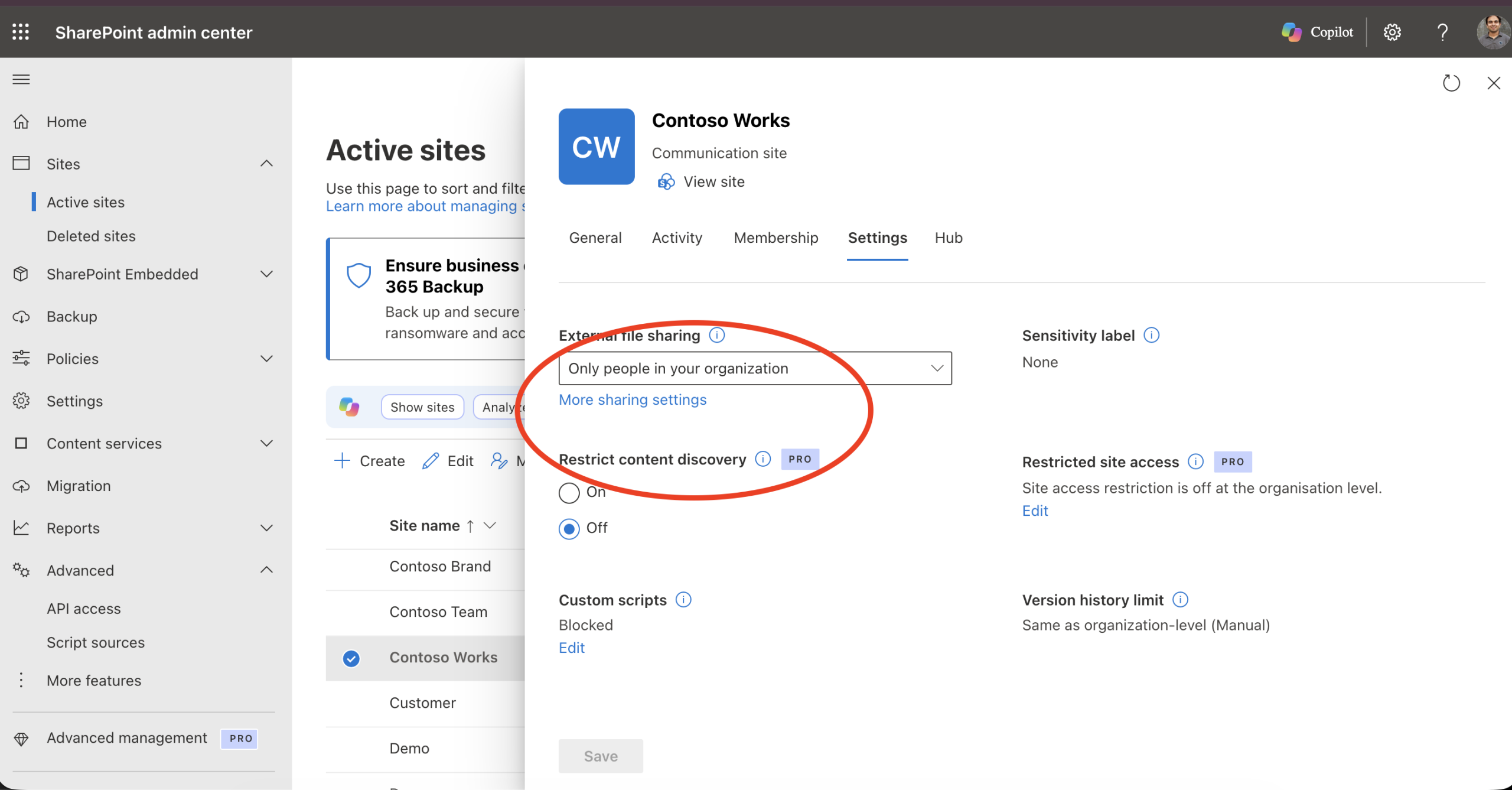
The site gets a Restricted tag. Its content also drops out of org-wide search on SharePoint home and Office.com, and out of tenant-wide Copilot answers. Search inside the site still works. Tell the site owner before you do this.
Using PowerShell
This reads your exported list and turns on Restricted Content Discovery for each site. It needs the SharePoint Online Management Shell.
$AdminURL = "https://contoso-admin.sharepoint.com"
$CsvPath  = "C:\Temp\copilot-optout-sites.csv"# one column called Url

Connect-SPOService -Url $AdminURL

Import-Csv $CsvPath | ForEach-Object {
    Set-SPOSite -Identity $_.Url -RestrictContentOrgWideSearch $true
    Get-SPOSite -Identity $_.Url | Select-Object Url, RestrictContentOrgWideSearch
}
Each site should come back with RestrictContentOrgWideSearch as True.
If your scope was IncludeSelectedSites, build the CSV from Get-SPOSite -Limit All minus the sites in your include list. Then look hard at that number before running anything. Microsoft describes Restricted Content Discovery as a temporary control to use selectively, and blocking hundreds of sites hurts search for everyone.
Issue I hit
Restricted Content Discovery is not instant. Microsoft says sites with more than 500,000 items can take over a week to fully process. For me on a site with 40 GB document library it took about two days before the Copilot button went away. Do the big sites first, well before 1 November.
Note: if your tenant was on NoSites, there’s no documented tenant-wide replacement after 1st November. Only site-level controls are listed. Plan for that now rather than finding out on the 2nd.

Adnan, a distinguished professional, boasts an impressive track record as a Microsoft MVP, having achieved this prestigious recognition for the eighth consecutive year since 2015. With an extensive career spanning over 18 years, Adnan has honed his expertise in various domains, notably excelling in SharePoint, Microsoft 365, Microsoft Teams, the .Net Platform, and Microsoft BI. Presently, he holds the esteemed position of Senior Microsoft Consultant at Olive + Goose.Notably, Adnan served as the MCT Regional Lead for the Pakistan Chapter from 2012 to 2017, showcasing his leadership and commitment to fostering growth within the tech community. His journey in the realm of SharePoint spans 14 years, during which he has undertaken diverse projects involving both intranet and internet solutions for both private and government sectors. His impact has transcended geographical boundaries, leaving a mark on projects in the United States and the Gulf region, often collaborating with Fortune 500 companies.Beyond his roles, Adnan is a dedicated educator, sharing his insights and knowledge as a trainer. He also passionately advocates for technology, frequently engaging with the community through speaking engagements in various forums. His multifaceted contributions exemplify his dedication to the tech field and his role in driving its evolution.






No Comments