

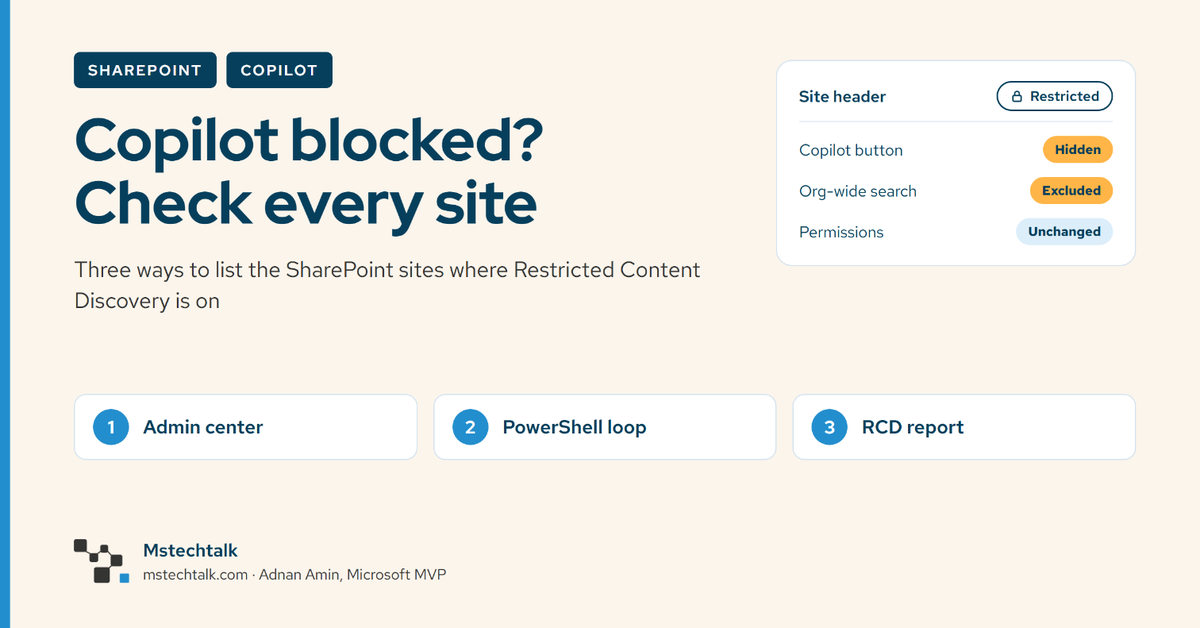
After the Copilot in SharePoint opt-outs ended on 1 November, the old opt-out list stopped meaning anything. The setting that now keeps Copilot off a site is Restricted Content Discovery (RCD), so the real question is which SharePoint sites have Copilot blocked. I turned RCD on for two sites on my demo tenant (MST Finance and MST IT Service Desk) and tried three ways to list them. The reports came back with four sites, because MST Intranet and an older site on the same tenant already had it on. That alone is a good reason to run a report instead of trusting memory.
Prerequisites
- SharePoint Administrator role.
- Microsoft 365 Copilot licences and SharePoint Advanced Management in the tenant (RCD needs both).
- SharePoint Online Management Shell (Microsoft.Online.SharePoint.PowerShell). The current version is 16.0.27814.12015, published on 13 November 2026.
Only RCD removes Copilot from a site for everyone. With RCD on, the Copilot button, the AI actions menu (including creating agents) and Create pages with AI don’t show on the site, and its content is left out of organisation-wide search and Copilot results. Permissions don’t change. People can still open the files, search inside the site and summarise a document they already have open. I covered switching it on in How to keep Copilot in SharePoint off a site after the PowerShell opt-out ends.
1 – Using SharePoint admin center
This is fine for checking one or two sites. There’s no column or filter for RCD in Active sites, so you check site by site.
- Open the SharePoint admin center and expand Sites > Active sites.
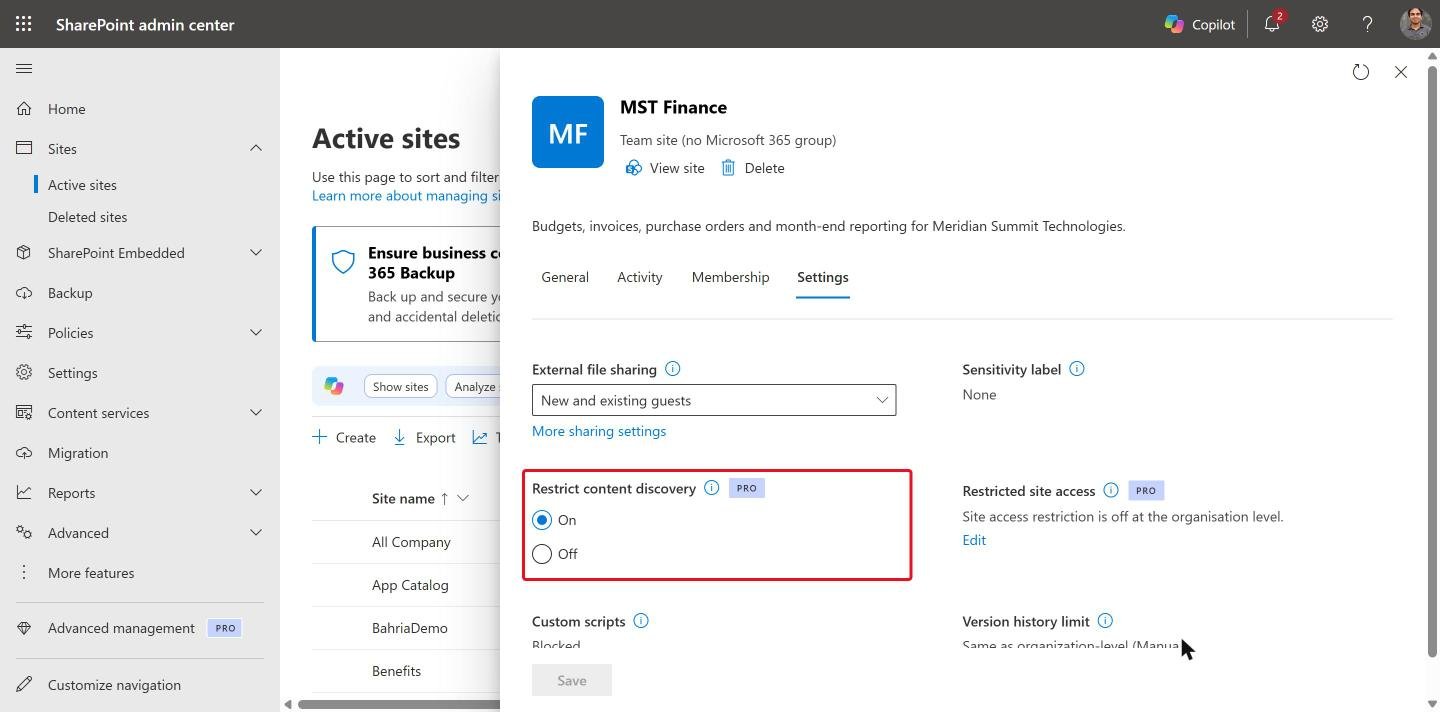
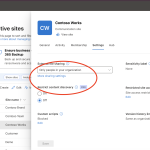
- Select the site name, for example MST Finance. The details panel opens.
- Select the Settings tab.
- Look at Restrict content discovery. If On is selected, Copilot is blocked on this site.
Microsoft Learn calls this setting Restrict content from Microsoft Copilot, but in the admin center on my tenant the label is Restrict content discovery, with On and Off options.
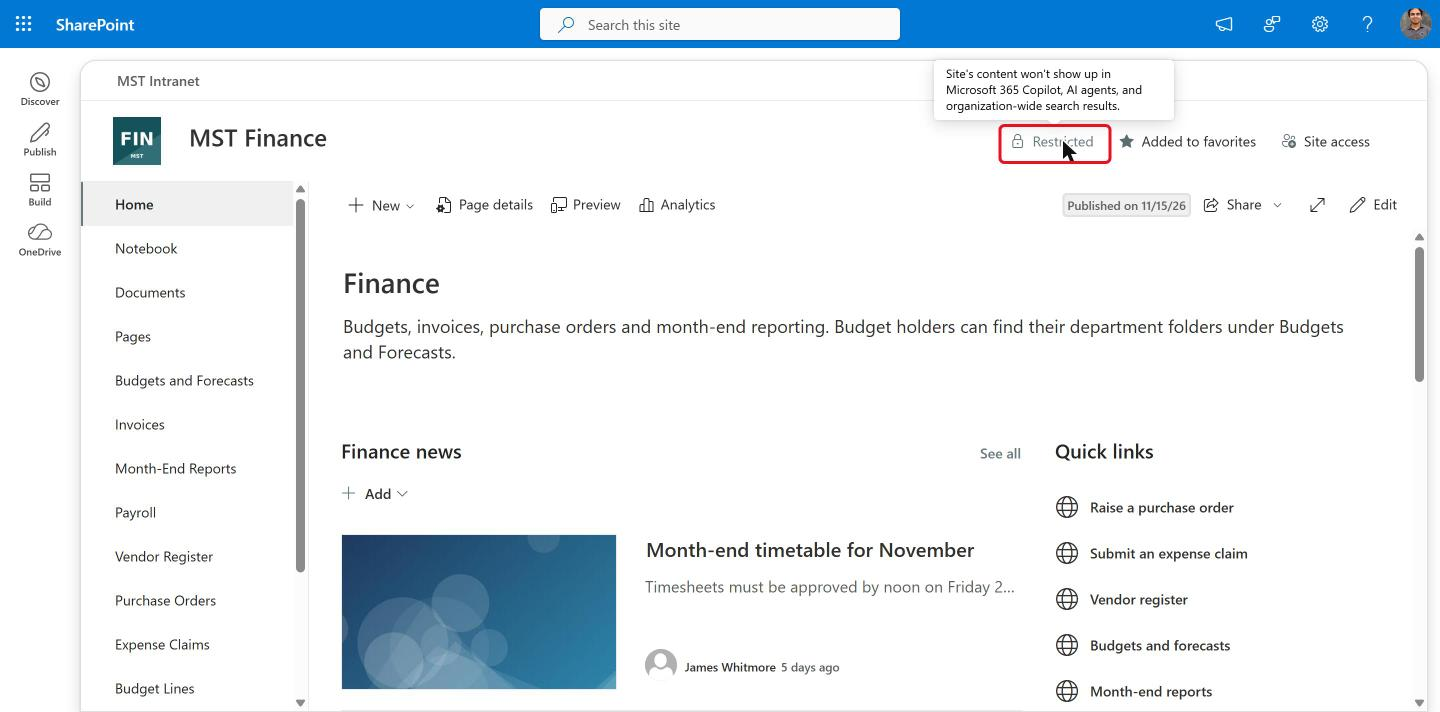
Each site with RCD on also shows a Restricted tag in the site header. Hover over it and the tooltip says the site’s content won’t show up in Microsoft 365 Copilot, AI agents and organisation-wide search results.
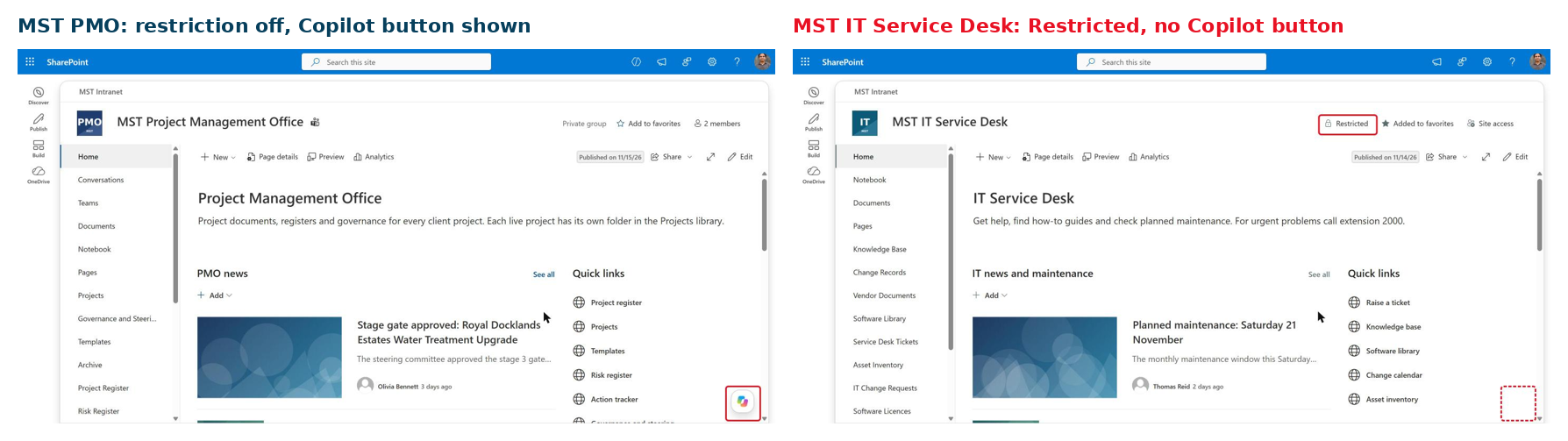
To check it from the user’s side, open the site with a Copilot licence. On a normal site, the Copilot button sits at the bottom right. On MST IT Service Desk it’s gone, and so is the extra Copilot icon in the header. RCD applies to admins too, so you can check this with your own account.
I don’t use this for more than a handful of sites. Fifty clicks isn’t a report.
2 – Using SharePoint Online PowerShell
This script loops through every site, checks the RestrictContentOrgWideSearch property and exports the blocked sites to CSV. It needs the SharePoint Online Management Shell.
# Module: Microsoft.Online.SharePoint.PowerShell (SharePoint Online Management Shell)
$AdminURL   = "https://mstalk-admin.sharepoint.com"   # Replace with your own
$ReportPath = "C:\Temp\copilot-blocked-sites.csv"     # Replace with your own

Connect-SPOService -Url $AdminURL

$Sites  = Get-SPOSite -Limit All
$Result = foreach ($Site in $Sites) {
    try {
        # Query each site by URL so the RCD property is read for that site
        $Detail = Get-SPOSite -Identity $Site.Url
        if ($Detail.RestrictContentOrgWideSearch) {
            [PSCustomObject]@{
                Title = $Detail.Title
                Url   = $Detail.Url
                Owner = $Detail.Owner
            }
        }
    }
    catch {
        Write-Warning "Could not read $($Site.Url): $($_.Exception.Message)"
    }
}

$Result | Export-Csv -Path $ReportPath -NoTypeInformation
Write-Host "$(@($Result).Count) sites have Copilot blocked. Report: $ReportPath"
Run it in Windows PowerShell 5.1. The CSV lists the title, URL and owner of every site with RCD on. Get-SPOSite -Limit All skips OneDrive sites by default, which is fine here because RCD doesn’t support OneDrive.
The full script, with parameters for your own admin URL and report path, is on my GitHub: Get-CopilotBlockedSites.ps1.
On my demo tenant it returned four sites, as shown below. I blurred one site that isn’t part of the demo, and the owner column.
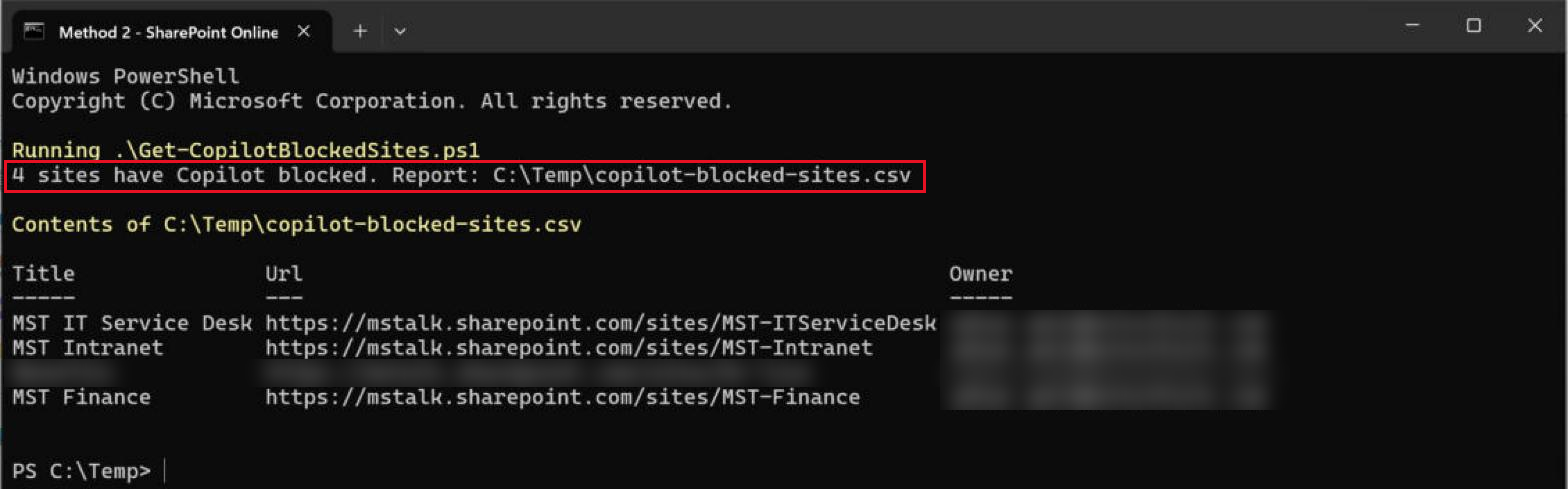
I query each site by URL because the Get-SPOSite reference doesn’t document RestrictContentOrgWideSearch at all, and it warns that some properties come back with default values when -Limit is used. The catch is speed: one call per site is slow on a big tenant.
3 – Using the Restricted Content Discovery insights report
Microsoft has a built-in report for exactly this. It’s PowerShell only and uses two cmdlets from the same module.
# Module: SharePoint Online Management Shell, after Connect-SPOService
# Step 1: queue the report
Start-SPORestrictedContentDiscoverabilityReport

# Step 2: check the status and copy the report ID
Get-SPORestrictedContentDiscoverabilityReport

# Step 3: download the CSV once the status shows Completed
Get-SPORestrictedContentDiscoverabilityReport -Action Download -ReportId "<Report GUID>"
Step 1 asks you to confirm, because generating the report takes some time. Type Y and it returns the report ID with the status NotStarted. On my demo tenant the status moved to InQueue and then Completed in about two minutes. Expect longer on a big tenant. The download saves a CSV named RestrictedContentDiscoverabilityReport_<number>.csv in the current folder.
Microsoft allows one new report every 24 hours. When I ran step 1 again the same day, it failed with The operation can't be performed as new report can be generated once in every 24 hours. Inside that window, skip step 1 and use steps 2 and 3 to download the last report.
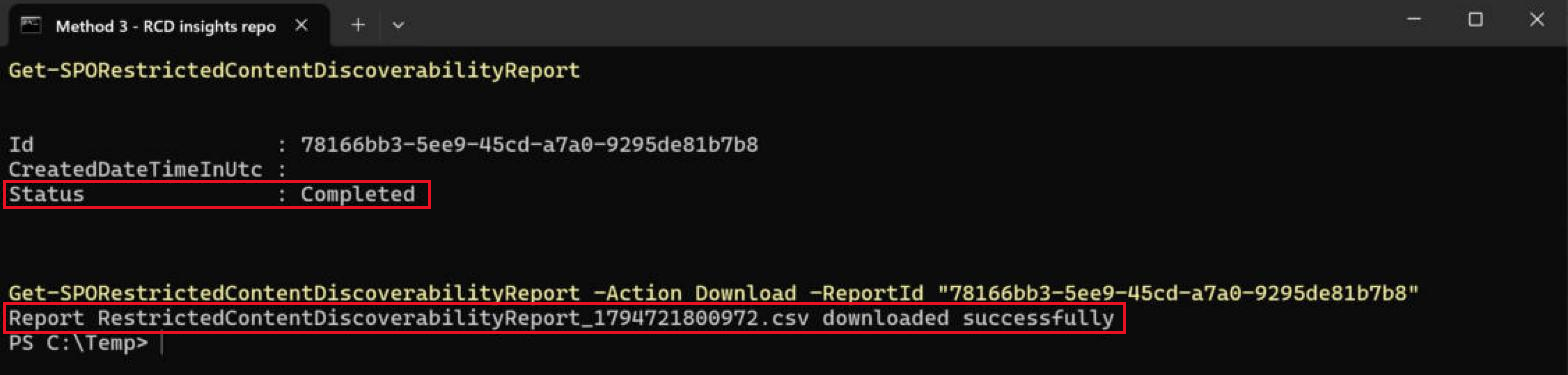
The CSV has five columns: SiteTitle, SiteUrl, SiteOwnerEmail, LastModified and TimeCreated. It listed the same four sites as the method 2 script.
For large tenants I prefer this report, as Microsoft does the work and the owner is already in it. I keep the method 2 script for quick checks, or when I want to add my own columns.
If you’d rather not run the three commands by hand, Get-RCDInsightsReport.ps1 on my GitHub queues the report, waits until it shows Completed and downloads the CSV. If a report was already generated in the last 24 hours, it downloads that one instead. Both scripts and a README are in the SharePoint-Copilot-Blocked-Sites folder.
Run either report on a schedule. If you’ve turned on delegation with Set-SPOTenant -DelegateRestrictedContentDiscoverabilityManagement $true, site admins can switch RCD on or off themselves. Every change, with its justification, goes to the Microsoft Purview audit log.
Note: none of these methods show sites where the owner has hidden Copilot in Settings > Site AI. That option only hides the Copilot button from site visitors, so owners and members still see it. Also, sites with more than 500,000 items can take over a week to update after RCD is switched on.

Adnan, a distinguished professional, boasts an impressive track record as a Microsoft MVP, having achieved this prestigious recognition for the eighth consecutive year since 2015. With an extensive career spanning over 18 years, Adnan has honed his expertise in various domains, notably excelling in SharePoint, Microsoft 365, Microsoft Teams, the .Net Platform, and Microsoft BI. Presently, he holds the esteemed position of Senior Microsoft Consultant at Olive + Goose.Notably, Adnan served as the MCT Regional Lead for the Pakistan Chapter from 2012 to 2017, showcasing his leadership and commitment to fostering growth within the tech community. His journey in the realm of SharePoint spans 14 years, during which he has undertaken diverse projects involving both intranet and internet solutions for both private and government sectors. His impact has transcended geographical boundaries, leaving a mark on projects in the United States and the Gulf region, often collaborating with Fortune 500 companies.Beyond his roles, Adnan is a dedicated educator, sharing his insights and knowledge as a trainer. He also passionately advocates for technology, frequently engaging with the community through speaking engagements in various forums. His multifaceted contributions exemplify his dedication to the tech field and his role in driving its evolution.



No Comments