

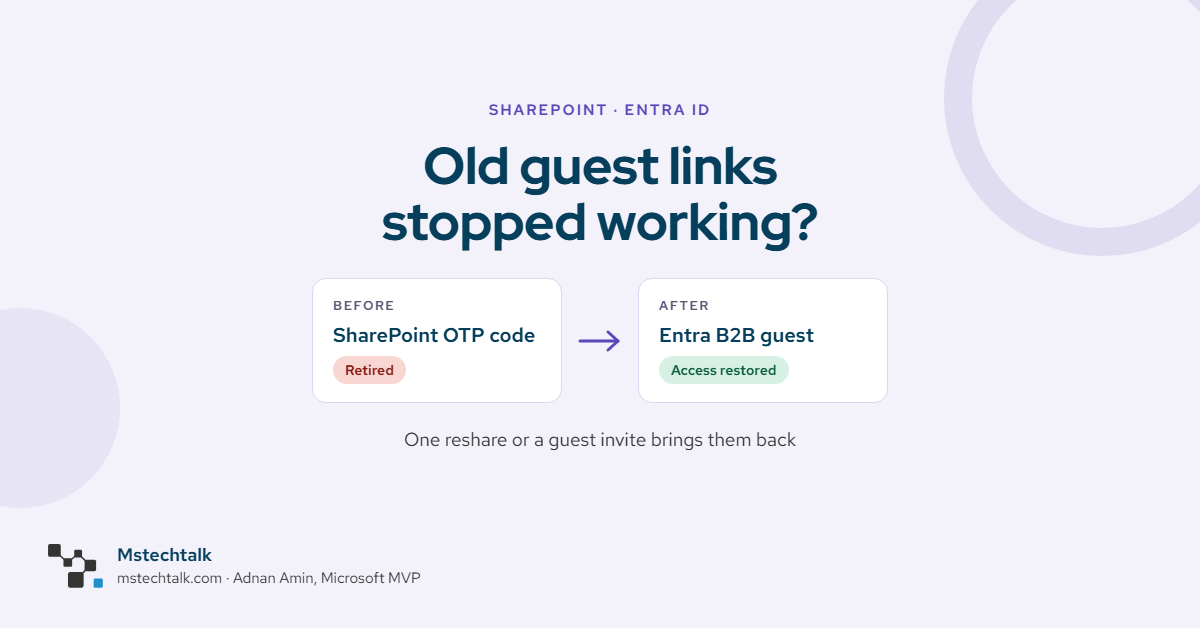
If a partner says a SharePoint link that worked last month now gives access denied, check whether they have a guest account in your directory. SharePoint’s own one-time passcode (SPO OTP) is being retired. A guest without an Entra B2B account loses access to the specific people links shared with them before the change.
What changed and when
Microsoft announced the SharePoint OTP retirement in MC1243549. It comes in two phases:
- Phase 1: new external sharing creates an Entra B2B guest account automatically. Microsoft’s 1 October 2026 update confirmed it’s fully rolled out to production.
EnableAzureADB2BIntegrationno longer controls anything, and the integration can’t be turned off. - Phase 2: SPO OTP retires. The same update moved the start to mid-October, with completion by the end of November 2026.
As of 15 November, the Microsoft Learn FAQ still says retirement happens during October 2026. The Message Center post is newer, so I’m going with the end of November. GCC, GCC High and DoD are excluded from both phases, and Microsoft will announce their dates later.
Entra B2B email one-time passcode isn’t going anywhere. Guests still get a code by email, but it now comes from Entra against a real guest account, so Conditional Access and your guest policies apply to them. Anyone links aren’t affected either, because they never needed a sign-in. I cover finding them in How to find Anyone links on a SharePoint site with PnP PowerShell.
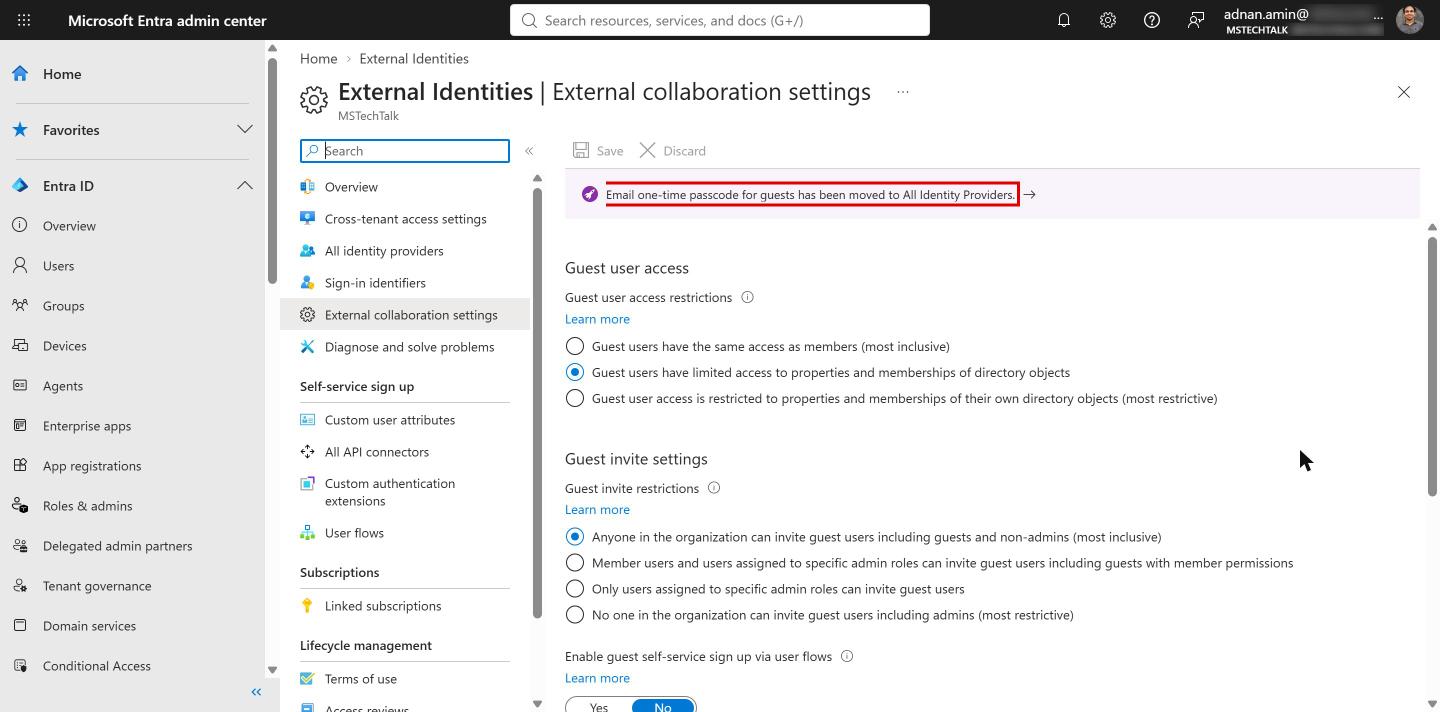
One thing to check while you’re in Entra: on my tenant, External Identities > External collaboration settings now shows a banner saying email one-time passcode for guests has moved to All identity providers. If you’re looking for that setting in the old place, that’s where it is now. The guest invite settings on this page also now decide who can share with new external people from SharePoint.
Finding guests without a guest account
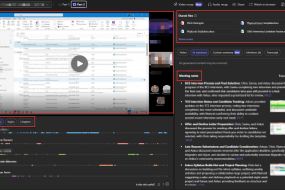
The FAQ points to each site’s external sharing report. Guests invited through SPO OTP who don’t have a B2B account yet appear in its User E-mail column.
- Open the site, for example MST Finance.
- Select Settings > Site usage.
- Scroll to Shared with external users. It lists the files shared outside the organisation. On MST Finance that’s two Board Summary PDFs in Month-End Reports.
- Select Run report and choose a library to save the CSV to, then check the User E-mail column.
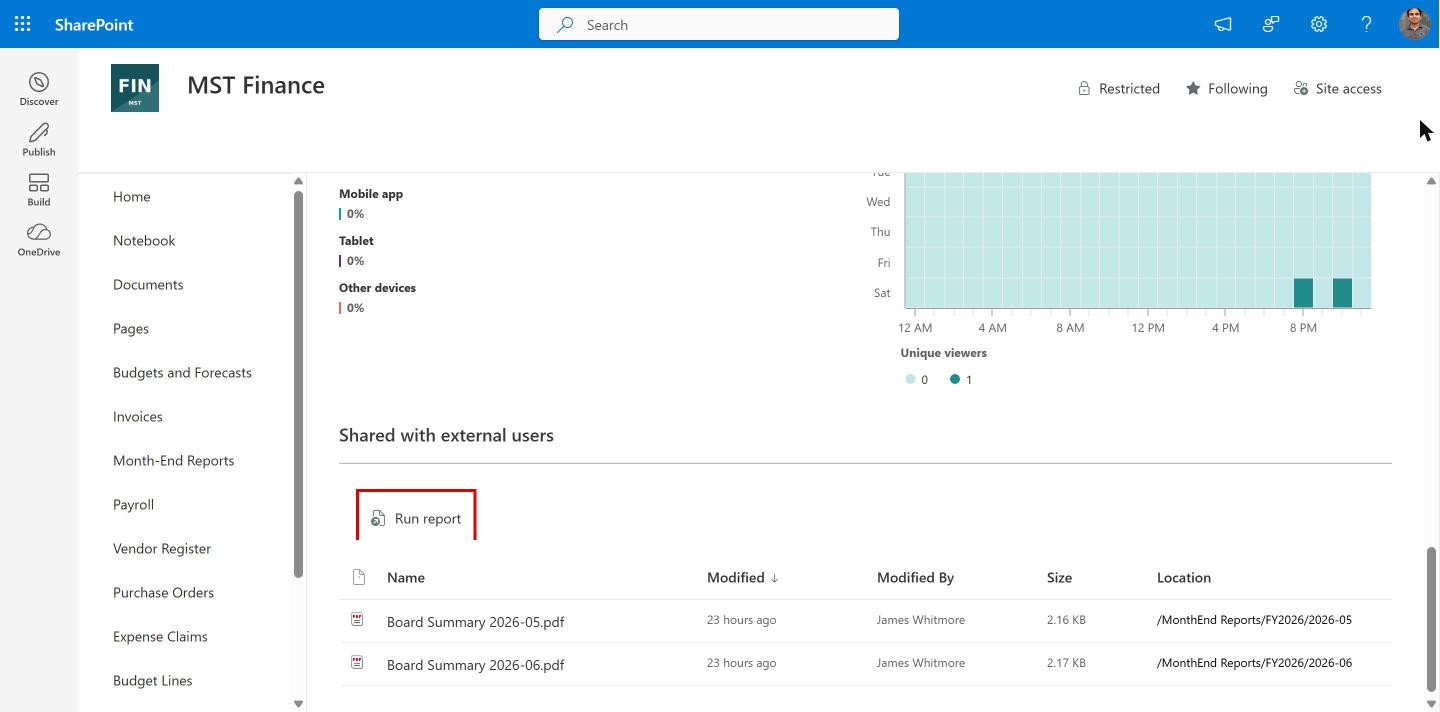
On my demo tenant I’d expect that column to be empty. I made the MST guest links on 14 November 2026, after Phase 1, so every guest got a B2B account when the link was created. On a tenant with links from 2025 or earlier, this is where the affected names show up.
Giving access back
You don’t need to share every file again. Microsoft gives two options:
- Someone with sharing permission shares any one file, folder or site with the guest again. That creates the guest account and restores access to everything shared with them before.
- An admin creates the guest account directly.
To create it with Microsoft Graph PowerShell (Microsoft.Graph.Identity.SignIns module, User.Invite.All scope):
# Module: Microsoft.Graph.Identity.SignIns
$GuestEmail  = "<guest-email-address>"                           # Replace with your own
$RedirectUrl = "https://mstalk.sharepoint.com/sites/MST-Finance"  # Replace with your own

Connect-MgGraph -Scopes "User.Invite.All"

try {
    New-MgInvitation -InvitedUserEmailAddress $GuestEmail `
        -InviteRedirectUrl $RedirectUrl `
        -SendInvitationMessage:$true -ErrorAction Stop
}
catch {
    Write-Warning "Invitation failed: $($_.Exception.Message)"
}
If the invite fails with a message about the domain not being allowed, Entra’s rules now apply to SharePoint sharing. Check External collaboration settings and Cross-tenant access settings in the Entra admin center, not only the SharePoint sharing page.
I haven’t run this one on my demo tenant, because it creates a real guest account. Test it with an address you control first. The script is on my GitHub: SharePoint-OTP-Retirement.

Adnan, a distinguished professional, boasts an impressive track record as a Microsoft MVP, having achieved this prestigious recognition for the eighth consecutive year since 2015. With an extensive career spanning over 18 years, Adnan has honed his expertise in various domains, notably excelling in SharePoint, Microsoft 365, Microsoft Teams, the .Net Platform, and Microsoft BI. Presently, he holds the esteemed position of Senior Microsoft Consultant at Olive + Goose.Notably, Adnan served as the MCT Regional Lead for the Pakistan Chapter from 2012 to 2017, showcasing his leadership and commitment to fostering growth within the tech community. His journey in the realm of SharePoint spans 14 years, during which he has undertaken diverse projects involving both intranet and internet solutions for both private and government sectors. His impact has transcended geographical boundaries, leaving a mark on projects in the United States and the Gulf region, often collaborating with Fortune 500 companies.Beyond his roles, Adnan is a dedicated educator, sharing his insights and knowledge as a trainer. He also passionately advocates for technology, frequently engaging with the community through speaking engagements in various forums. His multifaceted contributions exemplify his dedication to the tech field and his role in driving its evolution.



No Comments