

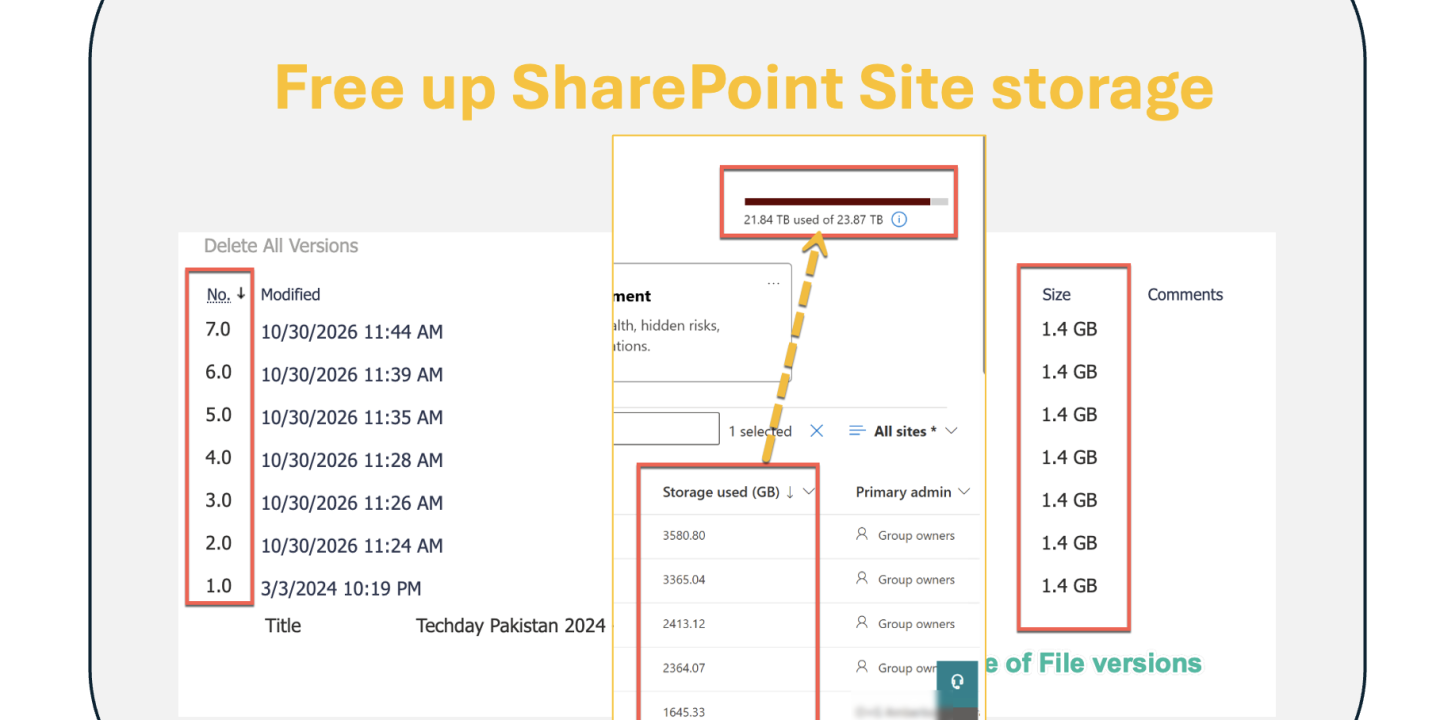
A client’s storage bar in the SharePoint admin center hit 91% and new sites created with PowerShell started failing. And similary for another client reported that there all SharePoint sites got readonly due to full SharePoint full storage and they were unable to delete any file and had to buy extra storage space to free up some space. Most of the space wasn’t the files people could see. It was version history, recycle bins and sites nobody had opened in two years.
This is the order I check things in, from the tenant down to one site, and what I change once I know where the space went.
Prerequisites
- SharePoint Administrator role.
- SharePoint Online Management Shell, latest version (the version report and trim cmdlets are recent).
- Site collection admin rights for the Storage Metrics checks.
- SharePoint Advanced Management for the inactive site policy, and a pay-as-you-go billing policy for Microsoft 365 Archive.
Check tenant storage in the SharePoint admin center
Your tenant gets 1 TB plus 10 GB for every licence. That pool is shared by every site. OneDrive has its own per-user quota, so it isn’t in this number. I covered OneDrive quotas in Find OneDrive accounts near their storage quota with PowerShell.
- Open the SharePoint admin center > Sites > Active sites.
- Read the storage bar at the top right. It shows used and total storage for the tenant.
- Sort the list by the Storage used column, largest first.
- Note the top 10 sites and their Last activity date.
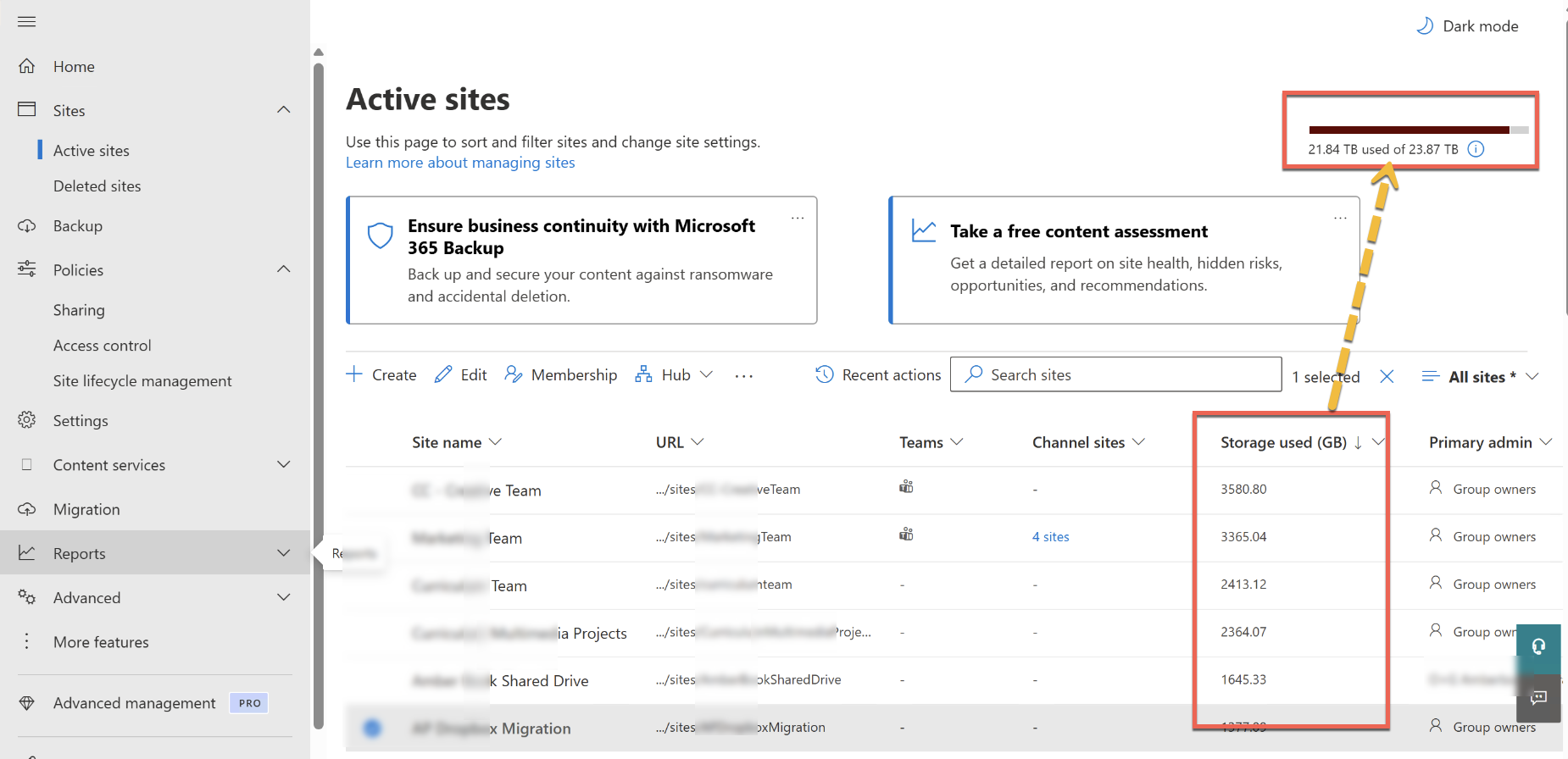
These numbers lag by 24 to 48 hours, so a cleanup won’t show up straight away.
Over quota, classic site creation and site creation through PowerShell are blocked.
To get the same top-sites list in a CSV, this uses the SharePoint Online Management Shell:
$AdminURL   = "https://MSTalk-admin.sharepoint.com"
$ReportPath = "C:\Temp\TopSitesByStorage.csv"

Connect-SPOService -Url $AdminURL

# StorageUsageCurrent is in MB
Get-SPOSite -Limit All |
    Sort-Object StorageUsageCurrent -Descending |
    Select-Object -First 25 Url, Template, LastContentModifiedDate,
        @{ n = "UsedGB"; e = { [math]::Round($_.StorageUsageCurrent / 1024, 1) } } |
    Export-Csv $ReportPath -NoTypeInformation
Open the CSV and look for big sites with an old LastContentModifiedDate. Those are your archive candidates.
Find what is filling one site
Take the biggest site from your list and open it as a site collection admin.
- Go to Settings > Site information > View all site settings.
- Under Site Collection Administration, select Storage Metrics.
- Open the library at the top and keep drilling down. Compare Total Size with the file sizes you see in the library
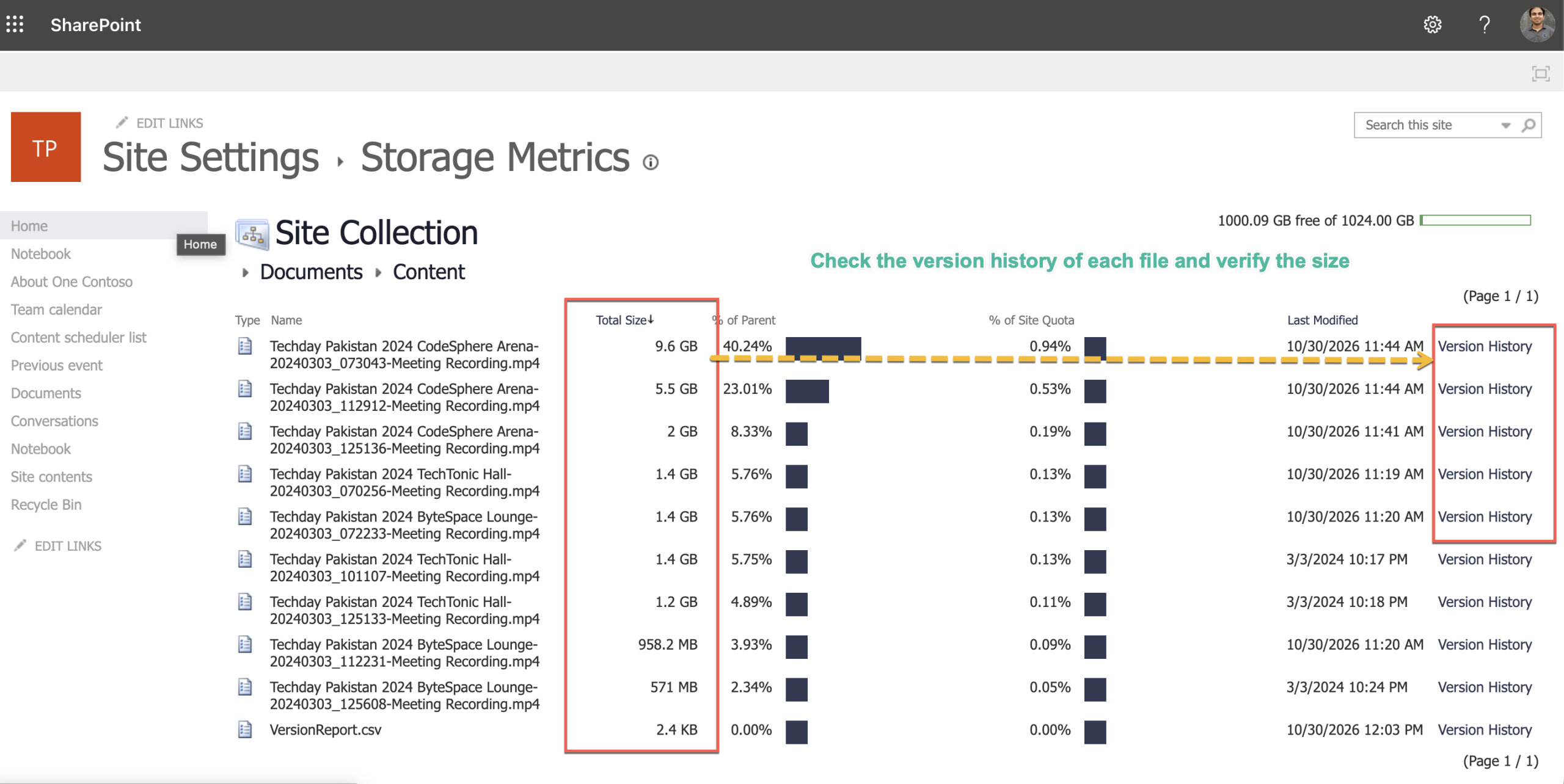
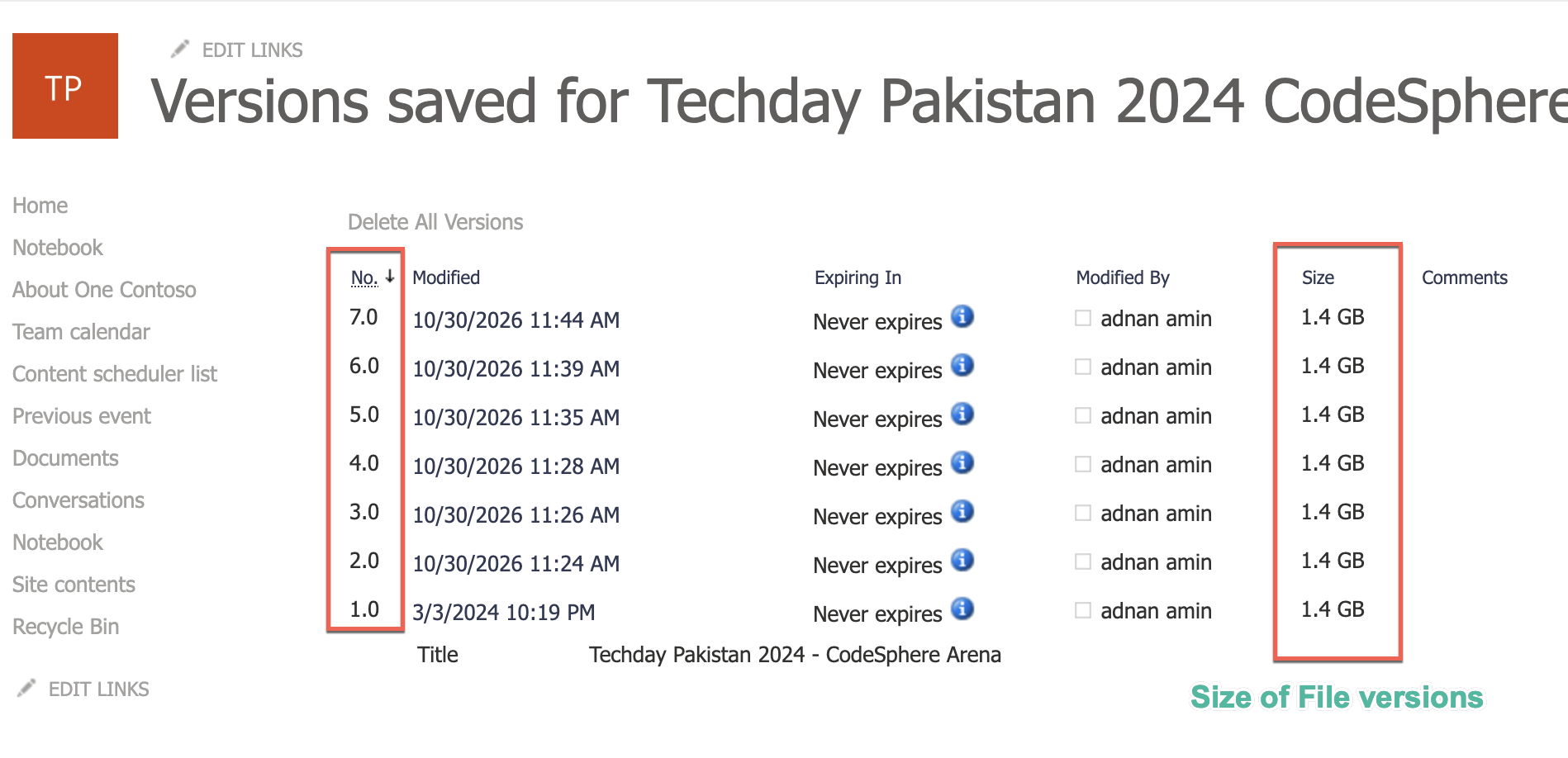
If a library’s total is far bigger than its files, the gap is version history. A 40 MB PowerPoint edited every day by a team can carry a few GB of versions on its own. I have seen a Onenote file sizing over 400 GB. Just check below screenshot showing file size in version history (i generated these versions for this blog):
Then check the places people forget:
- Recycle bin. Both stages count toward your storage. Empty the second stage (Recycle bin > Second-stage recycle bin) once you’re sure nothing needs restoring.
- Preservation Hold Library. If a retention policy covers the site, deleted and edited content is kept here and it counts toward the site. You can’t delete from it yourself. It clears when the retention period ends, so the fix is the retention policy, not the site.
Check and trim version history with PowerShell
Before you trim anything, measure it. The version storage report writes one CSV row per file version, with its size in bytes. It uses the SharePoint Online Management Shell.
$SiteURL   = "https://mstalk.sharepoint.com/sites/Techday2024"
# The report must go in a document library in the same site, and the file must not exist yet
$ReportURL = "https://mstalk.sharepoint.com/sites/Techday2024/Shared Documents/Reports/VersionReport.csv"

New-SPOSiteFileVersionExpirationReportJob -Identity $SiteURL -ReportUrl $ReportURL

# Run again later. Wait for status "completed"
Get-SPOSiteFileVersionExpirationReportJobProgress -Identity $SiteURL -ReportUrl $ReportURL

A small site takes over 24 hours and a large one a few days. Don’t edit the CSV while it fills, or the job fails. Microsoft’s tutorial has an Excel template and an AnalyzeReportFile.ps1 script to read it. If you also need each file’s metadata and version count in one sheet, I use my own inventory script for that https://github.com/Adnanamin/mstechtalk-powershell-scripts/tree/main/SharePoint-Site-and-Tenant-Storage/templates.
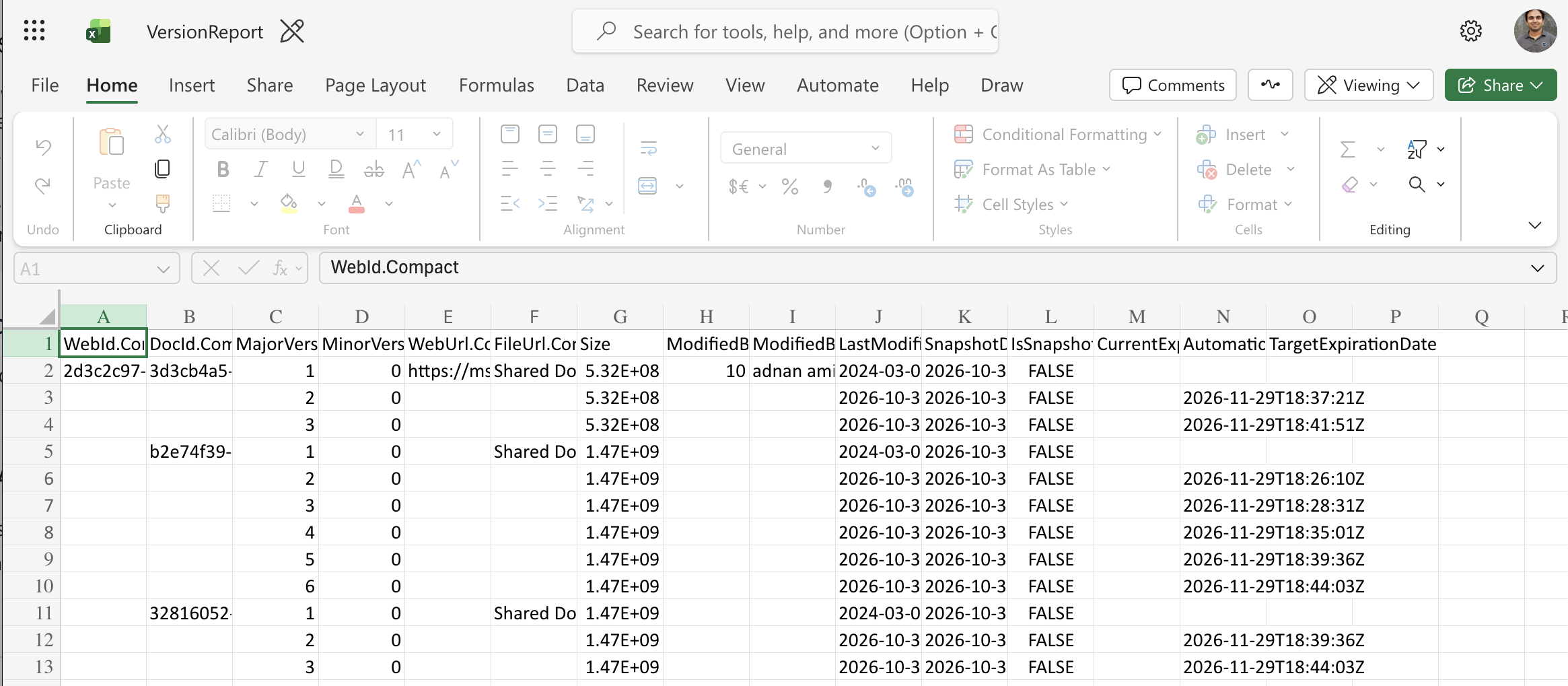
Once you know the numbers, set the limit and trim. Two things caught me out here. Changing Version history limits in the admin center (Settings > Version history limits) only applies to new libraries. And setting a limit doesn’t remove the versions already there. The trim job does.
$SiteURL = "https://mstalk.sharepoint.com/sites/Techday2024"

# Automatic version limits for all libraries in the site (runs as a background job)
Set-SPOSite -Identity $SiteURL -EnableAutoExpirationVersionTrim $true
Get-SPOSiteVersionPolicyJobProgress -Identity $SiteURL

# Trim the versions that already exist, using the same automatic logic
New-SPOSiteFileVersionBatchDeleteJob -Identity $SiteURL -Automatic
Get-SPOSiteFileVersionBatchDeleteJobProgress -Identity $SiteURL
If you’d rather keep a fixed number, swap -Automatic for -MajorVersionLimit 100 -MajorWithMinorVersionsLimit 0, or use -DeleteBeforeDays 365. For one library, use New-SPOListFileVersionBatchDeleteJob -Site $SiteURL -List "Documents".
Note: versions deleted by a trim job are gone for good. They don’t go to the recycle bin. Run the report first and agree the limit with the site owner. Files under a retention policy keep their versions whatever you set.
Free tenant space with archive and inactive site policies
For the tenant, the bigger win is usually old sites.
- In the SharePoint admin center, go to Policies > Site lifecycle management and create an inactive site policy. Owners of sites with no activity get an email asking them to confirm the site is still needed.
- For sites that are finished but must be kept, select the site in Active sites and choose Archive.
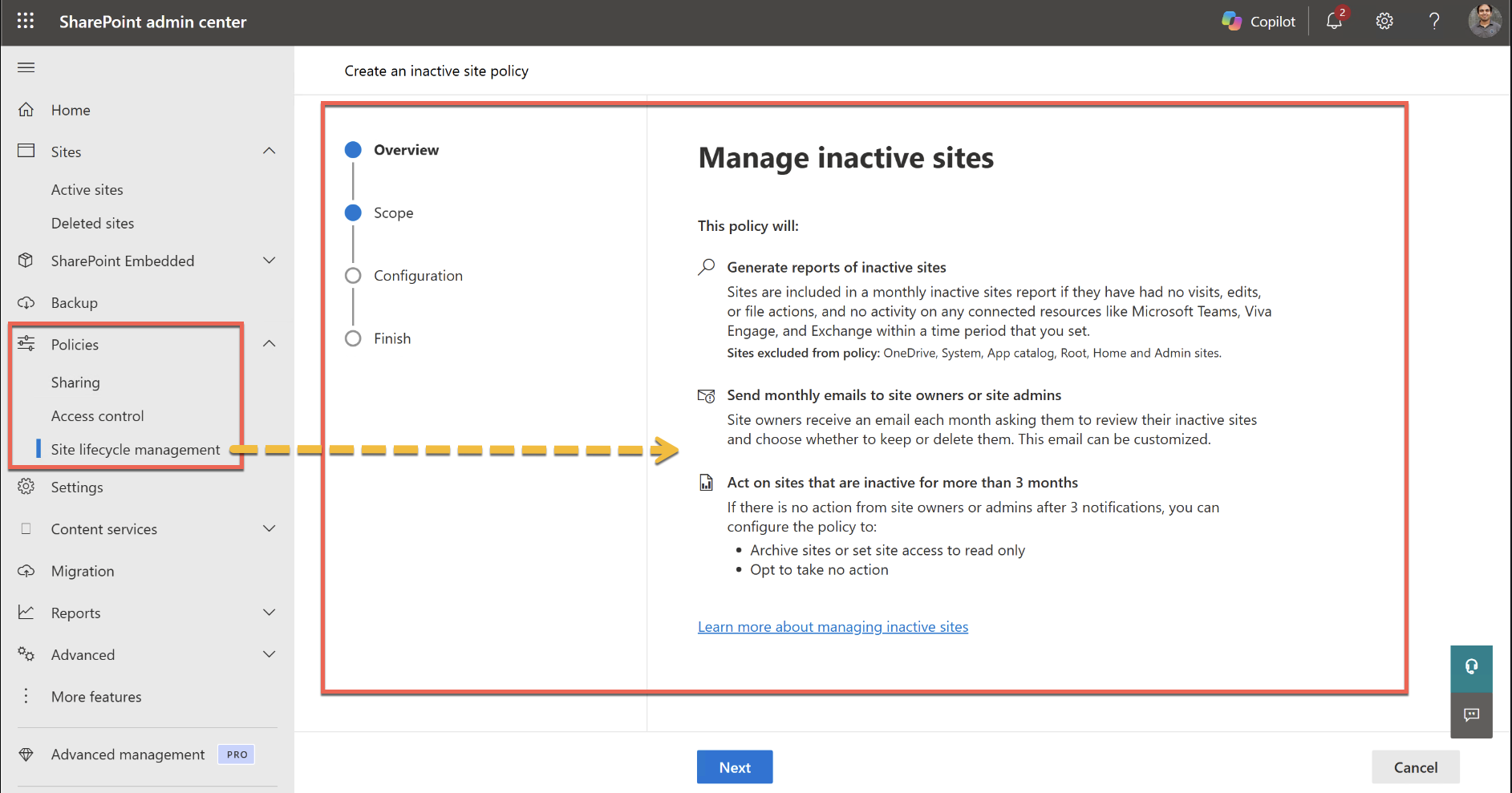
Archived sites stop counting toward your SharePoint quota and move to Microsoft 365 Archive storage. That costs $0.05 per GB per month, and only when archived plus active storage is above your quota. Reactivating a site has been free since 31 March 2025. Content you reactivate can’t be archived again for 120 days, so don’t archive a site the client still opens every quarter.
The other option is to pay for the overage. Microsoft 365 SharePoint Storage pay-as-you-go bills $0.20 per GB per month above the tenant quota, and general availability rolls out from early November 2026 (MC1330893). That’s four times the archive price. I’d only use it after the trim and archive work is done.

Adnan, a distinguished professional, boasts an impressive track record as a Microsoft MVP, having achieved this prestigious recognition for the eighth consecutive year since 2015. With an extensive career spanning over 18 years, Adnan has honed his expertise in various domains, notably excelling in SharePoint, Microsoft 365, Microsoft Teams, the .Net Platform, and Microsoft BI. Presently, he holds the esteemed position of Senior Microsoft Consultant at Olive + Goose.Notably, Adnan served as the MCT Regional Lead for the Pakistan Chapter from 2012 to 2017, showcasing his leadership and commitment to fostering growth within the tech community. His journey in the realm of SharePoint spans 14 years, during which he has undertaken diverse projects involving both intranet and internet solutions for both private and government sectors. His impact has transcended geographical boundaries, leaving a mark on projects in the United States and the Gulf region, often collaborating with Fortune 500 companies.Beyond his roles, Adnan is a dedicated educator, sharing his insights and knowledge as a trainer. He also passionately advocates for technology, frequently engaging with the community through speaking engagements in various forums. His multifaceted contributions exemplify his dedication to the tech field and his role in driving its evolution.





No Comments