

Rolling out Microsoft 365 Copilot is not just a licensing task. It is a readiness project that touches identity, Exchange, Microsoft 365 Apps, Teams, SharePoint, Purview, network access, user training, and adoption reporting.
The good news is that IT admins do not need to overcomplicate it. If your tenant is healthy, your permissions are under control, and your rollout starts with the right users, Copilot adoption becomes much easier to manage.
Use this checklist to prepare your Microsoft 365 environment before assigning licenses at scale.
Quick readiness checklist
| Area | What to check | Status |
|---|---|---|
| Licensing | Users have eligible Microsoft 365 base licenses and Copilot add-on licenses | Not started / In progress / Ready |
| Identity | Users have Microsoft Entra ID accounts | Not started / In progress / Ready |
| Mailbox | Primary mailboxes are hosted in Exchange Online | Not started / In progress / Ready |
| Apps | Microsoft 365 Apps are deployed and on a supported update channel | Not started / In progress / Ready |
| Network | Microsoft 365 endpoints and WebSockets are not blocked | Not started / In progress / Ready |
| Data governance | SharePoint permissions, oversharing, labels, and external sharing are reviewed | Not started / In progress / Ready |
| Security | MFA, Conditional Access, audit logging, and Purview controls are configured | Not started / In progress / Ready |
| Rollout | Pilot users, communications, training, and support channels are ready | Not started / In progress / Ready |
| Reporting | Readiness and usage reports are monitored in the Microsoft 365 admin center | Not started / In progress / Ready |
Check the minimum requirements first
Before anything else, confirm that your organization meets Microsoft’s required prerequisites for Microsoft 365 Copilot. Microsoft lists licensing, Exchange Online mailbox, Microsoft Entra ID account, supported operating systems and browsers, and network endpoints as required deployment areas.
Start with these basics:
- Eligible base license: Users need an eligible Microsoft 365, Office 365, Teams, education, frontline, or business plan before a Copilot license can be added.
- Microsoft Entra ID: Users must have Microsoft Entra ID accounts before using Microsoft 365 Copilot.
- Exchange Online mailbox: Microsoft 365 Copilot supports primary mailboxes hosted in Exchange Online, and Microsoft notes that on-premises and hybrid mailboxes are not supported for this requirement.
- Supported platforms: Users should be on supported operating systems and modern browsers, with third-party cookies enabled for Copilot in Word Online, Excel Online, and PowerPoint Online.
- Network access: Your network must allow the required Microsoft 365 endpoints, including WebSocket connectivity to domains such as
*.cloud.microsoftand*.office.comfor enterprise Copilot experiences.
This is the boring part, but it prevents rollout noise later. If Copilot does not appear for users, the issue is often licensing, app version, privacy settings, network blocking, or a missing service dependency.
Get Microsoft 365 Apps ready
Copilot works across Microsoft 365 apps, so the desktop and web app setup matters. Microsoft says Microsoft 365 Apps must be deployed, privacy settings should be reviewed, and device-based licensing for Microsoft 365 Apps for enterprise does not support Copilot.
Admins should also review update channels. Microsoft’s setup guidance says Copilot is available in all update channels except Semi-Annual Enterprise Channel, and it recommends Current Channel or Monthly Enterprise Channel for production users.
| App or service | Admin readiness item |
|---|---|
| Word, Excel, PowerPoint, OneNote | Confirm Microsoft 365 Apps are deployed and update channels are supported |
| Outlook | Confirm users have supported Outlook clients and Exchange Online primary mailboxes |
| Teams | Review Teams policies, meeting settings, transcription, guest access, and external access |
| OneDrive | Make sure users have OneDrive accounts where required |
| Loop | Enable Loop for the tenant if Copilot scenarios depend on it |
| Whiteboard | Enable Whiteboard if users need Copilot-supported Whiteboard experiences |
For Teams specifically, Microsoft says Copilot can reference meeting content after the meeting ends when transcription or meeting recording is enabled. That makes Teams meeting policy review an important part of Copilot readiness, especially for organizations that expect users to summarize meetings or extract action items.
Fix data access before users ask Copilot
Copilot respects existing Microsoft 365 permissions, which is helpful but also risky if permissions are messy. If users can already access overshared SharePoint sites, stale files, or broadly shared sensitive documents, Copilot may surface that content in ways that make the problem more visible.
Microsoft strongly recommends SharePoint governance and Purview labeling as readiness steps, even though they are not listed as minimum deployment requirements. Microsoft’s setup guidance also recommends reviewing SharePoint Search, SharePoint Advanced Management policies, oversharing, sensitivity labels, audit activity, and restricted access controls before broad deployment.
Focus on these areas:
- Overshared sites: Review high-traffic SharePoint sites and reduce access where too many users or broad groups have permissions.
- External sharing: Check whether external sharing settings match your organization’s data risk.
- Sensitivity labels: Apply labels to protect confidential content and guide user behavior.
- Restricted access: Use stronger access controls for business-critical or sensitive sites.
- Audit logging: Enable unified audit logging in Microsoft Purview and retain logs according to your compliance needs.
This step is where many deployments succeed or fail. Copilot does not create a permission problem by itself, but it can expose permission problems that were already there.
Review security and admin controls
Copilot readiness should include identity and security controls, not just application settings. Microsoft’s setup guidance calls out multifactor authentication, Conditional Access, audit logging, and security configuration as part of preparing the environment.
At minimum, confirm:
| Control | Why it matters |
|---|---|
| MFA | Reduces risk if a Copilot-enabled account is compromised |
| Conditional Access | Applies access rules based on user, device, location, and risk |
| Purview Audit | Helps monitor user and admin activity |
| Sensitivity labels | Protects content that should not be broadly exposed |
| Plugin and agent controls | Limits which extensions and agents users can access |
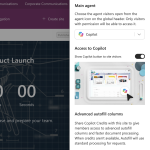
The Copilot Control System in the Microsoft 365 admin center lets admins view license assignment status, manage data security and compliance controls, configure plugins and permissions, submit feedback, and manage whether web data can be used as grounding data.
Use the Copilot readiness report
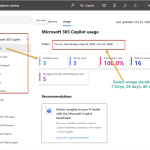
Do not choose your pilot group by guessing. Microsoft provides a Microsoft 365 Copilot readiness report in the admin center under Reports > Usage > Microsoft 365 Copilot, with readiness on the first tab and usage metrics on the Usage tab.
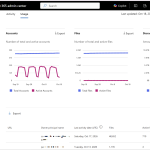
The readiness report shows data across the past 28 days and includes charts for prerequisite licenses, users on eligible update channels, assigned licenses, and available licenses. It also shows user activity signals such as Teams meetings, Teams chat, Outlook email, and Office document collaboration, which helps identify users who are likely to benefit from Copilot.
One useful field is Suggested candidate for Copilot. Microsoft says this identifies the top 25% of non-licensed users each week based on Microsoft 365 app usage, and it is designed to support rollout planning rather than employee performance evaluation.
Start with a pilot, then scale
A phased rollout is strongly recommended by Microsoft and is more practical than assigning every license on day one. Microsoft’s setup guidance breaks deployment into pilot, deploy, and operate phases, with the pilot used to test configurations, gather feedback, and build internal champions.
For the pilot, choose users who:
- Work heavily in Teams, Outlook, Word, PowerPoint, Excel, OneDrive, or SharePoint
- Represent multiple business functions
- Can give useful feedback
- Are comfortable testing new workflows
- Handle data that is properly governed
Before launch, prepare a short communication plan. Users should know what Copilot can do, what it cannot do, when they should verify outputs, and where to get help.
Final admin checklist
Before you expand beyond the pilot, confirm the following:
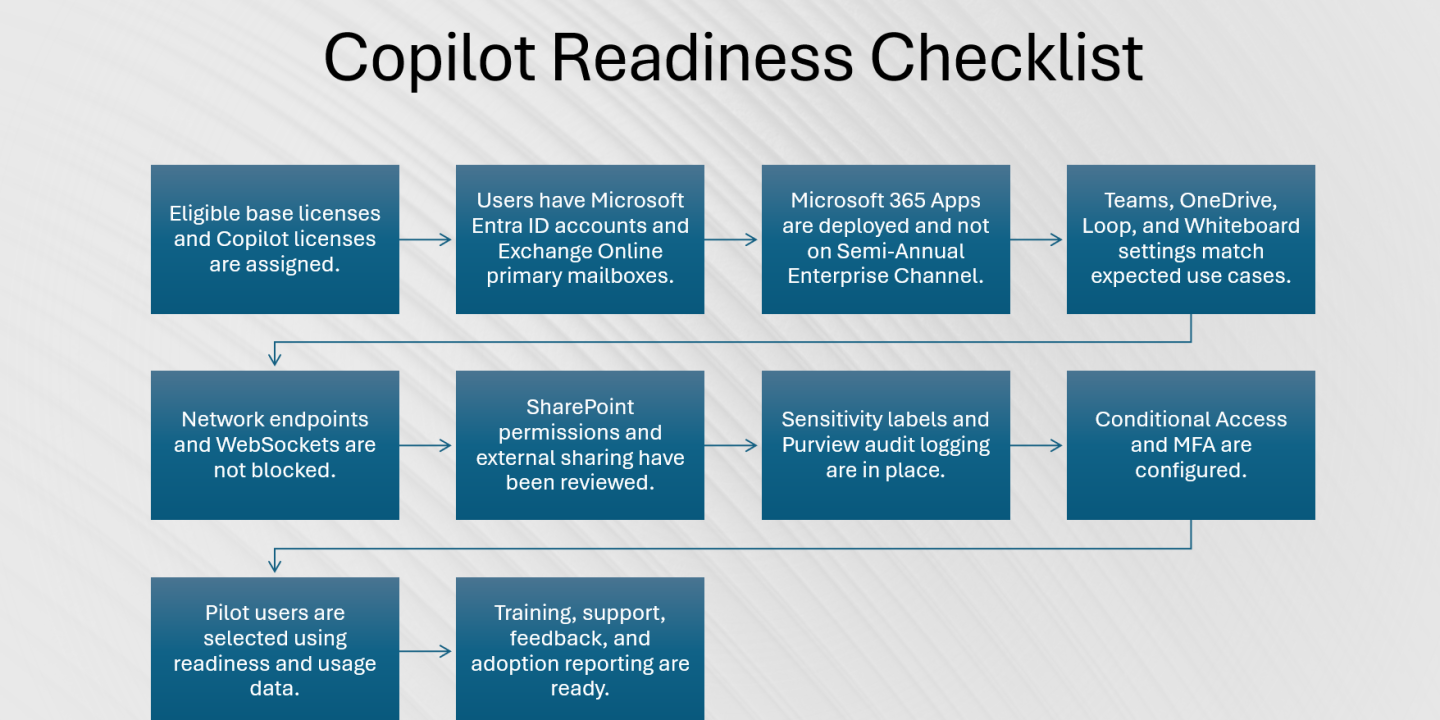
- Eligible base licenses and Copilot licenses are assigned.
- Users have Microsoft Entra ID accounts and Exchange Online primary mailboxes.
- Microsoft 365 Apps are deployed and not on Semi-Annual Enterprise Channel.
- Teams, OneDrive, Loop, and Whiteboard settings match expected use cases.
- Network endpoints and WebSockets are not blocked.
- SharePoint permissions and external sharing have been reviewed.
- Sensitivity labels and Purview audit logging are in place.
- Conditional Access and MFA are configured.
- Pilot users are selected using readiness and usage data.
- Training, support, feedback, and adoption reporting are ready.
Final takeaway
Microsoft 365 Copilot readiness is about giving users powerful AI inside a well-managed Microsoft 365 environment. Licenses turn the feature on, but readiness determines whether the rollout is secure, useful, and trusted.
If you are an IT admin, start with the fundamentals: licensing, identity, mailbox, apps, network, and update channels. Then clean up data access, validate security controls, use the readiness report, and roll out Copilot in phases. That approach gives your organization a better chance of seeing real productivity gains without creating avoidable governance problems.
Microsoft 365
Microsoft 365 Copilot
Microsoft Copilot
Microsoft Teams
SharePoint
SharePoint Online
Teams Copilot

Adnan, a distinguished professional, boasts an impressive track record as a Microsoft MVP, having achieved this prestigious recognition for the eighth consecutive year since 2015. With an extensive career spanning over 18 years, Adnan has honed his expertise in various domains, notably excelling in SharePoint, Microsoft 365, Microsoft Teams, the .Net Platform, and Microsoft BI. Presently, he holds the esteemed position of Senior Microsoft Consultant at Olive + Goose.Notably, Adnan served as the MCT Regional Lead for the Pakistan Chapter from 2012 to 2017, showcasing his leadership and commitment to fostering growth within the tech community. His journey in the realm of SharePoint spans 14 years, during which he has undertaken diverse projects involving both intranet and internet solutions for both private and government sectors. His impact has transcended geographical boundaries, leaving a mark on projects in the United States and the Gulf region, often collaborating with Fortune 500 companies.Beyond his roles, Adnan is a dedicated educator, sharing his insights and knowledge as a trainer. He also passionately advocates for technology, frequently engaging with the community through speaking engagements in various forums. His multifaceted contributions exemplify his dedication to the tech field and his role in driving its evolution.




No Comments