

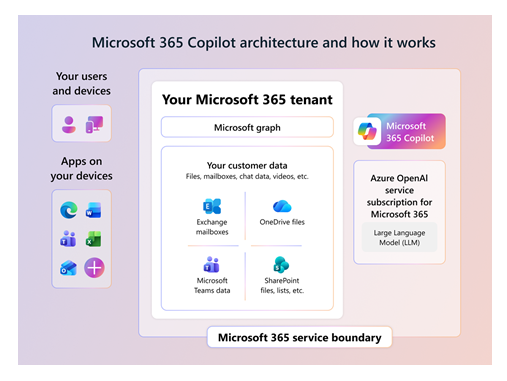
One of the most common questions organizations ask before deploying Microsoft 365 Copilot is how it actually uses company data.
This concern is understandable. Copilot can summarize meetings, draft emails, analyze documents, answer questions from chats, and help users find information much faster across Microsoft 365. Since it works with business content, many IT teams want to understand exactly what data Copilot can access and how Microsoft handles that information.
The important thing to understand is that Microsoft 365 Copilot does not get unrestricted access to your tenant. It works based on the permissions of the signed in user and uses Microsoft Graph to retrieve content the user is already allowed to access.
In simple terms, Copilot can only work with the information a user already has permission to see inside Microsoft 365.
The simple version
| Question | Short answer |
|---|---|
| Does Copilot use company files, emails, chats, and meetings? | Yes, when that content is relevant and the user has permission to access it |
| Does Copilot see the entire Microsoft 365 tenant? | No. Access is scoped to the signed in user’s permissions |
| Is organizational data used to train foundation AI models? | No. Microsoft says prompts, responses, and Microsoft Graph data are not used to train foundation models |
| Where does processing happen? | Within the Microsoft 365 service boundary using Azure OpenAI services rather than public OpenAI services |
| Do SharePoint permissions still matter? | Yes. SharePoint, OneDrive, Teams, Purview, labels, and access controls directly affect what Copilot can reference |
Microsoft explains that Copilot retrieves business context through Microsoft Graph. This includes documents, emails, meetings, chats, contacts, and calendar information that the current user already has access to inside Microsoft 365.
How Copilot Finds Relevant Information
When users enter a prompt in Copilot, the system does not simply send the raw question directly to the AI model.
Before generating a response, Copilot uses a process called grounding. This process adds business context to the prompt so the AI can generate more accurate and relevant answers.
That context may include:
- emails
- meeting transcripts
- Teams chats
- SharePoint documents
- OneDrive files
- calendar information
- contacts
For example, if a user asks Copilot to summarize a project update, Copilot may look at recent Teams discussions, shared documents, emails, and meeting notes related to that project.
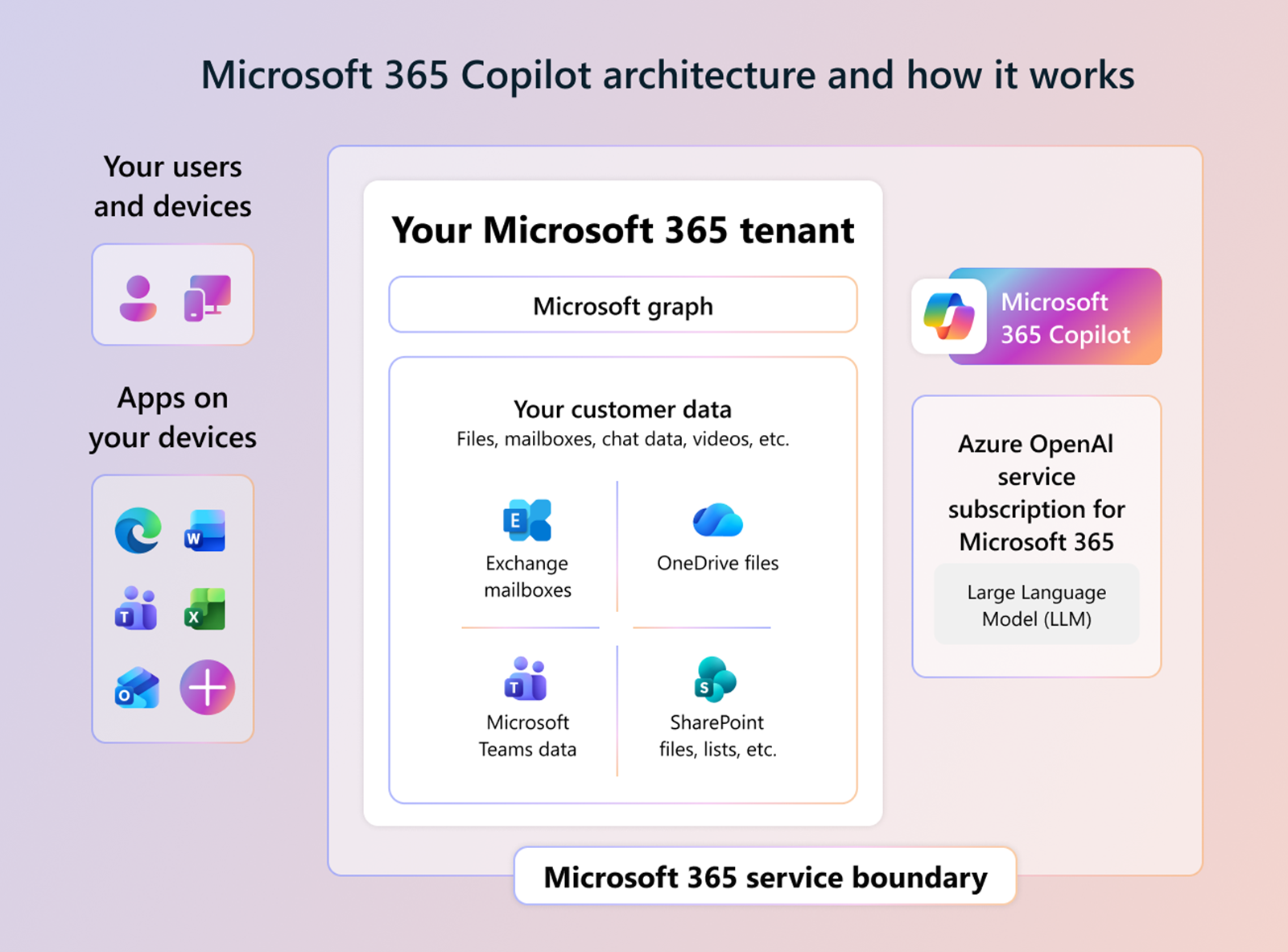
The overall process looks like this:
- A user asks a question in a Microsoft 365 app
- Copilot retrieves relevant business context through Microsoft Graph
- The grounded prompt is processed by the AI model
- Copilot returns a response inside the app the user is using
Microsoft also states that customer data remains inside the Microsoft 365 service boundary during processing.
Copilot Still Respects Existing Permissions
This is probably the most important point for IT admins and business leaders.
Copilot does not create new permissions inside Microsoft 365.
If a user cannot access a SharePoint document normally, Copilot should not use that document when generating responses for that user.
The same applies to:
- Teams chats
- meeting transcripts
- OneDrive files
- Outlook emails
- SharePoint libraries
Copilot only works with content the signed in user can already access.
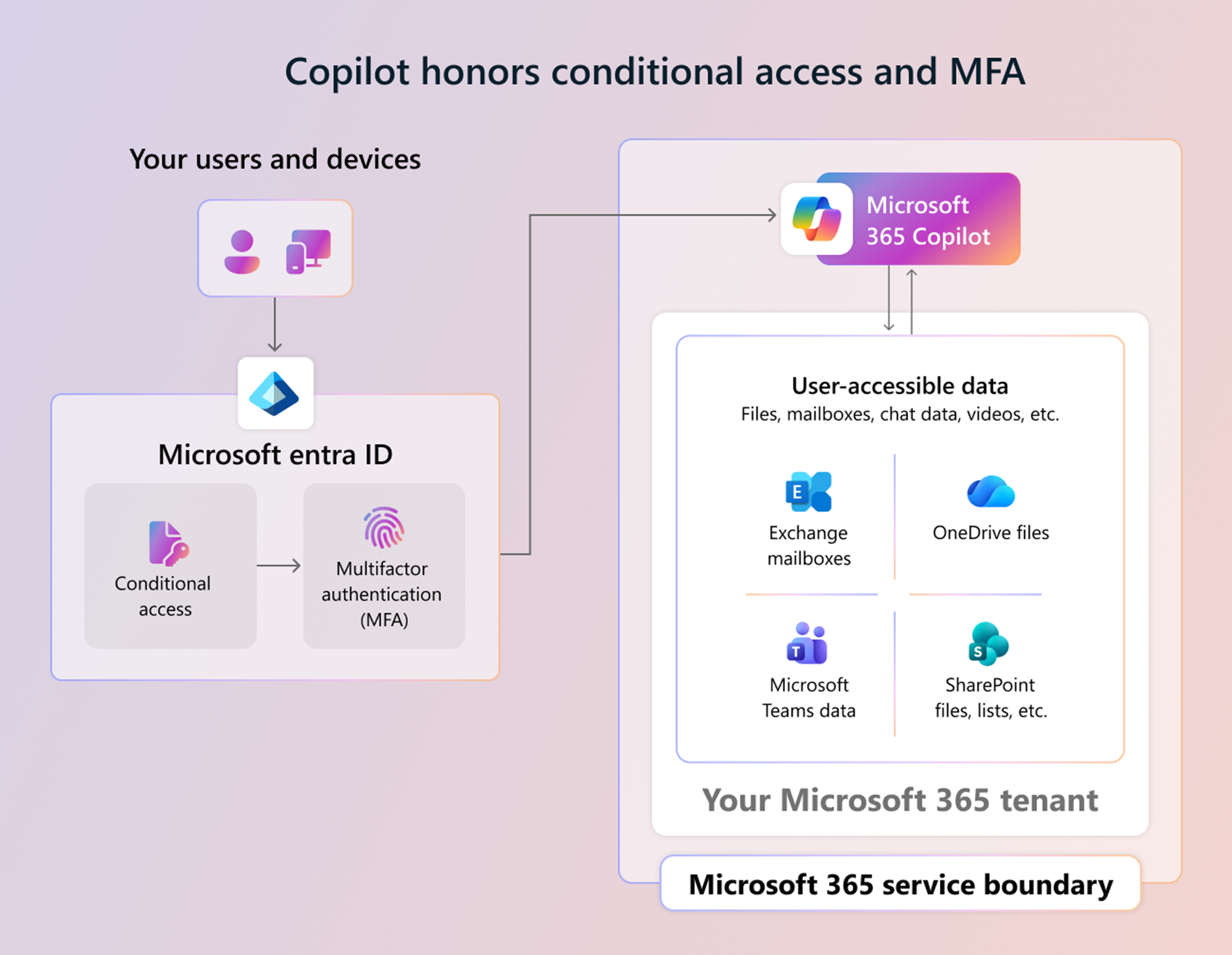
This is also why SharePoint governance becomes more important when deploying Copilot. If sites are overshared or sensitive files are accessible to too many users, Copilot may surface information more easily because the permissions already exist.
In many organizations, Copilot does not create permission problems. It exposes existing governance issues that were already there.
What Organizational Data Can Copilot Use
The type of data Copilot can use depends on licensing, app integration, permissions, and organizational settings.
| Data type | Example use |
|---|---|
| Word, PowerPoint, Excel, and OneNote files | Summarize, rewrite, draft, compare, or create content |
| Outlook email | Draft replies, summarize threads, find context |
| Teams chats and meetings | Summarize discussions, identify action items, catch up on meetings |
| Calendar | Understand meeting context and scheduling details |
| Contacts and people data | Identify people, roles, and collaboration context |
| SharePoint and OneDrive content | Ground answers in documents and shared knowledge |
From my experience, SharePoint and Teams data usually have the biggest impact on Copilot responses because that is where most organizational collaboration happens.
Is Your Data Used to Train AI Models
This is another area where organizations often have concerns.
Microsoft states that prompts, responses, and organizational data accessed through Microsoft Graph are not used to train foundation AI models used by Microsoft 365 Copilot.
This means company information is not used to improve public AI models for other customers.
However, some interaction data can still be stored inside Microsoft 365 services for purposes such as:
- auditing
- compliance
- retention
- eDiscovery
- investigation activities
This is where Microsoft Purview becomes important for organizations with compliance or regulatory requirements.
Security and Compliance Controls Still Apply
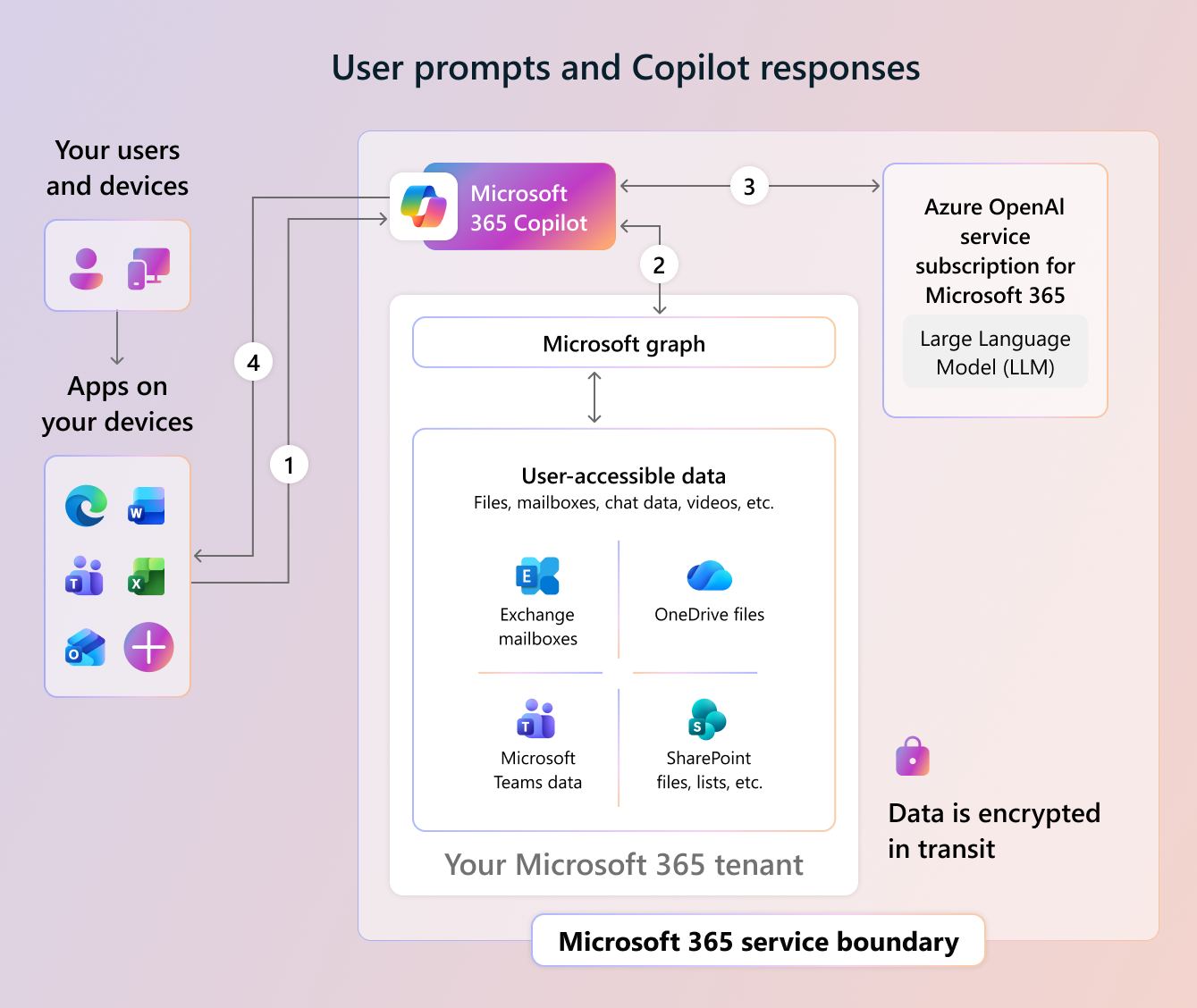
Copilot follows the same Microsoft 365 security model your organization already uses today.
This includes:
- Microsoft Entra ID
- Multifactor authentication
- Conditional Access
- Microsoft Purview
- Sensitivity labels
- Data Loss Prevention policies
- SharePoint and OneDrive permissions
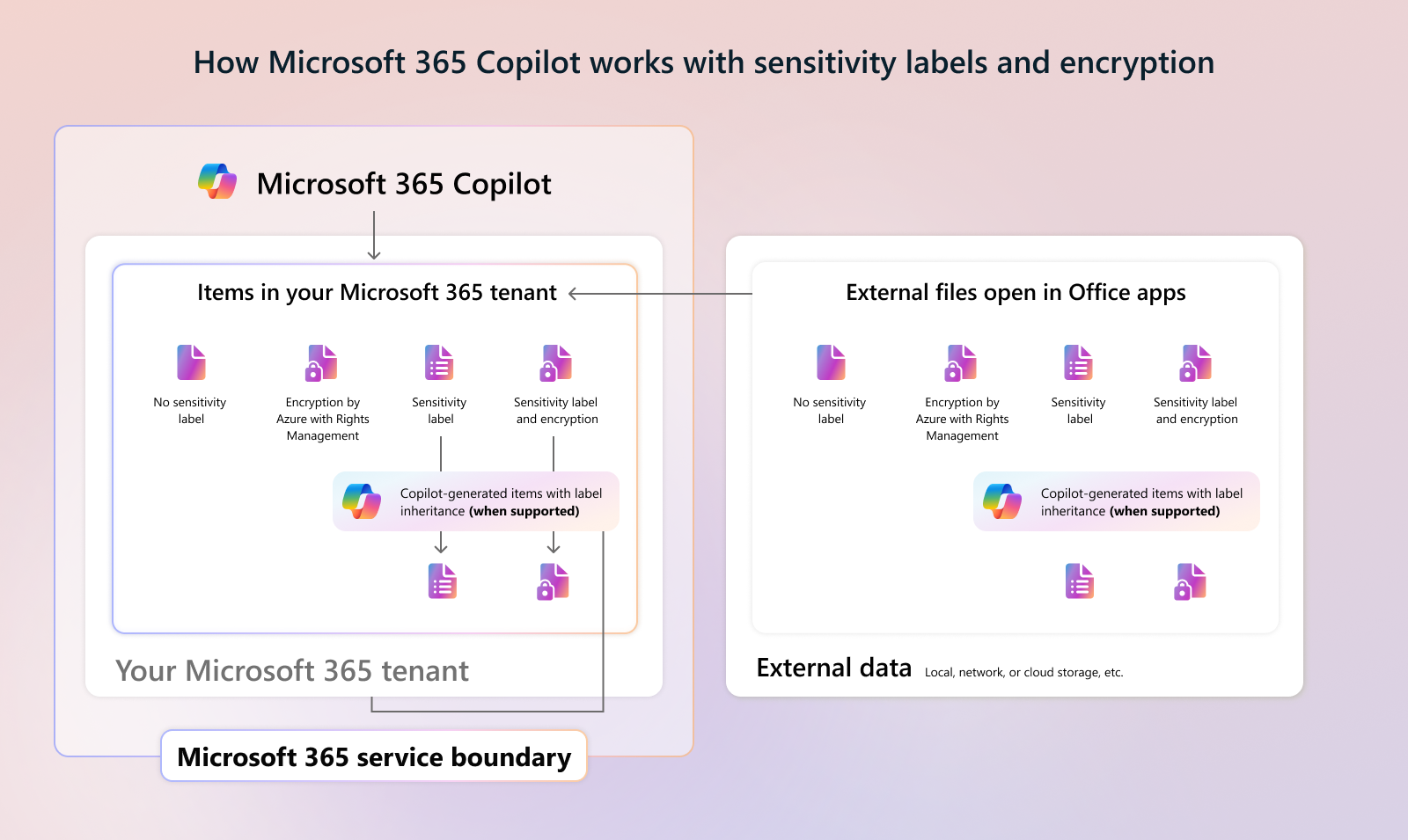
For example, if a document is protected with encryption or sensitivity labels, Copilot still respects those controls.
If users do not have permission to open protected content, Copilot should not be able to use that information in responses.
Why SharePoint Governance Matters So Much
In many Copilot readiness projects, SharePoint governance becomes the biggest challenge.
The reason is simple. Copilot helps users discover information faster. If permissions and content organization are poorly managed, those issues become much more visible.
Before deploying Copilot broadly, organizations should review:
- overshared SharePoint sites
- anonymous sharing links
- inactive sites
- external sharing settings
- sensitive files without labels
- outdated content that should be archived
This is not just administrative cleanup work anymore. It directly affects both security and the quality of Copilot responses.
From what I have seen in real deployments, organizations with well managed SharePoint environments usually get much better Copilot results.
What About Agents and Third Party Connectors
Microsoft 365 Copilot can also work with agents and external connectors depending on how the organization configures them.
Admins can control:
- which agents are allowed
- who can use them
- what data sources they can access
This becomes important because some agents may connect Copilot with systems outside Microsoft 365.
Before enabling agents broadly, IT teams should review:
- data access permissions
- privacy policies
- compliance requirements
- external integrations
What Admins Should Review Before Deployment
| Area | Admin action |
|---|---|
| Permissions | Review SharePoint, Teams, and OneDrive access before broad rollout |
| Labels | Apply sensitivity labels to confidential and regulated content |
| Sharing | Reduce anonymous links and broad access groups |
| Identity | Enforce MFA and Conditional Access where appropriate |
| Compliance | Configure Purview audit, retention, and eDiscovery policies |
| Agents | Review agent permissions, data access, privacy terms, and availability |
| User training | Teach users to verify AI output before relying on it |
Microsoft 365 Copilot becomes powerful because it works with the data organizations already store inside Microsoft 365.
At the same time, Copilot does not bypass existing permissions or gain unrestricted tenant access. It works within the security, compliance, and governance framework already configured in Microsoft 365.
For IT admins, this means SharePoint governance, permissions, sensitivity labels, and compliance settings matter more than ever.
Organizations that already have strong governance practices will usually see smoother Copilot deployments and better AI results.
For organizations with messy permissions and overshared content, Copilot often becomes the reason they finally start cleaning up their Microsoft 365 environment properly.
Data Security
Microsoft 365
Microsoft 365 Copilot
Microsoft Graph
OneDrive
Outlook
Permissions
SharePoint
SharePoint Online

Adnan, a distinguished professional, boasts an impressive track record as a Microsoft MVP, having achieved this prestigious recognition for the eighth consecutive year since 2015. With an extensive career spanning over 18 years, Adnan has honed his expertise in various domains, notably excelling in SharePoint, Microsoft 365, Microsoft Teams, the .Net Platform, and Microsoft BI. Presently, he holds the esteemed position of Senior Microsoft Consultant at Olive + Goose.Notably, Adnan served as the MCT Regional Lead for the Pakistan Chapter from 2012 to 2017, showcasing his leadership and commitment to fostering growth within the tech community. His journey in the realm of SharePoint spans 14 years, during which he has undertaken diverse projects involving both intranet and internet solutions for both private and government sectors. His impact has transcended geographical boundaries, leaving a mark on projects in the United States and the Gulf region, often collaborating with Fortune 500 companies.Beyond his roles, Adnan is a dedicated educator, sharing his insights and knowledge as a trainer. He also passionately advocates for technology, frequently engaging with the community through speaking engagements in various forums. His multifaceted contributions exemplify his dedication to the tech field and his role in driving its evolution.





No Comments