

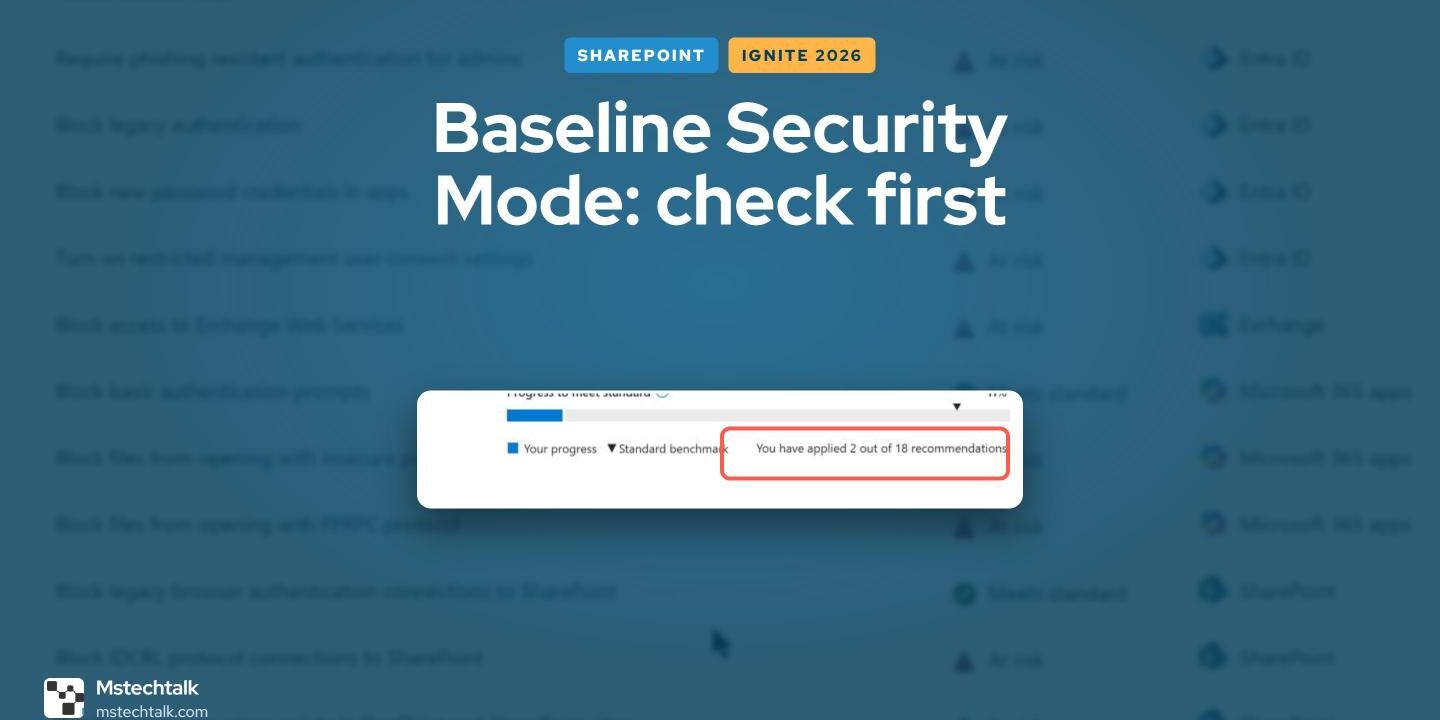
At Microsoft Ignite 2026 on Tuesday, Microsoft announced that Baseline Security Mode 2026 is generally available (announcement). It adds an Applications category and 24 new settings, including blocking classic SharePoint pages and making external users wait in the Teams lobby. The rollout is phased across the Microsoft 365 clouds.
I opened it on my demo tenant the day after the keynote, and it still showed the 2025 set: 18 recommendations in three categories. So this post covers the SharePoint settings you can check today, with the impact reports and a PowerShell check, and lists what changes when the 2026 settings reach your tenant.
Where Baseline Security Mode lives
In the Microsoft 365 admin center, go to Settings > Org settings > Security & privacy > Baseline security mode (Baseline security mode settings). Workload admins can manage only their own settings, so a SharePoint Administrator sees and changes the SharePoint ones.
The panel that opens gives two choices: apply the 6 default policies automatically, or generate impact reports for the remaining 6. On my tenant Remove access to Microsoft Store for SharePoint is in the default 6, and the IDCRL and custom script settings are in the remaining 6.
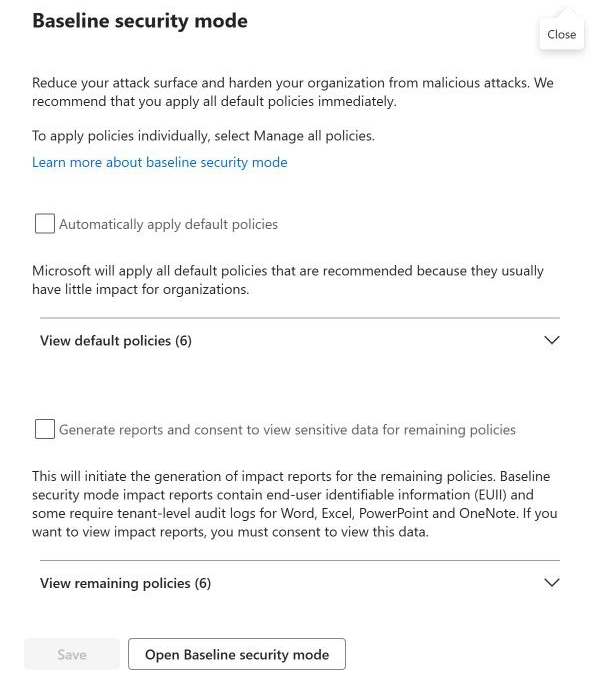
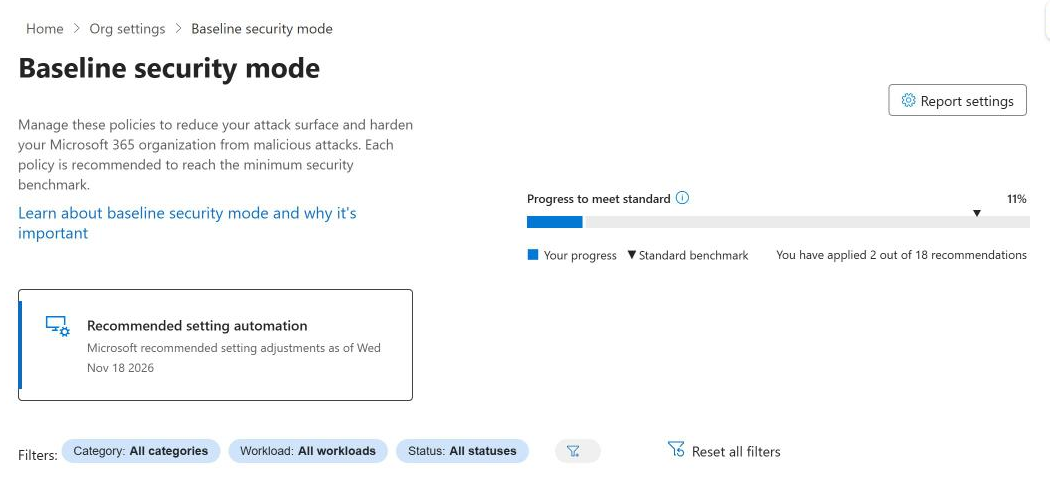
Select Open Baseline security mode for the full page. Mine showed 2 out of 18 recommendations applied, 11% of the standard:
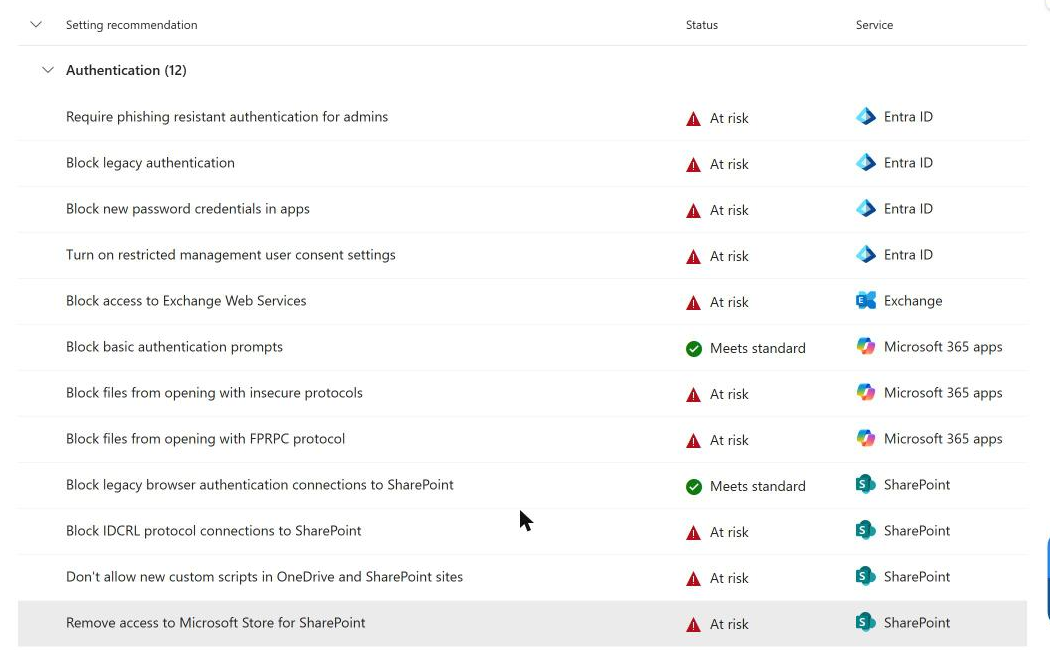
The SharePoint rows sit under Authentication. Legacy browser authentication already meets the standard, because Microsoft retired it for enterprise tenants in October 2025. IDCRL, custom scripts and the Store are at risk:
1 – Read the impact report before you turn a setting on
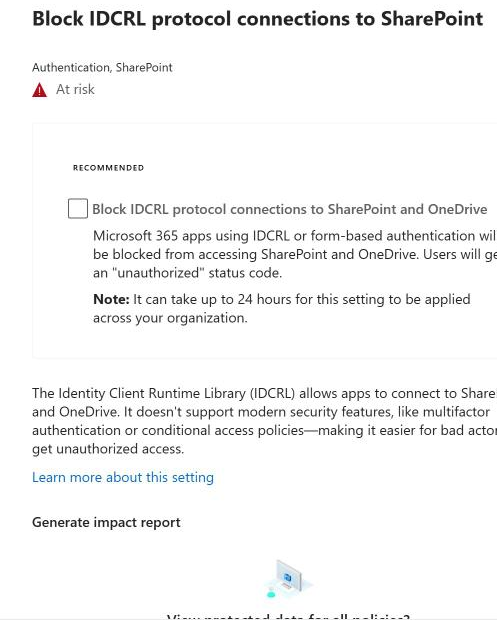
Each setting opens a panel with the change, the reason and a Generate impact report section. For IDCRL, the panel warns that Microsoft 365 apps using IDCRL or form-based authentication get an “unauthorized” status code, and that the change can take up to 24 hours to apply.
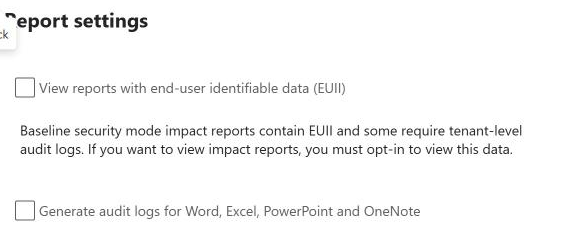
Impact reports list user names and site URLs, so Microsoft asks you to opt in first. Select Opt-in to view protected data (or Report settings on the main page) and tick View reports with end-user identifiable data (EUII). The second box, Generate audit logs for Word, Excel, PowerPoint and OneNote, is only needed for the Office app reports, so I left it off for the SharePoint ones.
Then select Generate report. Don’t expect a result straight away: Microsoft says it can take up to 24 hours to gather enough data.
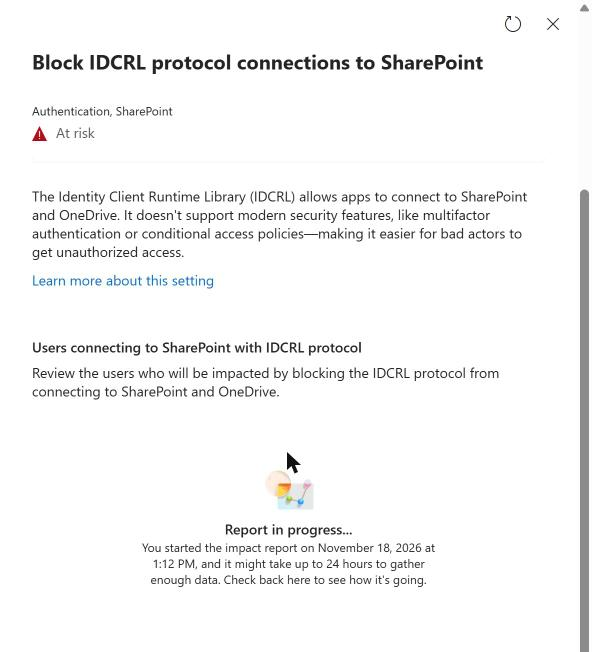
On my tenant both reports were ready much sooner. I started them at 1:12 PM and they had finished when I checked about 2.5 hours later. My demo tenant is small (72 sites and a handful of users), which is probably why; on a large tenant, plan for the full 24 hours.
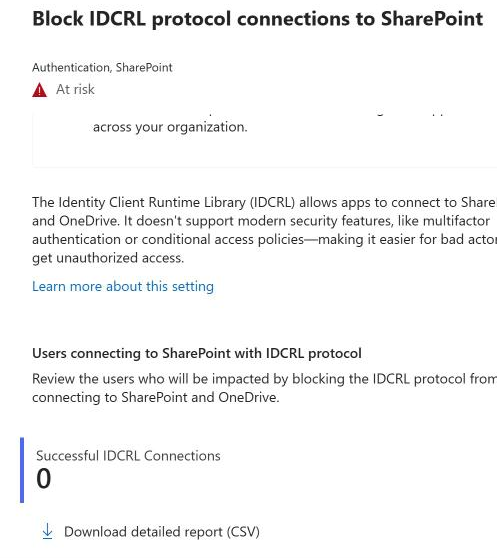
The IDCRL report showed 0 successful IDCRL connections, so no app or user would lose access if I turned the setting on:
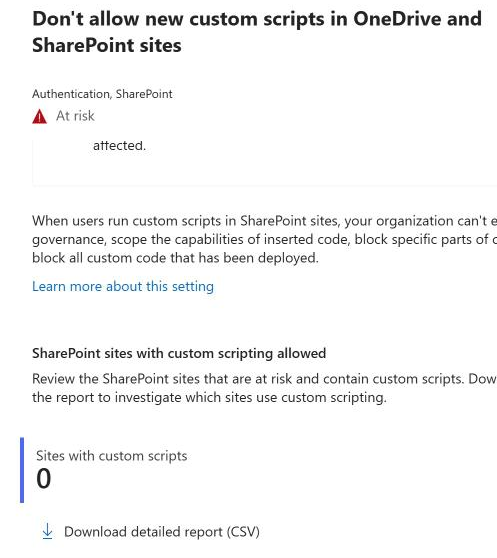
The custom scripts report showed 0 sites with custom scripts. Both reports have a Download detailed report (CSV) link for the user and site names when the count isn’t zero.
2 – Check the same settings with PowerShell
The admin center is fine for one tenant. For several tenants, or to keep a record, read the same values with the SharePoint Online Management Shell. Each SharePoint baseline setting maps to a Get-SPOTenant property:
LegacyBrowserAuthProtocolsEnabled: legacy browser authentication, baseline FalseLegacyAuthProtocolsEnabled: IDCRL, baseline FalseDisableSharePointStoreAccess: Microsoft Store for SharePoint, baseline TrueRestrictResourceAccountAccess: Teams Rooms resource accounts, baseline True
Get-MttBaselineSharePointSetting reads them and says which ones meet the baseline. On my tenant the result matched the admin center line for line:

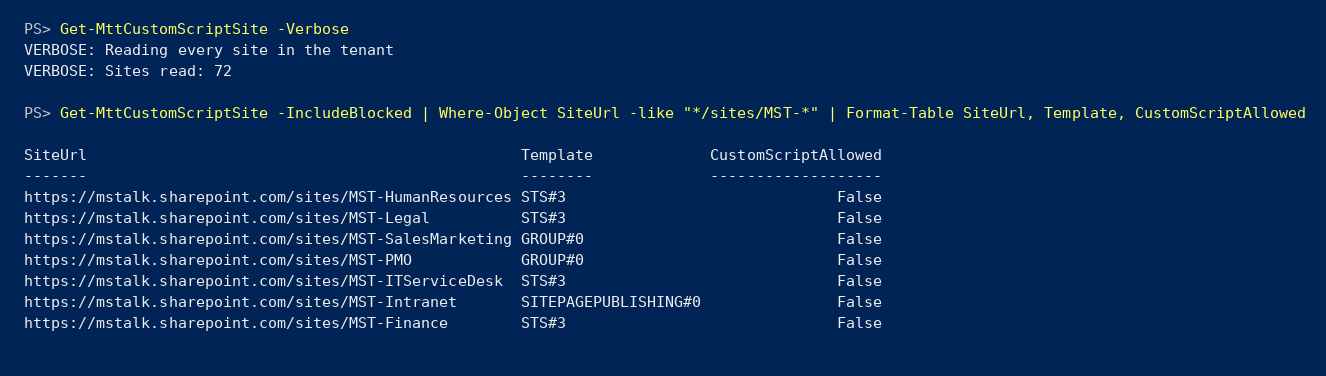
Custom scripts are the odd one. The admin center shows At risk, yet every one of my 72 sites already blocks custom script (DenyAddAndCustomizePages is Enabled). Today an admin can still allow custom script on a site for up to 24 hours (Allow or prevent custom script); the baseline setting removes that option for good. SharePoint Online Management Shell 16.0.27814.12015 has no tenant property for it, so Get-MttCustomScriptSite checks the sites instead:
The same module version has no properties for the 2026 SharePoint settings either (classic pages, scoped access for high-privileged apps, pre-authenticated URLs). Use the admin center for those once they arrive.
What Baseline Security Mode 2026 adds for SharePoint and Teams
These are listed on the settings page but were not on my tenant yet:
- Block creation and editing of classic pages in SharePoint sites. Existing published pages stay viewable.
- Block third-party apps that use high-privileged access to SharePoint and OneDrive unless their access is scoped.
- Disable pre-authenticated (TempAuth) URLs for third-party apps.
- Require external users to wait in the Teams lobby, and don’t let Microsoft 365 trial tenants federate with your organization.
- Block chats started by Teams free accounts, and stop meeting participants changing their display names.
The classic pages setting is the one to plan for if you still run publishing or wiki pages from a migration. I’ll update this post when the 2026 settings show up on my tenant.
Try it yourself
Both functions are read-only (SharePoint Online Management Shell, SharePoint Administrator):
Connect-SPOService -Url "https://mstalk-admin.sharepoint.com"   # Replace with your own
. .\Get-MttBaselineSharePointSetting.ps1
. .\Get-MttCustomScriptSite.ps1
Get-MttBaselineSharePointSetting | Export-Csv .\BaselineSharePoint.csv -NoTypeInformation
Get-MttCustomScriptSite -IncludeBlocked | Export-Csv .\CustomScriptSites.csv -NoTypeInformation
Get-MttBaselineSharePointSettingcolumns: Setting, TenantProperty, CurrentValue, BaselineValue, MeetsBaseline.Get-MttCustomScriptSitecolumns: SiteUrl, Title, Template, DenyAddAndCustomizePages, CustomScriptAllowed. Without-IncludeBlockedit returns only the sites that allow custom script.- In PowerShell 7, load the module with
Import-Module Microsoft.Online.SharePoint.PowerShell -UseWindowsPowerShellfirst.
The full scripts are on my GitHub: SharePoint-Baseline-Security-Mode



No Comments