

In my previous post How to monitor Microsoft 365 Copilot and agents usage in your organization, i have shared about Copilot and Agents usage details, i got some valuable feedback along with the minimum permissions required for those roles and how to view user names in usage reports.
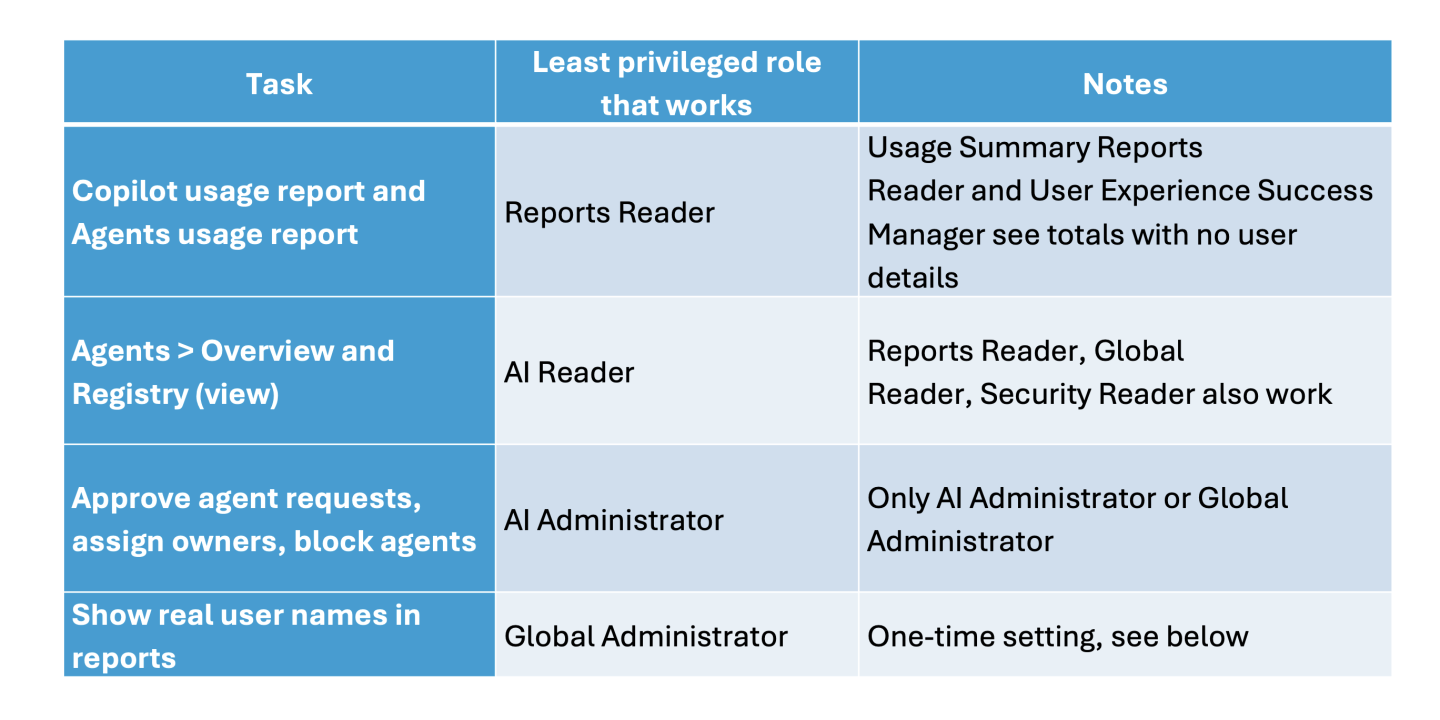
This is the similar scenario when I set up Copilot monitoring for a client, the first request from their service desk was “just give us Global Reader”. Global Reader isn’t on Microsoft’s current list of roles for the usage reports, and it’s far more access than a reporting team needs anyway. Here is what each monitoring task actually needs, checked against Microsoft Learn in October 2026.
Roles in the Microsoft 365 admin center
The usage reports and the Agents pages use different role lists. That’s the part people miss.
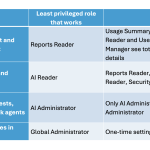
| Task | Least privileged role that works | Notes |
|---|---|---|
| Copilot usage report and Agents usage report | Reports Reader | Usage Summary Reports Reader and User Experience Success Manager see totals with no user details |
| Agents > Overview and Registry (view) | AI Reader | Reports Reader, Global Reader, Security Reader also work |
| Approve agent requests, assign owners, block agents | AI Administrator | Only AI Administrator or Global Administrator |
| Show real user names in reports | Global Administrator | One-time setting, see below |
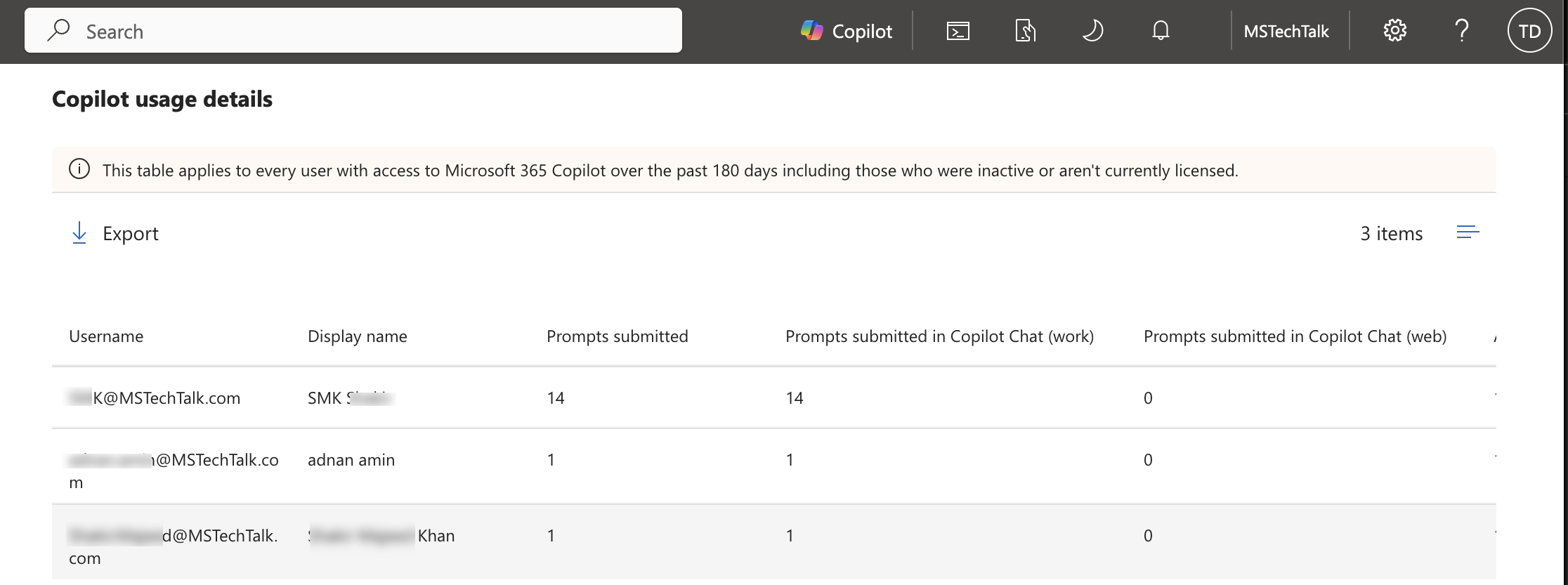
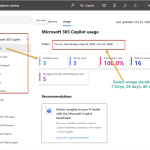
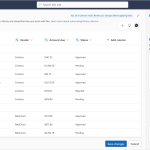
Microsoft Learn’s current list of roles for usage reports is Global Administrator, Exchange Administrator, SharePoint Administrator, Usage Summary Reports Reader, Reports Reader, Teams Administrator, Teams Communications Administrator, User Experience Success Manager and AI Administrator. Older versions of that page also listed Global Reader (with no user details). The live page no longer does. To verify this i have tested with user with Global Reader role, the usage report still showing some details but usage details was empty as shown in below screenshot.
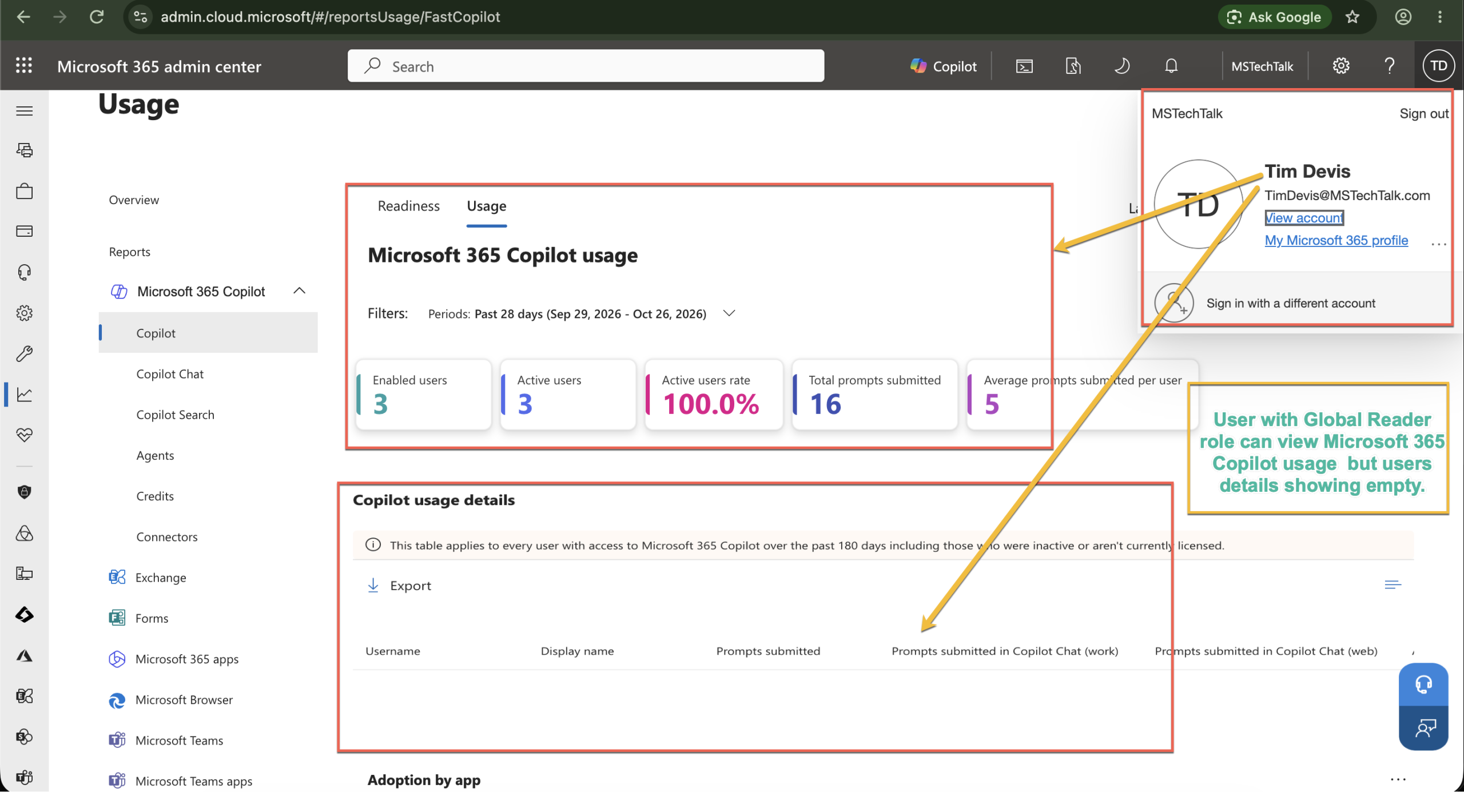
AI Reader is not on the usage report list either. So a monitoring account normally needs two roles: Reports Reader for the reports and AI Reader for the Agents pages. I prefer that pair over AI Administrator, because a reporting account should never be able to approve or block an agent.
Product admins only see their own product. A Power Platform Administrator can govern Copilot Studio agents in the Power Platform admin center, not the tenant-wide Agents Registry.
Assign the roles in Microsoft 365 admin center
- Sign in to the Microsoft 365 admin center as a Privileged Role Administrator or Global Administrator.
- Select Roles > Role assignments.
- Search for AI Reader and select it.
- Select Assigned > Add users, pick the monitoring account and select Add.
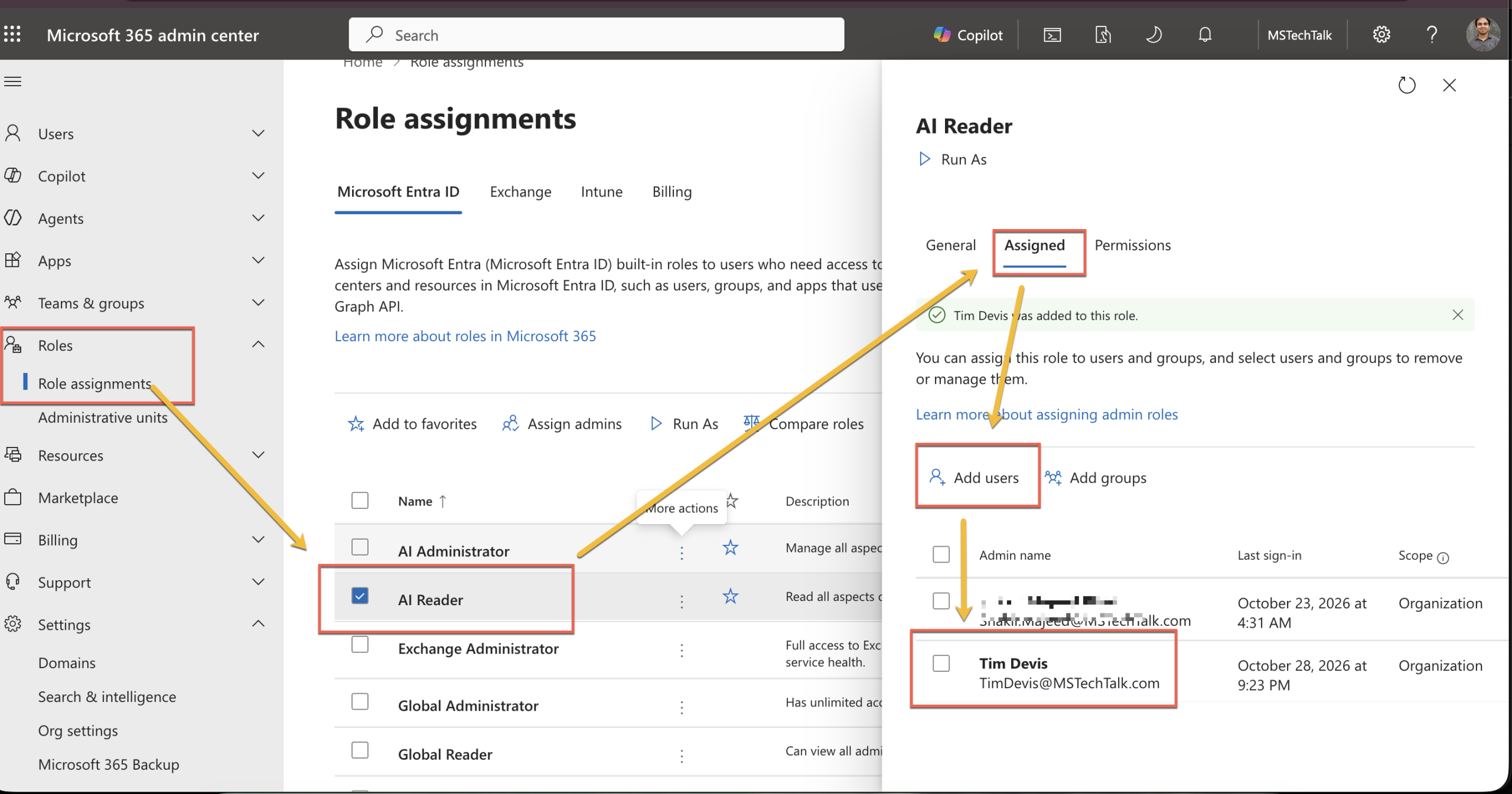
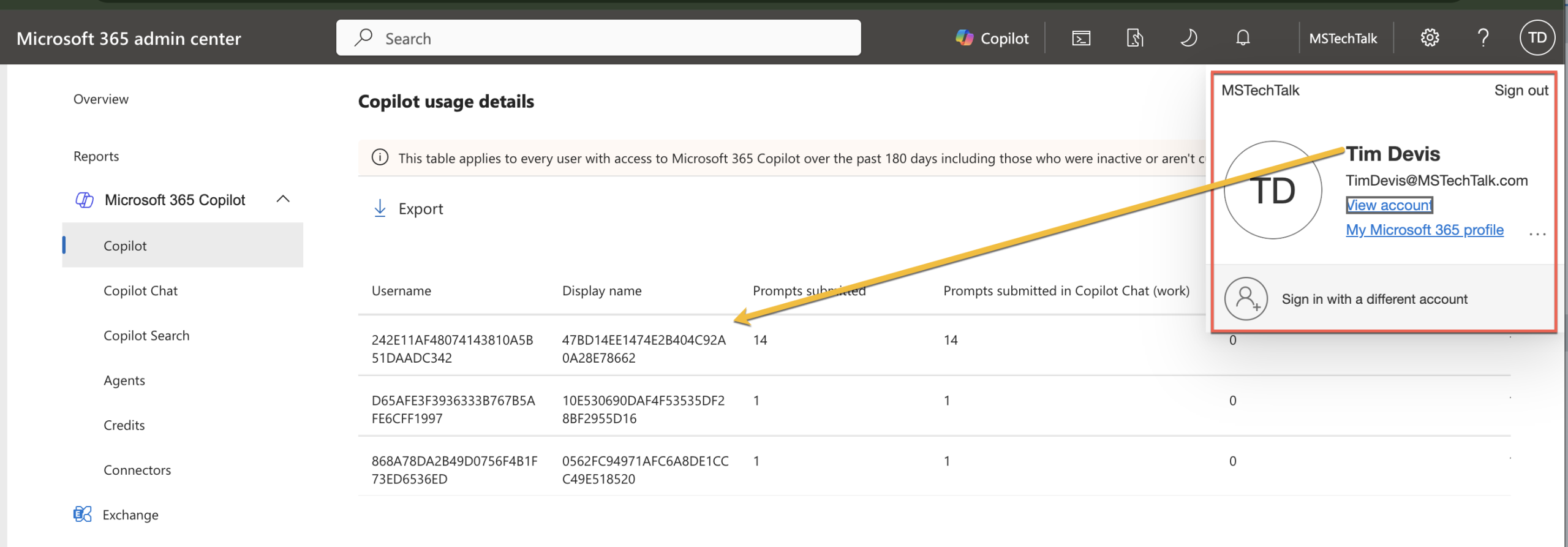
- Repeat for Reports Reader. Now you can start seeing User details with minimum access.
If you use Privileged Identity Management, make these eligible assignments with a reason, not permanent ones.
Show user names in usage reports
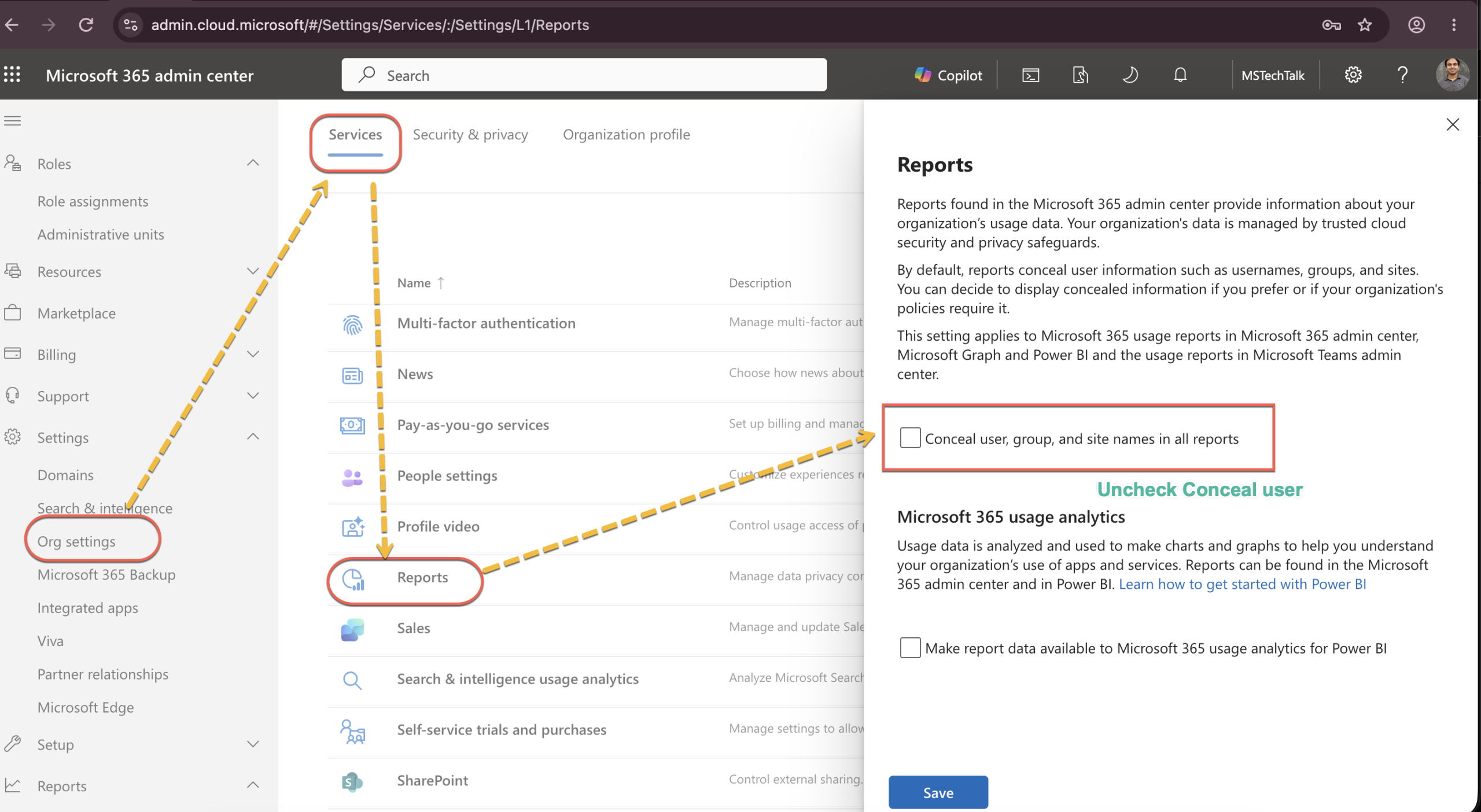
User names in every usage report are hashed by default. Only a Global Administrator can change this.
- In the admin center, select Settings > Org settings.
- On the Services tab, select Reports.
- Clear Conceal user, group, and site names in all reports.
- Select Save.
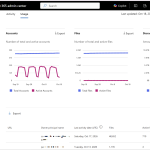
Now if you recheck the Copilot usage details again it is now showing Display name and Username/email
The setting also applies to the same reports in Microsoft Graph, Power BI and the Teams admin center, and the change is recorded in the Purview audit log. Get sign-off from whoever owns privacy before you clear it.
Purview audit and Power Platform
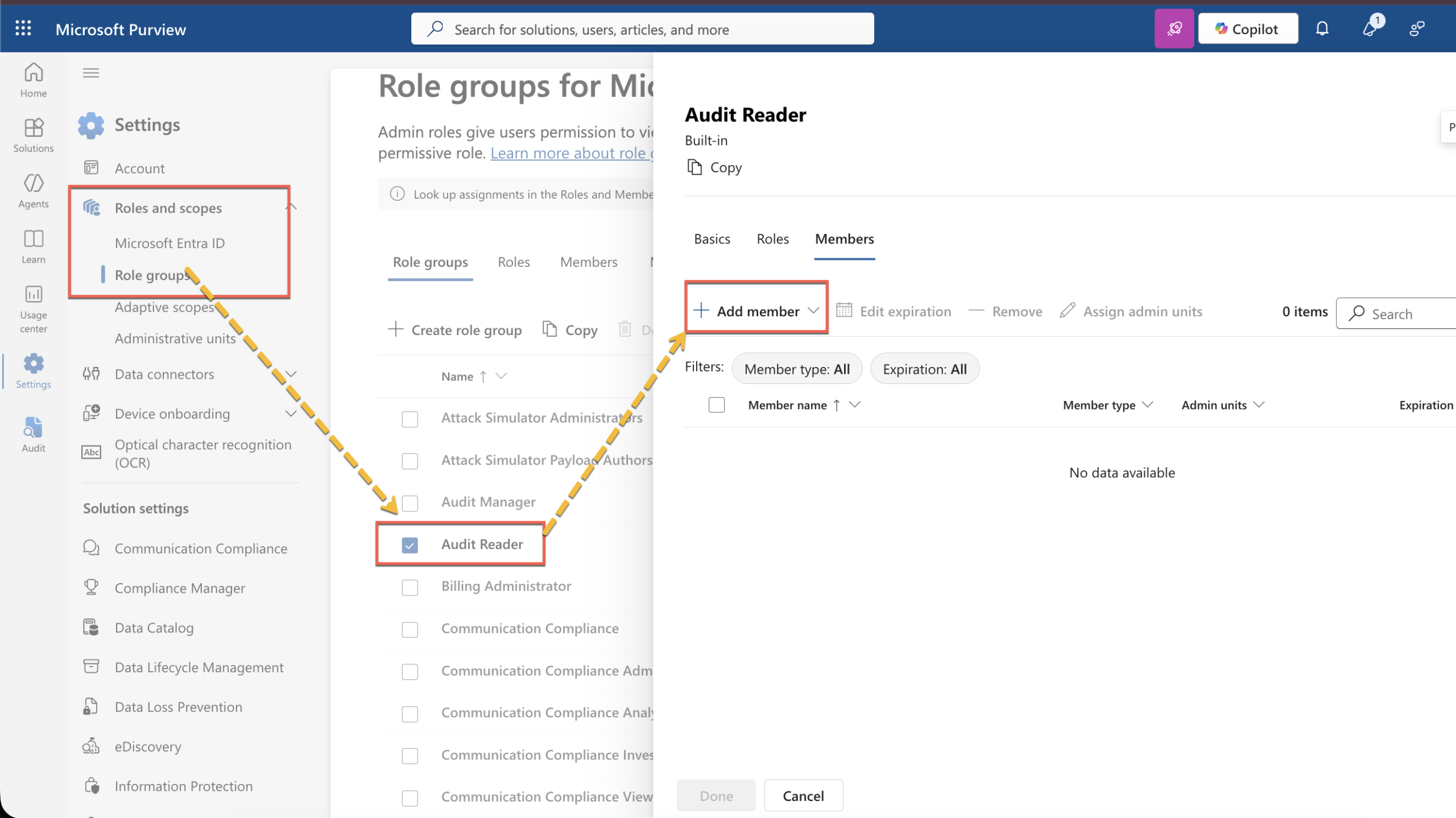
For per-prompt detail in the Purview audit log, the account needs the View-Only Audit Logs or Audit Logs role in the Microsoft Purview portal. Entra roles alone don’t cover this. The simplest route is the built-in Audit Reader role group, which can search and export but can’t switch auditing off. Add the account in Purview under Settings > Roles and scopes > Role groups > Audit Reader. Skip Audit Manager for a reporting account, since it can change audit settings.
Agent risk links behave differently. Purview Insider Risk Management alerts on an agent need IRM Analyst or IRM Investigator. Learn states that Global Administrator alone isn’t enough.
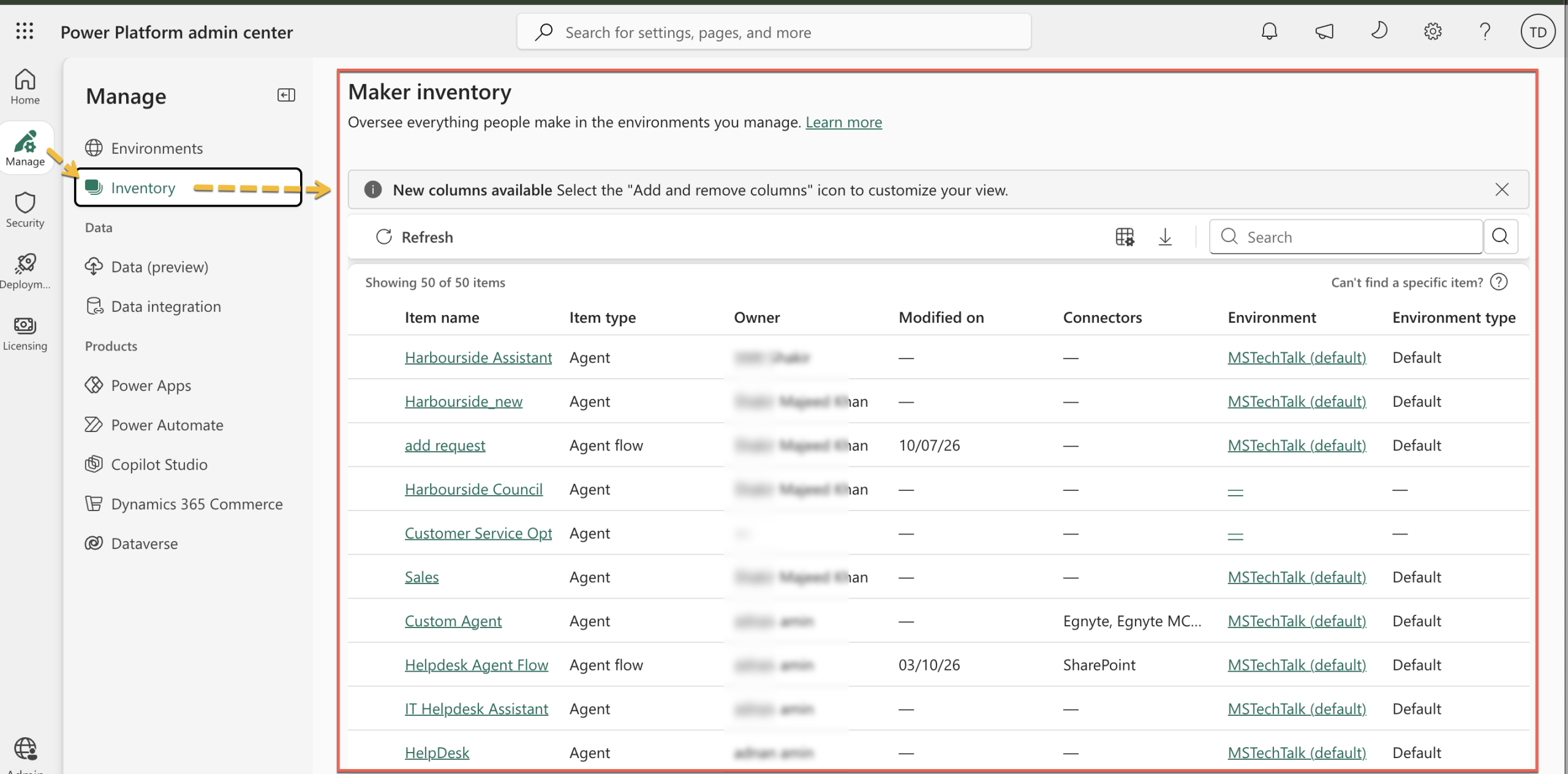
For the Copilot Studio inventory in the Power Platform admin center (Manage > Inventory), AI Reader or AI Administrator see agents, agent flows and environments only. Power Platform Administrator or Global Reader see everything, including apps and cloud flows. The Power Platform security roles (Environment Admin and so on) don’t work for this page.
Permissions for the PowerShell script
The Get-CopilotAgentUsage.ps1 script from part 1 signs in with Microsoft Graph PowerShell (Connect-MgGraph) and only reads data. It asks for these delegated permissions:
| Data | Graph permission |
|---|---|
| Copilot usage report | Reports.Read.All |
| Agent list, usage and status | CopilotPackages.Read.All |
| Agent owners | AgentIdentity.Read.All, User.ReadBasic.All |
The signed-in account needs AI Administrator (or Global Administrator). This is the one place I don’t use the reader pair from above, because Learn names only those two roles for the agent list API. AI Administrator also opens the usage reports, so one role covers both calls. I’d assign it through PIM and activate it only when you run the script.
Expect an admin consent prompt the first time you run it with these scopes.
Note: the agent list API (/copilot/admin/catalog/packages) needs a Microsoft Agent 365 licence in the tenant. Without it, the script shows a warning and still writes the usage CSV.

Adnan, a distinguished professional, boasts an impressive track record as a Microsoft MVP, having achieved this prestigious recognition for the eighth consecutive year since 2015. With an extensive career spanning over 18 years, Adnan has honed his expertise in various domains, notably excelling in SharePoint, Microsoft 365, Microsoft Teams, the .Net Platform, and Microsoft BI. Presently, he holds the esteemed position of Senior Microsoft Consultant at Olive + Goose.Notably, Adnan served as the MCT Regional Lead for the Pakistan Chapter from 2012 to 2017, showcasing his leadership and commitment to fostering growth within the tech community. His journey in the realm of SharePoint spans 14 years, during which he has undertaken diverse projects involving both intranet and internet solutions for both private and government sectors. His impact has transcended geographical boundaries, leaving a mark on projects in the United States and the Gulf region, often collaborating with Fortune 500 companies.Beyond his roles, Adnan is a dedicated educator, sharing his insights and knowledge as a trainer. He also passionately advocates for technology, frequently engaging with the community through speaking engagements in various forums. His multifaceted contributions exemplify his dedication to the tech field and his role in driving its evolution.


No Comments