

If you spend most of your day in Microsoft Teams meetings, the real challenge usually starts after the meeting ends. People forget decisions, action items get buried in chat threads, and someone always asks for the recording or notes again.
Microsoft Teams now includes multiple meeting features designed to solve this problem. The confusing part is that many organizations use the terms Meeting Notes, Recap, Intelligent Recap, and Copilot interchangeably even though they do different things.
Meeting Notes help teams collaborate during the meeting. Recap helps users review meetings afterward. Intelligent Recap adds AI powered insights and shortcuts. Copilot lets users interact with meeting content using natural language prompts before, during, and after meetings.
This guide explains the difference between these features in a practical way so you can decide when to use each one.
Quick comparison
| Feature | What it does | Best for | AI involved? | Typical requirement |
|---|---|---|---|---|
| Meeting Notes / Collaborative Notes | Lets attendees create agendas, take notes, and assign tasks together | Live meeting planning and shared action tracking | No, unless Copilot is used separately | Microsoft Teams with Loop-based collaborative notes |
| Standard Recap | Collects meeting recording, transcript, notes, files, agenda, and tasks in one place | Reviewing a meeting after it ends | Not necessarily | Meeting must be recorded or transcribed |
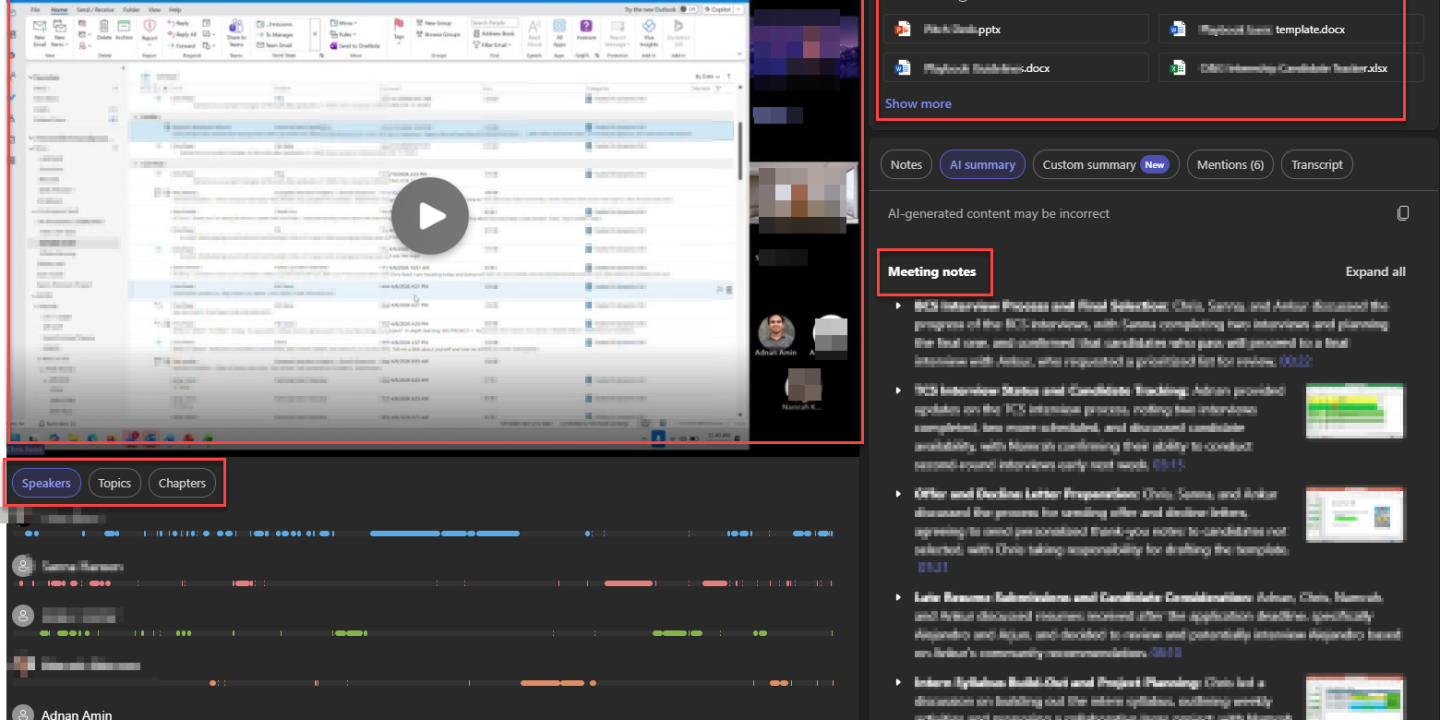
| Intelligent Recap | Adds AI notes, recommended tasks, timeline markers, speakers, topics, and chapters | Catching up quickly without watching the full meeting | Yes | Teams Premium or Microsoft 365 Copilot license |
| Copilot in Teams meetings | Answers questions, summarizes discussion, identifies action items, and helps with follow-up | Real-time meeting help and deeper post-meeting Q&A | Yes | Microsoft 365 Copilot license and the right meeting settings |
Microsoft states that standard Recap becomes available after Teams meetings, webinars, town halls, and calls that are recorded or transcribed. It can include recordings, transcripts, files, notes, agendas, and follow-up tasks.
Intelligent Recap extends that experience by adding AI generated meeting highlights and navigation features that help users quickly find important discussion points.
What are Microsoft Teams Meeting Notes?
Microsoft Teams Meeting Notes are collaborative notes that participants can use to prepare agendas, capture decisions, and track follow-up actions during a meeting.
These notes are powered by Microsoft Loop components which means they stay synchronized across Microsoft 365 apps including Teams, Outlook, Word, and Whiteboard.
In real projects, this becomes much more useful than basic note taking because the entire team works in the same shared space instead of maintaining separate personal notes.
Common use cases for Meeting Notes
- Preparing meeting agendas before the session starts
- Capturing discussion points during meetings
- Assigning tasks with owners and due dates
- Tracking action items across teams
- Continuing discussions later in Microsoft 365 apps
One of the biggest advantages is task integration. Tasks created inside Collaborative Notes can automatically sync with Microsoft Planner and Microsoft To Do.
That makes Meeting Notes more practical than simply typing notes in a document or chat window.
When should you use Meeting Notes?
Meeting Notes work best when the meeting requires structure and accountability.
For example, weekly project meetings become much more organized when the agenda is already prepared before attendees join. Instead of spending the first ten minutes deciding what to discuss, teams can immediately focus on decisions and blockers.
Meeting Notes are also useful when multiple departments are involved because everyone can see assigned owners and deadlines in real time.
What is Microsoft Teams Recap?
Microsoft Teams Recap is the post meeting experience inside Teams that helps users review everything captured during a meeting.
Instead of searching through chat history, users can open the Recap section to access recordings, transcripts, shared files, notes, and follow-up tasks from one location.
Think of Recap as the meeting archive.
What Recap includes
| Recap item | Why it matters |
|---|---|
| Recording | Lets people replay the meeting without asking others what happened |
| Transcript | Makes spoken discussion searchable and easier to scan |
| Shared files | Keeps meeting materials tied to the meeting context |
| Notes and agenda | Shows what the team planned to discuss and what was captured |
| Follow-up tasks | Helps connect discussion to ownership and next steps |
Microsoft also allows recurring meetings to maintain separate recap experiences for each meeting occurrence which is useful for long running projects and operational meetings.
When should you use Recap?
Recap is useful when:
- You missed a meeting
- You joined late
- You need to verify a decision
- You want to review shared content
- You need quick access to meeting files or transcripts
Managers and project leads often rely on Recap to stay informed without attending every meeting personally.
The experience depends heavily on recording and transcription settings. If transcription was not enabled, some recap functionality will be limited.
What is Intelligent Recap in Microsoft Teams?
Intelligent Recap is the AI enhanced version of the standard Teams Recap experience.
Instead of only showing meeting assets, Intelligent Recap helps users navigate meetings faster using AI generated summaries, topics, speaker tracking, timeline markers, and recommended tasks.
This is usually the feature people refer to when they say Teams automatically summarized a meeting.
Intelligent Recap features
| Feature | What it helps you do |
|---|---|
| AI meeting notes | Scan the key points without writing everything manually |
| Recommended tasks | Spot possible follow-ups from the discussion |
| Speaker markers | Jump to the parts where a specific person spoke |
| Name mention markers | Find moments where your name came up |
| Join and leave markers | Review what happened while you were away |
| Screen share markers | Jump to sections where someone presented content |
| Topics and chapters | Navigate the meeting by subject instead of scrubbing through the recording |
For organizations running many meetings daily, this feature can save a significant amount of time because users no longer need to watch full recordings just to find a few important minutes.
Licensing requirements
Intelligent Recap typically requires:
- Microsoft Teams Premium
- Microsoft 365 Copilot licensing
- Proper admin configuration and recording policies
Microsoft also notes that webinar and town hall attendees usually do not receive the full Intelligent Recap experience. Access is generally limited to organizers, presenters, and co-organizers.
What is Copilot in Microsoft Teams meetings?
Copilot in Teams meetings is the interactive AI assistant that works with live meeting conversations and meeting transcripts.
Unlike Recap, which mainly organizes content, Copilot allows users to ask questions and generate outputs from meeting discussions.
For example, users can ask:
- What decisions were made?
- What action items were assigned?
- Where did participants disagree?
- What did I miss before joining?
- Create a follow-up email from this discussion
This changes Teams meetings from passive recordings into searchable conversations.
Example Copilot prompts for Teams meetings
| Goal | Prompt you can try |
|---|---|
| Catch up after joining late | Summarize what I missed so far. |
| Find decisions | What decisions were made in this meeting? |
| Clarify disagreement | Where did people disagree, and who raised each concern? |
| Create follow-up | List the action items with owners and deadlines if mentioned. |
| Compare ideas | Create a table of the options discussed with pros and cons. |
| Prepare a recap email | Draft a short meeting recap for stakeholders. |
One practical benefit of Copilot is that it reduces the amount of manual follow-up work after meetings. Teams can generate summaries, action lists, and stakeholder updates much faster.
Does Copilot need transcription?
This is one of the most common questions administrators and users ask.
Microsoft states that transcription is not always required just to enable Copilot during a meeting. However, meeting transcripts are required if users want to ask Copilot questions after the meeting ends.
Without transcription, post meeting Copilot experiences become very limited.
Copilot meeting settings
| Organizer setting | What it means |
|---|---|
| During and after the meeting | Transcription is required, and Copilot can be used during the meeting and afterward |
| Only during the meeting | Copilot can use speech-to-text during the meeting, but unsaved speech-to-text data and Copilot interactions are not available afterward |
| Off | Copilot is disabled for the meeting, and recording and transcription are also disabled for that meeting |
Organizations should also know that Copilot may not work for meetings hosted outside their organization depending on tenant configuration and licensing policies.
Meeting Notes vs Recap vs Copilot
The best approach is not choosing one feature over another. The real value comes from using them together.
| Meeting stage | Best tool | Why |
|---|---|---|
| Before | Meeting Notes | Build agendas and align participants |
| During | Meeting Notes + Copilot | Capture decisions while using AI assistance |
| After | Recap / Intelligent Recap + Copilot | Review discussions and generate follow-up content |
A well organized meeting still matters. AI works best when meetings already have clear agendas, structured conversations, and proper transcription enabled.
Important limitations to Understand
AI generated meeting content is helpful but not always perfect.
Microsoft clearly states that AI generated summaries, notes, and tasks can occasionally be inaccurate or incomplete because they depend on transcript quality and context interpretation.
For sensitive discussions involving legal approvals, HR matters, contracts, or financial decisions, teams should always verify the transcript manually before sharing AI generated summaries externally.
Organizations should also remember that licensing and Teams admin policies can directly impact feature availability. If users cannot access Intelligent Recap or Copilot, the issue is often related to:
- Licensing
- Recording policies
- Transcription settings
- Meeting sensitivity labels
- Teams admin configuration
Recommended workflow for better Teams meetings
Here is a simple workflow many organizations are now adopting:
- Add Collaborative Notes while scheduling the meeting
- Prepare the agenda before attendees join
- Assign owners for important follow-up actions
- Enable transcription when organizational policies allow it
- Use Copilot during the meeting for quick summaries and clarification
- Review Intelligent Recap after the meeting
- Verify AI generated notes before sharing externally
This combination gives teams both human oversight and AI assistance without relying entirely on automation.
Microsoft Teams Meeting Notes, Recap, Intelligent Recap, and Copilot are designed to improve different stages of the meeting experience.
Meeting Notes help teams stay organized. Recap helps users review discussions later. Intelligent Recap saves time with AI powered highlights. Copilot adds an interactive layer that turns meeting discussions into searchable insights and actionable follow-up content.
The most effective Teams meetings happen when these features are used together instead of separately.
Start with a clear agenda. Enable transcription where appropriate. Use Meeting Notes during discussions. Review Intelligent Recap afterward. Then use Copilot to turn discussions into action items, summaries, and follow-up communication.

Adnan, a distinguished professional, boasts an impressive track record as a Microsoft MVP, having achieved this prestigious recognition for the eighth consecutive year since 2015. With an extensive career spanning over 18 years, Adnan has honed his expertise in various domains, notably excelling in SharePoint, Microsoft 365, Microsoft Teams, the .Net Platform, and Microsoft BI. Presently, he holds the esteemed position of Senior Microsoft Consultant at Olive + Goose.Notably, Adnan served as the MCT Regional Lead for the Pakistan Chapter from 2012 to 2017, showcasing his leadership and commitment to fostering growth within the tech community. His journey in the realm of SharePoint spans 14 years, during which he has undertaken diverse projects involving both intranet and internet solutions for both private and government sectors. His impact has transcended geographical boundaries, leaving a mark on projects in the United States and the Gulf region, often collaborating with Fortune 500 companies.Beyond his roles, Adnan is a dedicated educator, sharing his insights and knowledge as a trainer. He also passionately advocates for technology, frequently engaging with the community through speaking engagements in various forums. His multifaceted contributions exemplify his dedication to the tech field and his role in driving its evolution.




No Comments