

SharePoint migrations involve moving data from one SharePoint environment to another. This could be from an older version of SharePoint to a newer one, from on-premises to online, or from one site collection to another. Migrations are often necessary to take advantage of new features, improve performance, or consolidate sites. However, they can be complex and time-consuming, with a risk of data loss or corruption.
To ensure a successful migration, it’s crucial to verify that all data has been correctly transferred and nothing has been lost or corrupted. This is where a post-migration comparison report comes in handy.
Beyond Item Count Validation
While the PowerShell-based comparison report helps validate that content has been migrated successfully, it does not provide visibility into permission-related issues.
Item counts can confirm that documents, libraries, and lists have been transferred to the target environment, but they do not verify whether users have the correct access after migration. In many SharePoint migrations, permission issues are not introduced by the migration itself; rather, they originate from complex permission structures, broken inheritance, or externally shared content that already existed in the source environment.
Tool like ShareGate can complement the migration validation process by providing visibility into permission inheritance, external sharing, and access discrepancies that may not be apparent through content comparison alone. Identifying these issues early helps administrators establish a clean baseline and reduce post-migration support requests.
Post-Migration Comparison Report with PowerShell
Add-Type -Path "C:\Program Files\Common Files\microsoft shared\Web Server Extensions\16\ISAPI\Microsoft.SharePoint.Client.dll"
Add-Type -Path "C:\Program Files\Common Files\microsoft shared\Web Server Extensions\16\ISAPI\Microsoft.SharePoint.Client.Runtime.dll"

function PostMigrationComparisonReport($siteUrlSource, $siteUrlDestination)
{
    $Cred= Get-Credential
    $credentials = New-Object Microsoft.SharePoint.Client.SharePointOnlineCredentials($Cred.Username, $Cred.Password)

    $ctxSource = New-Object Microsoft.SharePoint.Client.ClientContext($siteUrlSource)
    $ctxSource.Credentials = $credentials

    $ctxDestination = New-Object Microsoft.SharePoint.Client.ClientContext($siteUrlDestination)
    $ctxDestination.Credentials = $credentials

    $webSource = $ctxSource.Web
    $listsSource = $webSource.Lists
    $ctxSource.Load($listsSource)
    $ctxSource.ExecuteQuery()

    $webDestination = $ctxDestination.Web
    $listsDestination = $webDestination.Lists
    $ctxDestination.Load($listsDestination)
    $ctxDestination.ExecuteQuery()

    Write-Host -ForegroundColor Yellow "The site URL is" $webSource.Title
    Write-Host -ForegroundColor Yellow "The dest site URL is" $webDestination.Title

    $tableListNames =@()
    $destinationListsDict = @{}
    foreach ($listDestination in $listsDestination)
    {
        $destinationListsDict[$listDestination.Title] = $listDestination
    }

    foreach ($listSource in $listsSource)
    {
        Write-Host -ForegroundColor Yellow "List name: " $listSource.Title
        $o = @{
            "sListName" = $listSource.Title
            "sNo. of Items" = $listSource.ItemCount
            "sLastItemModifiedDate" = $listSource.LastItemUserModifiedDate
            "dListName" = "NotSet"
            "dItemsCount" = "NotSet"
            "dLastItemModifiedDate" = "NotSet"
        }

        if ($destinationListsDict.ContainsKey($listSource.Title))
        {
            $listDestination = $destinationListsDict[$listSource.Title]
            Write-Host -ForegroundColor Green "List name: " $listDestination.Title
            $o["dListName"] = $listDestination.Title
            $o["dItemsCount"] = $listDestination.ItemCount
            $o["dLastItemModifiedDate"] = $listDestination.LastItemUserModifiedDate
        }
        $tableListNames += $o
    }
    return $tableListNames
}
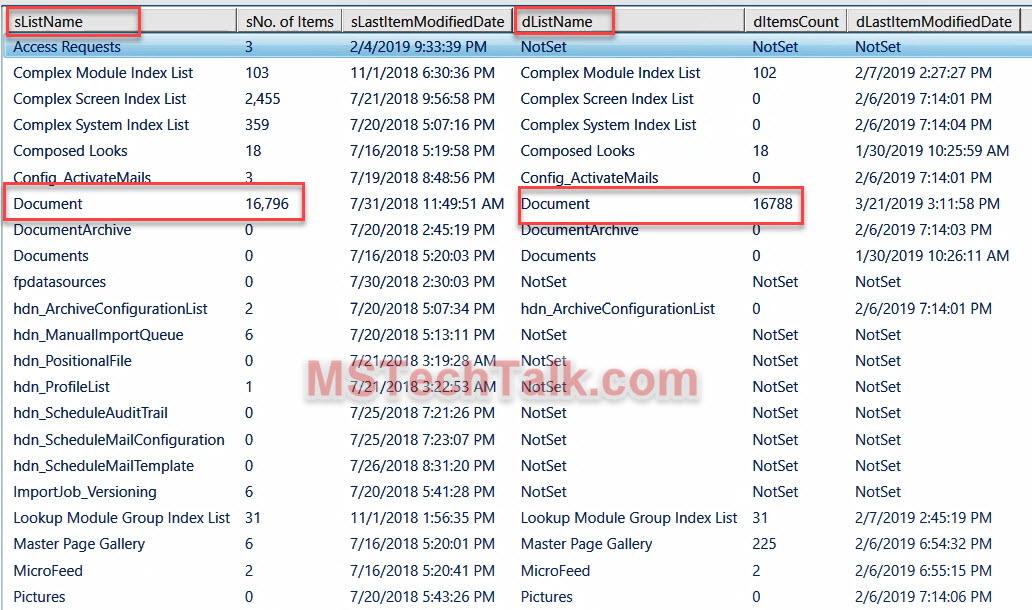
The provided PowerShell script generates a post-migration comparison report between two SharePoint sites. It’s particularly useful when you’ve migrated content from one SharePoint site to another and you want to verify that the migration was successful.
The script defines a function PostMigrationComparisonReport that takes two parameters: the source site URL and the destination site URL.
The function prompts for credentials using Get-Credential and creates a SharePoint Online credentials object. It then creates ClientContext objects for both the source and destination SharePoint sites.
The script fetches the Web objects and the Lists objects for both sites. It then prints the titles of the source and destination sites and initializes an empty array $tableListNames to store the comparison data.
The script then loops through each list in the source site, prints the list name, and creates a new PSObject to store the list details. For each list in the source site, it loops through each list in the destination site. If it finds a list with the same title, it updates the PSObject with the details of the list from the destination site.
The PSObject is then added to the $tableListNames array. Finally, the function returns the $tableListNames array which contains the comparison data for all the lists in the source and destination sites.
Function call
Now, execute the function PostMigrationComparisonReport, passing the source and destination site URLs as parameters:
PostMigrationComparisonReport "https://MsTalk.sharepoint.com/MsTechTalkSource" "https://MsTalk.sharepoint.com/sites/MsTechTalkDestination" | Out-GridView
Alternatively, export the output as a CSV file to enable Excel viewing capabilities:
PostMigrationComparisonReport "https://MsTalk.sharepoint.com/MsTechTalkSource" "https://MsTalk.sharepoint.com/sites/MsTechTalkDestination" | ExportCsv -Path "C:\ PostMigrationComparisonReport.csv"
Item counts confirm the data arrived. They don’t confirm who can access it. ShareGate gives SharePoint admins a post-migration view that goes beyond list comparison — showing broken permission inheritance, externally shared content, and access that doesn’t match what the source environment intended. The kind of thing that doesn’t surface in a PowerShell report until someone files a ticket.
Most permissions issues in SharePoint Online aren’t created by the migration itself — they’re inherited from a source environment that was already messy, and cutover makes them visible. ShareGate surfaces those gaps before users do, giving admins a clean baseline to work from on day one.

Adnan, a distinguished professional, boasts an impressive track record as a Microsoft MVP, having achieved this prestigious recognition for the eighth consecutive year since 2015. With an extensive career spanning over 18 years, Adnan has honed his expertise in various domains, notably excelling in SharePoint, Microsoft 365, Microsoft Teams, the .Net Platform, and Microsoft BI. Presently, he holds the esteemed position of Senior Microsoft Consultant at Olive + Goose.Notably, Adnan served as the MCT Regional Lead for the Pakistan Chapter from 2012 to 2017, showcasing his leadership and commitment to fostering growth within the tech community. His journey in the realm of SharePoint spans 14 years, during which he has undertaken diverse projects involving both intranet and internet solutions for both private and government sectors. His impact has transcended geographical boundaries, leaving a mark on projects in the United States and the Gulf region, often collaborating with Fortune 500 companies.Beyond his roles, Adnan is a dedicated educator, sharing his insights and knowledge as a trainer. He also passionately advocates for technology, frequently engaging with the community through speaking engagements in various forums. His multifaceted contributions exemplify his dedication to the tech field and his role in driving its evolution.





No Comments